Grading in Classla
Autograded points and your own judgment make one score. The grading view is a roster: every student behind a progress bar with one segment per graded block, so you can see where the whole class is at a glance, then arrow through them one at a time. Everything a student did is on the same screen as the box you type the grade into, and the course gradebook adds it all up the same way the student's own page does.
The Roster
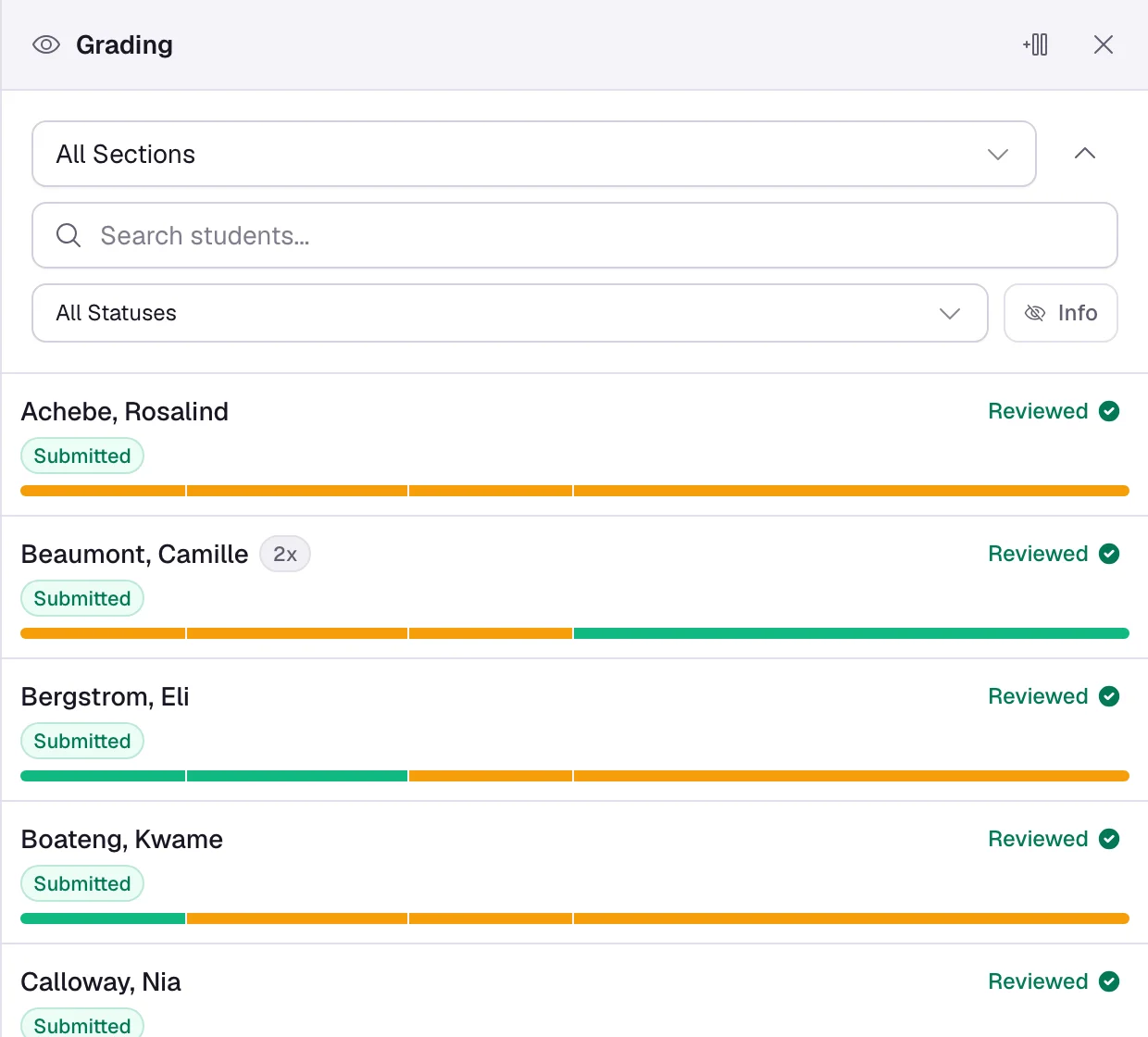
Open Grader Panel from the rail beside an assignment. Each row is a student, a status, a reviewed mark and a progress bar. The roster updates on its own while you watch: when a student starts, submits or is reopened, their row changes without a reload, so you can leave it open during a test.
Above the list are the section filter, Search students... (it matches first and last names), and the status filter. The statuses are Not Started, In Progress, Submitted, Not Reviewed, Needs Re-review, Reviewed, Excused, Late and Pasted from outside, plus Practiced when practice is on for the assignment and Needs release on a lockdown assignment. Classla remembers the section you pick for the course, and the group board of a partner work assignment opens on the same section.
The bar is one segment per graded block. Green is full marks. Amber is any score short of full marks, and that includes a question a student left blank on work they handed in, which scores 0. Grey is a question with no score yet, such as work still in progress. Wider segments are worth more points, and hovering a segment shows the question type, its score and the time the student spent on it. If nine students are amber on the same segment, you can see it without opening anyone's work.
A row can also carry Resubmitting (a student working on a new attempt after handing one in), Late, a count such as 2x for more than one submission, Practiced 3×, a countdown on a timed assignment, and a lockdown pill such as Needs release. Scores, paste pills and the amber "in progress" running score of a student who has not submitted yet stay hidden until you turn on Info, so the roster is safe to project.
The arrow beside the section filter (Hide grading controls) folds away everything but the section filter to give the list more room. Classla remembers the choice, and while a search or a status filter is active a small chip says so.
Grading One Student
Click a name and you get their work. The ← and → keys move to the previous or next student without going back to the list, and the next student opens at the same question you were reading, even when their answers are longer or shorter. The Grading Controls card holds Autograded Score and Raw Rubric Score, both read-only, Score Modifier, which you type, Final Grade, and Feedback. Everything saves as you type.
- Final Grade
- The autograded score, plus the rubric score when the rubric counts toward the final grade, plus the modifier, rounded to two decimals.
- Score Modifier
- A number added to this one student's grade, or taken off if it is negative, with no limit. Nothing in Classla uses it automatically. Late work is only flagged, never penalized, so a late penalty, a curve or a bump for one student is a modifier you type yourself (Change Grade in the gradebook writes the same box). A blank question scores 0 and a student is never blocked from submitting because of it.
- Mark as Reviewed
- The button that says you are finished with this one, and it is what "When marked reviewed" release means. It also clears Pending grading. When resubmissions are on and the assignment shows correct answers or opens practice, marking an attempt reviewed also ends resubmission for that attempt, so a student cannot read the key and fix their answers. You can also tick the reviewed mark on a roster row without opening the student. If a student resubmits after you reviewed them, their row turns into Needs Re-review on its own.
- Mark as Excused
- A real status rather than a zero.
The arrow beside Back to Students (Hide grading actions) folds away every button but Mark as Reviewed, so more of the rubric fits on screen. The student arrows and any alerts stay. Classla remembers the choice on this browser.
Alerts sit at the top of a student's work when there is something to look at: an amber row per coding block with outside pastes, and one per coding block whose nearest match in the class is above the similarity line, with Compare. Both are explained in Grading code, along with the grader's view of a coding block, its test runs and the history timeline.
Earlier Attempts and Reopening
A student with more than one submission has a dropdown above their work that reads Latest Submission. It opens Submission History: every attempt with its time, its status and, for one you graded, its grade and whether it was reviewed. Pick an older one to read it. The page then says "Viewing an older submission. Grades are locked." and the grading controls are read-only until you press View latest. When a student is working on a new attempt after handing one in, a note reads "Student has an in-progress resubmission".
To hand submitted work back, open the student and press Reopen for Ada (the button carries the student's first name), or Reopen all submitted above the roster for everyone who has handed in. The class-wide one counts the whole class, not only the students your filter shows, and students still working are not affected. Either one gives the student a fresh attempt with their answers filled in; what they submitted stays in their submission history, and their next submit counts as a second submission. It works with Allow Resubmissions off, so a test you had to clarify a question on can go back out without opening resubmissions for the whole class. On a timed assignment a student whose time ran out gets a fresh timer, and if correct answers are shown after submission the dialog warns you the student has already seen them. Reopen leaves out a student the assignment has closed for, or one past their due date with late work off, because they could not work on the new attempt; the dialog says so, and you give them a later date in Schedule first. Until they hand the new attempt in, the gradebook and their course grade keep the attempt you already graded, so reopening never empties a cell.
When the student hands the new attempt in, only your written Feedback is copied onto it. Block score overrides, rubric ticks, the Score Modifier and the reviewed mark start empty, so the row reads Needs Re-review and you grade it again. The gradebook shows the latest handed-in attempt, not the best one, and the earlier attempts stay readable in Submission History.
During a Test: Timers, Lockdown and Submitting for a Student
Timers
On a timed assignment, each student who has started gets a timer card in the grader with the time left (or Time expired), Pause or Resume, and a minutes box with Extend. Above the roster, a minutes box with Extend All and the buttons Pause All and Resume All do the same for the class. A paused timer shows as Paused on the row. Extending a student whose timer ran out reopens the work the timer submitted for them, so they can carry on. An extension never runs past the student's own due date while that date is still ahead.
Lockdown
On a lockdown assignment the student's card shows how often they left the tab and for how long, with Let back in for a paused student and Lift lockdown to end lockdown for them. Above the roster, Let everyone back in and Lift lockdown for all do it for the class. The full record of each student's leaves is in the Integrity panel: Lockdown activity.
Submit for Student (Override)
When a student's current attempt is still in progress, the grader shows Submit for Student (Override). It hands the attempt in for them as it stands, whatever the due date, word limits or required questions say, and it is never marked late. Use it for the student who closed the laptop without pressing Submit.
Overriding a Block's Score
Every graded block shows its score as a chip. Click it, type a number, press Enter. A block's score cannot go above the points the block is worth: Classla says "This block is worth N points. Enter N or less, or raise the block's point value." To give more than a block is worth, use a rubric item marked Extra Credit (not counted in total) or the Score Modifier. The chip keeps a pencil and its tooltip tells you what the autograder had said, so an override always reads as one, and its reset button puts back the current autograded score.
Changing a Question After Students Have Submitted
A student's score on each question is worked out when they submit and then stays as it was. If you later change an answer key, a test or a question's points, those scores do not change on their own. The points possible do follow the edited assignment right away, so until you rescore, the gradebook compares old earned scores with the new possible points. Press Rerun Autograders after the edit to rescore everyone. Scores you typed by hand are kept.
Use Rerun Autograders when you wrote an answer key wrong. Fix the key, then pick the current student, everyone shown, or a chosen list, and it rescores every auto-graded block for them. Scores you entered by hand are kept: the dialog says so. On a coding block it also reruns the tests you pick, which Grading code covers.
How a Question Is Scored
Each block has its own rule for partial credit, and a few are all or nothing. They are listed block by block on Blocks, and coding blocks on Coding blocks. Every point total is rounded to two decimals, and the course grade percent is shown to one decimal. A block hidden from students still counts toward the points possible. A student who leaves a question blank gets 0 for it.
Partner Work, Practice and When Students See Scores
On a partner-work assignment you grade the group once. Scores, rubric and feedback go to every member, and each member can also get their own Score Modifier and a private note their partners never see. See Partner work. Practice attempts after grading never change a grade, and they are left out of the gradebook, the roster counts and reruns.
When a student sees their score is a setting on each assignment: right after submitting, when you mark it reviewed, or when you release them (to the whole class, or one section at a time). Work still in progress never shows a score. The options are on Assignment settings. PDF and video assignments are graded the same way, because their questions are ordinary blocks.
Rubrics
A rubric is built in the assignment's settings panel under Grading Rubric. It is either Checkbox (All or Nothing) or Numerical (Scale-based), with as many criteria as you want, negative deductions, and items marked Extra Credit (not counted in total). A criterion's description wraps onto as many lines as it needs, so a long one stays readable in the narrow panel; it is saved as one line. Two switches decide how it behaves: Use rubric score in final grade calculation, on by default, and Show rubric items and scores to students after grading, off by default. With the first switch off, the rubric's points are left out of both the score and the points possible everywhere: the grading panel, the gradebook totals, the course grade, analytics and grades sent to your LMS.
While grading, ticking a criterion moves the total live. A checkbox criterion worth 0 points works as a checklist item: you can tick and untick it, and it adds nothing to the score, so a rubric of 0-point items gives feedback without affecting a grade. If you show the rubric to students, they see each such item as Checked or Not checked. Rubrics travel with templates, and a rubric that has already been used to grade is never replaced by a template sync.
Changing a Rubric After Grading Has Started
Once any student has been graded with a rubric, you can still reword its criteria and change their points, but you cannot add or remove a criterion: the editor shows Failed to save and the change is not kept. To change the number of criteria, delete the rubric and build it again.
Delete Rubric asks first and tells you what it will cost. If grades depend on the rubric, the dialog lists every affected student with the points they lose, and says how far the assignment total drops. If no grade depends on it, it says so and counts the rubric marks that will be removed. A deletion cannot be undone.
A Short Answer can also have its own rubric (Add rubric in the question's editor). Its criteria appear as a checklist right at that question in the grader, and the question is worth their total. The assignment rubric above is separate: it scores the whole assignment and stays in the grading panel. Short Answer settings.
Handwritten math work, uploaded to a Math answer with Students upload their work on or to a Show Your Work block, shows at full width under the question with a checklist of your rubric items. Checking an item saves the score, and no AI grades it. How that works.
The Gradebook
The course Gradebook is the grid: students down, assignments across, filterable by section and by tag. Click a cell and the assignment opens in the grader on that student; click an assignment's name and the assignment opens.
Right-click a cell to act on it without leaving the grid:
- Mark as Reviewed (On a cell with a score)
- Offered when the cell is not reviewed yet.
- Change Grade (On a cell with a score)
- Lets you type the final grade in the cell. Classla saves the difference as the Score Modifier, so the autograded and rubric scores underneath stay as they were.
- Mark as Excused
- On a cell with a score, and on work not started or in progress.
- Remove Excused (On an excused cell)
- Takes the excused mark off.
On the right of the grid every student has three columns. Under the weighted scheme one subtotal column per category sits before them, with the category's weight in its header.
- Total
- Their points earned over points possible.
- Average
- Their course grade as a percent.
- Missing
- How many assignments are past due with nothing handed in.
- Class average
- A row along the bottom, with the average under every assignment, every category and the course.
It is one calculation on the server, the same one the student's own page and the Analytics tab use, so the numbers agree to the decimal.
A cell reads Pending grading when the student handed in work only you can score:
- a short answer set to manual grading,
- a Show Your Work upload, or the uploaded work on a Math answer,
- a coding block with a manually graded test, or with no tests at all (it is graded by hand, as one test worth the whole block),
- or a rubric that counts and is not filled in yet.
Blocks worth 0 points never make a cell pending. The auto-graded score so far is shown under the badge but not counted, so it stays out of the total, the averages and the course grade rather than counting as a zero. Score the block, fill in the rubric, or press Mark as Reviewed, and it counts. The export writes the same badge. A cell you graded for a student who never submitted (a paper test you entered by hand) reads Graded and counts like any other grade.
Export what's shown writes CSV, Excel or PDF of the rows and columns on screen, with the filters you applied, and the totals and category columns go with it. The Excel file adds a second sheet, Attention, listing the cells the grid marks with a corner badge (needs re-review, resubmitting, in progress, excused, more than one attempt).
Each assignment also has Assignment Analytics in the same rail as Grader Panel, and the course's Analytics tab, after Gradebook, is the whole term on one screen. Both are on the Analytics page.
Grade Categories and Weights
Open Settings in your course and choose Grading. Grading scheme is either Points, the default, where a student's course grade is everything they earned over everything that was possible, or Weighted categories, where each category is averaged on its own and the categories are combined by their weights.
Categories are Tags, listed in the next section, Tags. Choose Weighted categories and every tag gets a Weight field. Give a tag a weight and it is a category; leave the weight empty and it stays an ordinary tag for filtering. Under Points the weights are hidden, and they come back unchanged if you switch to Weighted categories again. An assignment's category is its primary tag when that tag has a weight, otherwise the only other weighted tag it carries. Weights do not have to add up to 100. A category a student has no counted work in yet drops out of their grade and the others carry its share, so the first week of a term does not start everyone at a fraction of their real average; the student's page marks it "no work yet".
An assignment with no weighted tag is uncategorised. Under the weighted scheme it is left out of the total, and the gradebook says how many assignments have no category and do not count, so none are left out by accident. Points ignores categories entirely.
An assignment counts once it is graded, or once an autograded assignment is submitted; work still in progress never counts, and neither does work that is Pending grading. A grade you enter on work the student never submitted counts too. Excused is skipped on both sides of the fraction, in every scheme. Extra credit adds to what was earned without adding to what was possible. Missing work, past the student's due date with nothing handed in, is the one choice you make: After the due date, missing work counts as 0 counts it as zero out of its points, and off leaves it out until it arrives. Either way the student sees how many are missing and which way they were treated. An assignment worth no points is never missing.
Example Submissions
An example is a complete filled-in copy of an assignment that you keep: every answer, the code of each coding block and the uploaded pages. Use it to show next year's class what strong work looks like, to look at while you grade, or as context for the AI assistant. Only you and your course staff see examples. Students never get a link to one.
- From a student's work. Open the student in the Grading panel and choose Save as example. It is offered once the attempt is handed in. Name the example, choose whether to keep the score and your feedback, and confirm that you have permission to share the work. The copy replaces the student's name, email and username with "Student" in their answers, code and your feedback. Uploaded photos and PDFs are copied as they are, so the save tells you to check them for a name.
- Your own answers. In the Examples panel choose Fill in an example, answer the questions in Student Preview, then choose Save as example in the preview bar.
The Examples panel on the assignment's right rail lists them. Click one to show it in place of the assignment, read-only, and choose Present to put it full screen on a classroom display. The Examples link beside Save as example opens the panel in a new tab, so you can keep an example open while you grade.
An example stays with the assignment. Copying the assignment, exporting the course as a template, or adding the template to a new course copies its examples too. If you edit a question after an example was saved, the example is marked Outdated: the question shows as it was asked then, and new or removed questions are labeled.
What a Student Sees
Grades shows a student their Course grade above the list of assignments: the percent, then one line with the scheme, how many assignments are counted, "2 missing, not counted" or "2 missing, counted as 0", "1 pending grading, not counted", and how many are not released yet. Work waiting for your grade is marked Pending grading in their list. Under the weighted scheme the breakdown by category sits beneath it, with each category's weight, points and score. It is built from released scores only, so an assignment whose scores you have not released is not in the number, and the line says so. Until something is released the page says the course grade appears once scores are released.
A student gets only their own grade and its breakdown, never a class average, a rank or anyone else's number. The rest of the student's side, from starting an assignment to reading your feedback, is on What students see.
What It Does Not Do
- The course grade is a percent, and the scale is yours. There is no drop-lowest, no curve, no late penalty and no letter grade.
- An assignment is in one category only. A second weighted tag does not split it.
- The PDF export carries student rows only. The Class average row is on screen and in the CSV and Excel exports.
- There is no bulk feedback. The class-wide actions are Mark All Reviewed (the students your filter shows, not yet reviewed), Reopen all submitted (everyone who handed in, whatever the filter), Release scores or Unrelease when scores wait for release, Extend All, Pause All and Resume All on a timed assignment, Let everyone back in and Lift lockdown for all on a lockdown assignment, Draft missing with AI on handwritten work, and Rerun Autograders for every student shown or the ones you pick.
- A rubric's number of criteria is fixed once someone is graded with it. Deleting it is the only way to add or remove a criterion, and it removes those rubric points.
- A submitted attempt is immutable to graders. To change the work itself rather than the score, the student unsubmits, or you reopen it for them.
- Excused marks a student as not owing the work. It is left out of the course grade on both sides, never counted as a zero.
- Examples are for staff only. There is no way to show one to students in Classla other than presenting it yourself. An assignment keeps up to 50 examples.