PDF Assignments
A PDF assignment is a handout, a reading or a slide deck with questions placed right in it. Students read the real document and answer each question where it sits; each answer opens the next part. The questions are ordinary Classla blocks, graded like any other.
Making One
Press Create in the course sidebar and choose PDF Assignment. The same choice is in the assignment tree: Add PDF Assignment in a folder, or Create PDF Assignment from the tree's menu. An assignment is a PDF assignment from the moment it is made, and stays one.
The first time you open one, a short intro explains how PDF assignments work. To see it again, choose About PDF assignments from the three dots at the top of the assignment, or from the assignment's right-click menu in the tree.
Then give it a file. Upload a PDF, Word or PowerPoint file, or Choose from Files to use one already in the course's library. Word and PowerPoint files, and their OpenDocument and RTF equivalents, are accepted, up to 100 MB each. A Word or PowerPoint file is turned into a PDF for you; the editor shows Converting to PDF… while that happens. Uploaded files are saved to the course's Files.
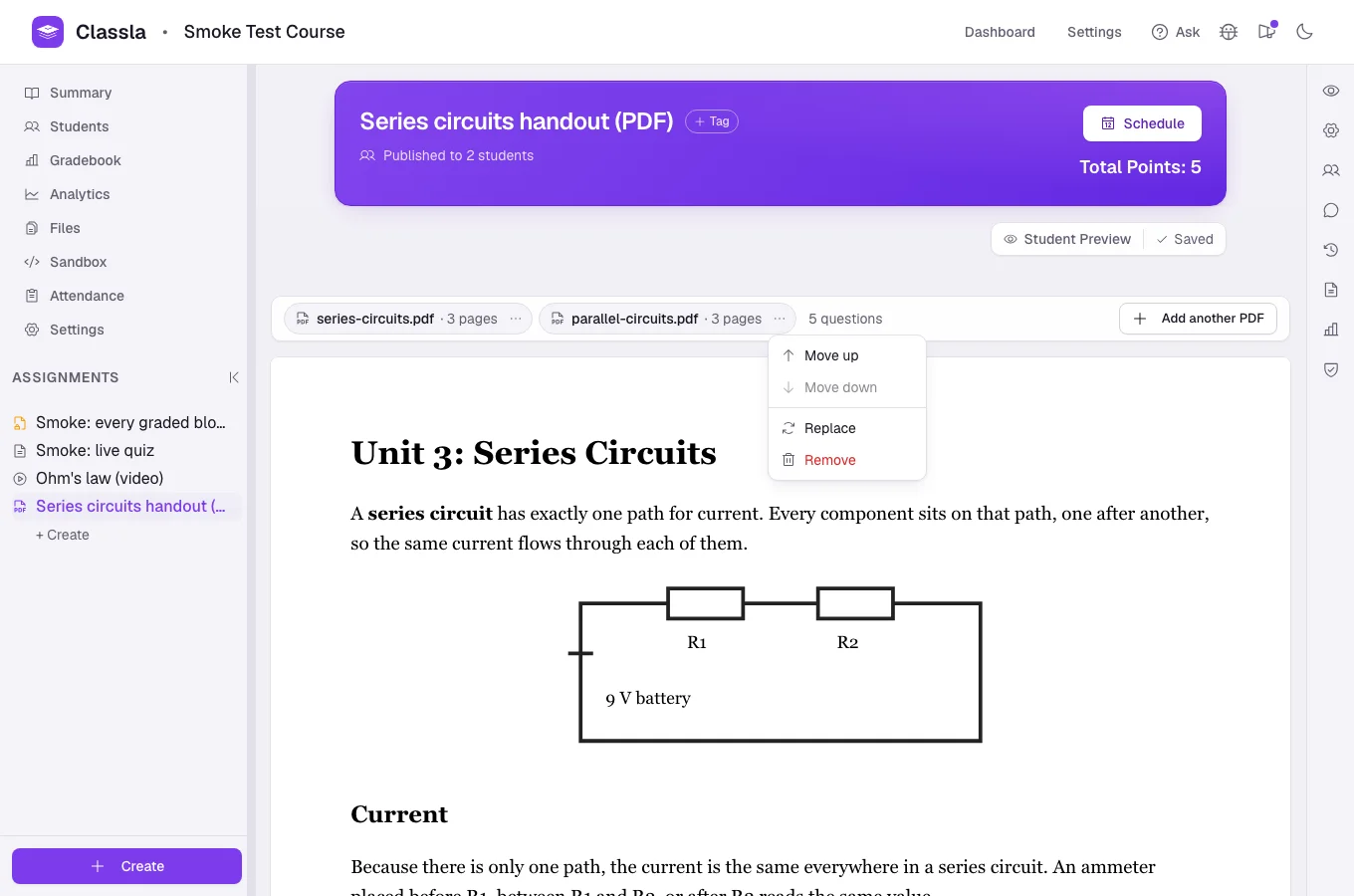
The PDF then fills the page, one page after another. A bar at the top keeps the file name, its page count and the question count in view. The three dots beside the file name open its menu, where Replace swaps in another file and keeps every question where it is on each page.
Combining Files
One PDF assignment can hold several files, read one after another: chapter 1 and chapter 2 of a reading, or a handout and its answer sheet. Press Add another PDF in the bar, then Upload or Choose from Files, the same as the first file. The new file goes after the last one, and Word and PowerPoint files are converted the same way.
Each file shows in the bar with its name and page count, such as Chapter 1.pdf · 12 pages. Its menu has Move up, Move down, Replace and Remove. Moving a file moves its questions with it. Removing a file that has questions asks first, for example Remove Chapter 2.pdf and its 3 questions?, and takes those questions out too.
In the PDF, a thin line marks where each file starts, such as Part 2 · Chapter 2.pdf, and questions are labeled by part, such as Part 2, page 3. You can add a question anywhere in any part. Students read the parts in order as one document, and answer the questions in order across all of them.
Choosing Pages and Redacting
To use only part of a PDF, such as one chapter of a textbook, open the file's menu in the bar and choose Choose pages…. Click the page thumbnails to keep or leave out, or type the pages to keep, such as 3-7, 12. To list the pages to drop instead, switch to Leave out and type them, such as 4, 9. Press Keep these pages. Classla saves those pages as a new PDF in your Files library, named like Reader (pages 3-7, 12).pdf, and the assignment shows that PDF. Students are only ever sent those pages; the full file stays in your library as it was. Questions keep their place on the pages you keep, and a question on a page you leave out moves to the end of the page before it.
Changed your mind? Open Choose pages… again: it shows every page of the full file with the ones you kept ticked, so you can add pages back. Tick them all and press Use the whole file to go back to the full PDF.
To hide part of a page instead, press Redact in the bar and drag a box over the area, such as a worked answer or a picture. The page scrolls if you drag near the top or bottom of the window. Students see a solid box there, and the text under it is taken off their page, so it cannot be selected, copied or found with search. While Redact is on, drag a box to move it or drag its corner to resize it; each box also has a remove button. Done redacting goes back to placing questions. A redaction hides that area on screen, but the PDF file itself is not changed, so for anything students must never get, leave those pages out with Choose pages… instead.
Placing Questions
Point at a page and a line follows the pointer with Insert question here. Click, and pick what goes there: multiple choice, short answer, fill in the blank, math answer, poll, drag and drop matching, Parsons problem, code selection, graph, show your work or coding, or Note (no answer) for a hint that asks nothing.
The page opens at that line and the question sits in the gap, numbered in reading order, such as Question 2 on page 2. It is the same block you would add to any assignment, with all of its settings: options, points, Required, an autograder on a coding question, and the rest.
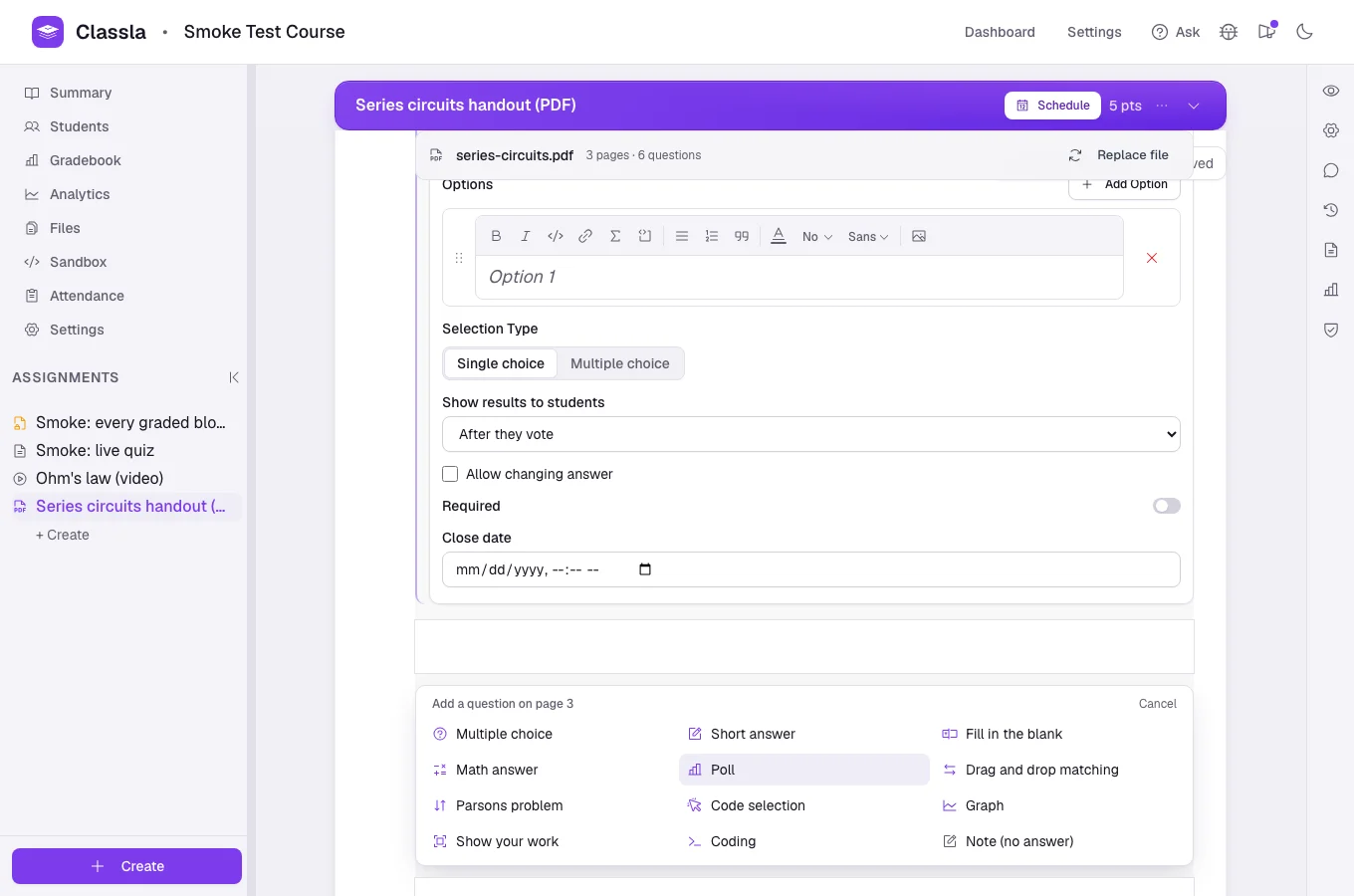
Each question has three buttons beside its label:
- Move
- Click a new spot in the PDF and the question goes there.
- Add another block here
- Put a second block in the same spot, such as a note above a question, or two questions together.
- Remove
- The bin takes the question and its blocks out of the PDF.
What Students See
Students scroll the real PDF. When they reach a question, the rest of the document is covered, with Answer the question above to keep reading and how many pages are left. Answering turns on Continue reading, which opens the next part, down to the next question. A header shows how many questions they have answered out of the total.
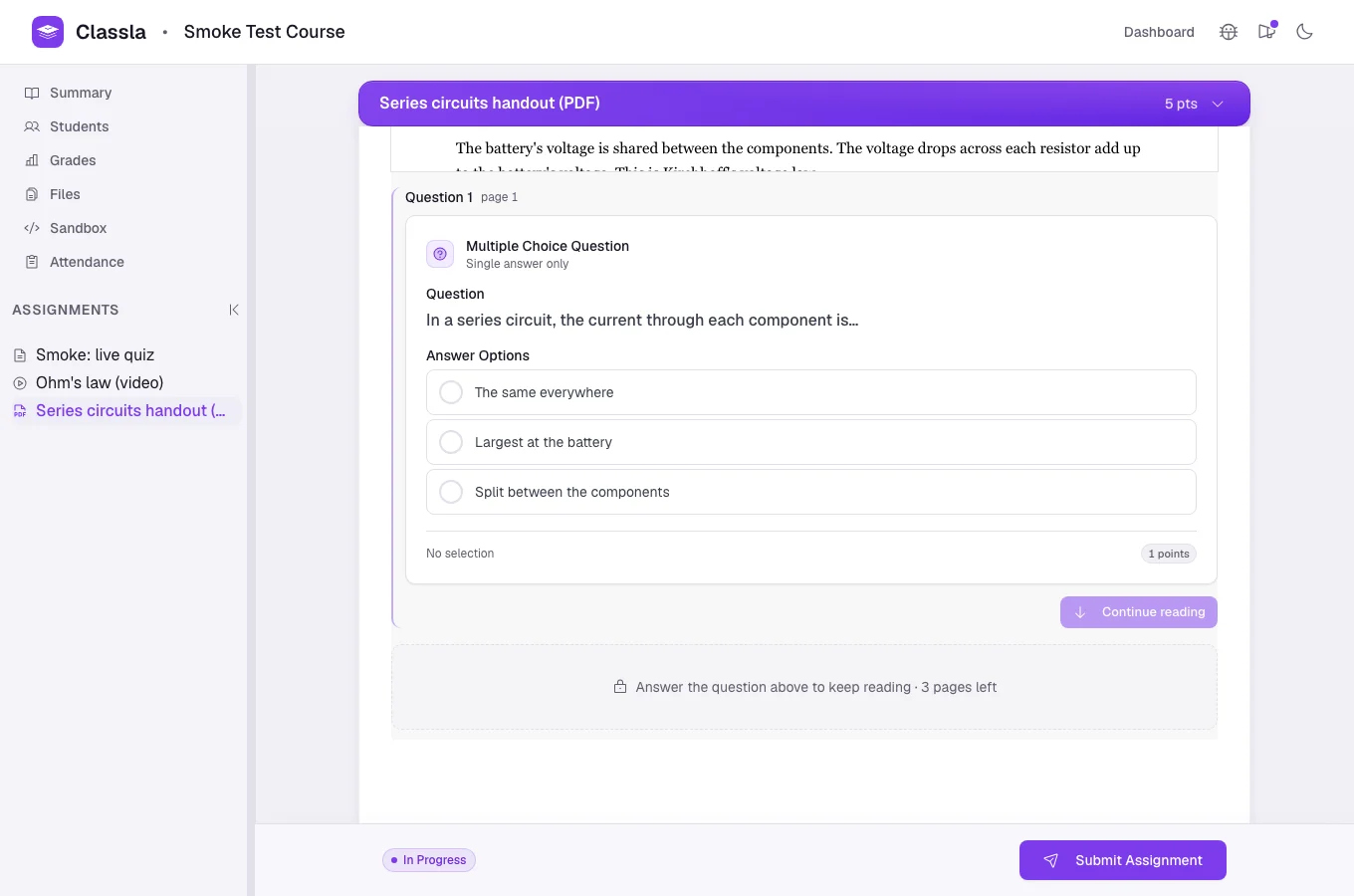
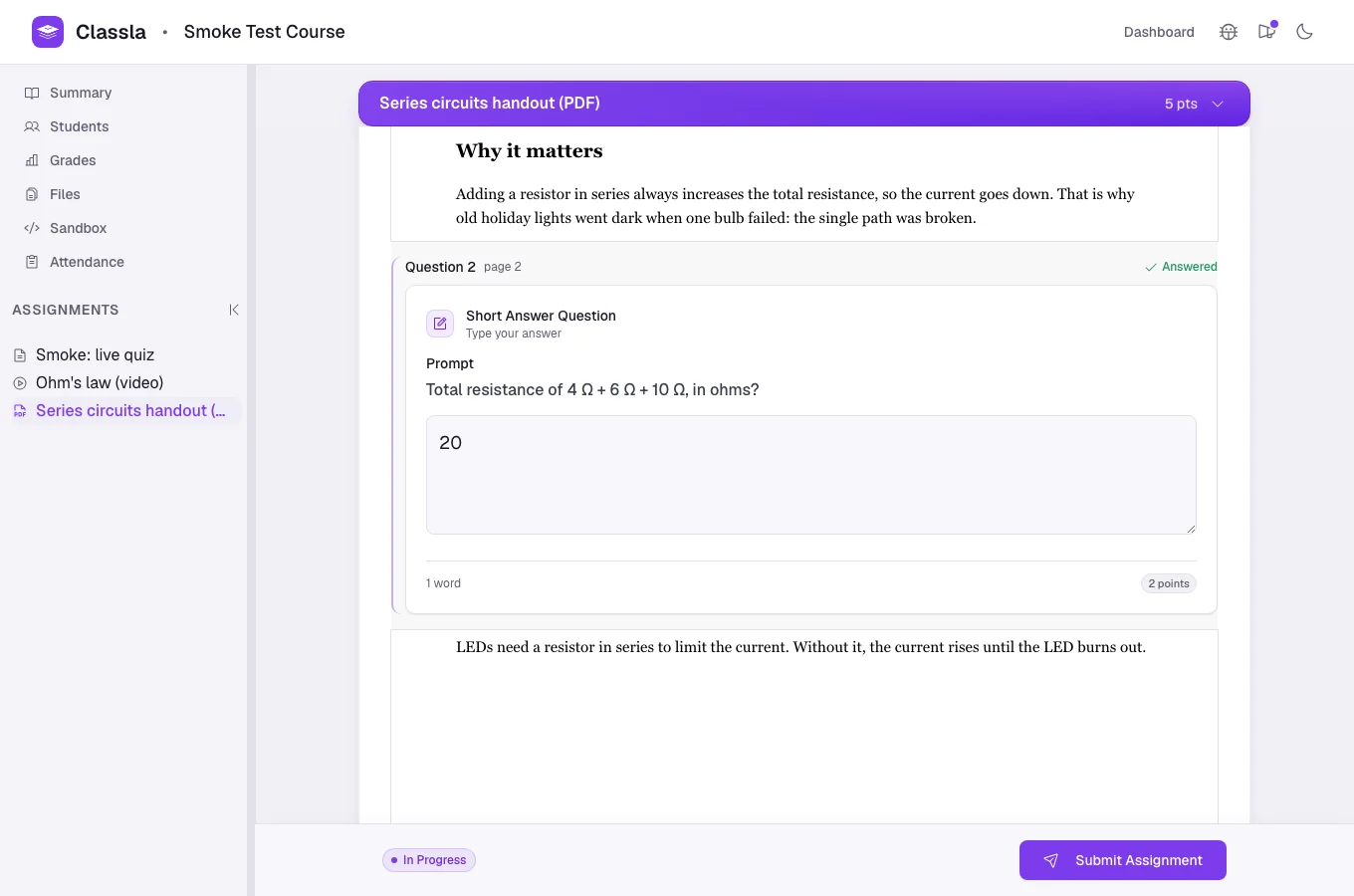
Answered questions stay where they are, marked Answered, and the student can scroll back to read or change them. Reloading the page does not cover answered questions again, apart from the one case under Limits.
The bar at the top has Zoom out and Zoom in, from 100% (the page fills the width) down to 50%, and Fit page, which shrinks each page until all of it fits on the screen. The questions stay full width. The size applies to every PDF assignment and is remembered in that browser, for students, for you while building, and while grading.
Contents, in the bar at the top, lists the parts of the assignment, the bookmarks saved in the PDF, the questions and the notes (a note is listed by its first words), in reading order. Clicking one scrolls straight to it. It works the same for you while you build or grade. For a student who is still working, anything past the question they are on is listed with a lock and cannot be opened yet. A PDF with no bookmarks lists its parts and questions only. Bookmarks come from the file. In Word, for example, save as PDF and, under Options, choose to create bookmarks from headings.
Students can select and copy text from the PDF. Links and form fields inside the PDF are not clickable.
While working, a student can select text and click Highlight, or Add note to write a note on it. Clicking a highlight edits its note or removes it. Highlights are saved with the student's attempt, and you see them, with their notes, when you grade it.
You, your TAs and anyone grading always see the whole document, and so does a student looking back at a submitted attempt.
Everything Else Works the Same
A PDF assignment is an assignment. Due dates and the schedule, attempts, score release, showing correct answers, Check Answer, lockdown, the timer, practice after grading, grading, the gradebook and analytics all work exactly as they do for any other assignment. Points come only from the questions. Reading the PDF earns nothing, and a note is worth nothing. Classla does not report how far each student read. See Assignment settings.
One setting is different. In place of Sequential, the settings panel says: "Students answer the questions in this PDF in order. Each one reveals the next part."
Students can open the PDF for as long as they can open the assignment. You do not need to share it in the Files tab.
With the Assistant or Your Own Claude
The assistant and your own Claude can make a PDF assignment from a file in your library, read the PDF page by page, and put each question next to the passage it is about. They can also move a question to another spot, choose which pages of a file students get (or start a PDF assignment from only some pages), and redact part of a page, the same as Choose pages… and Redact. What they make arrives unpublished, like everything else they write.
What It Does Not Do
- An assignment cannot change kind. To turn a PDF assignment into an ordinary one, make a new assignment.
- Highlights mark text only: there is no pen or freehand drawing, and a scanned PDF with no text cannot be highlighted.
- A Word or PowerPoint file is shown as the PDF Classla makes of it, so complex layouts, fonts or animations may look different from the original.
- When a file is replaced by a shorter one, a question on a page the new file does not have moves to the new file's last page.
- The same library file can be added to one PDF assignment only once.
- Choose pages works on PDFs of up to 50 MB. If the full file has been deleted from your library, Choose pages starts from the pages the assignment shows now.
- A redaction covers part of the page on screen and removes its text from the student's page, but the PDF file itself still holds it, so a student with browser tools could find it. Leave those pages out with Choose pages for anything that must stay private.
- Contents shows the PDF's bookmarks two levels deep. Deeper levels are left out, and you cannot add your own sections in Classla.
- A PDF assignment has no Shuffle question order and cannot be played with Go live: the questions follow the pages.
- Continue reading is remembered in the student's browser. On another device, the last question they answered may ask for Continue reading once more. Earlier answered questions stay open.