Video Assignments
A video assignment is a video that stops for questions. Paste a YouTube link or upload a video, pick the moments, and put a question at each one. Students watch, answer, and keep watching. The questions are ordinary Classla blocks, graded like any other.
Making One
Press Create in the course sidebar and choose Video Assignment. The same choice is in the assignment tree: Add Video Assignment in a folder, or Create Video Assignment from the tree's menu. An assignment is a video assignment from the moment it is made, and stays one.
The first time you open one, a short intro explains how video assignments work. To see it again, choose About video assignments from the three dots at the top of the assignment, or from the assignment's right-click menu in the tree.
Then choose the video. Paste a YouTube link, or Upload a video (MP4 or WebM). An uploaded video is saved to the course's Files.
Placing Questions
The editor shows the player, a timeline with a marker for every question, and the current time. Play or scrub to the moment you want and press Add question at 1:05 (the button always shows the current time). Pick what goes there: any graded block, from multiple choice and short answer to math, graphs, Parsons and coding, or Note (no answer).
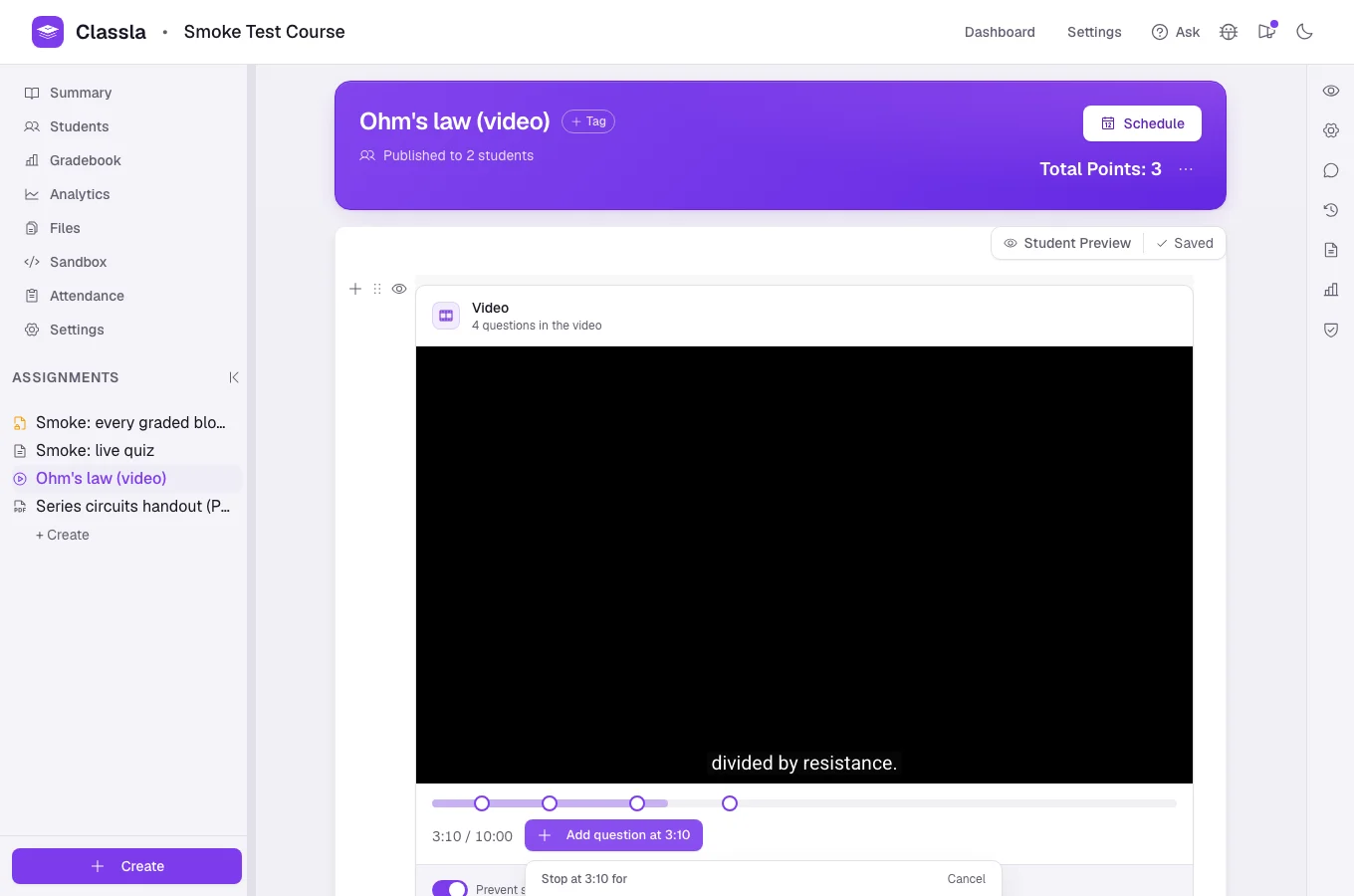
Each question is the same block you would add to any assignment, with all of its settings. Its card has:
- Time chip
- Click it to type a new time.
- Use current time
- Move the stop to where the player is now.
- Jump
- Play from that stop.
- Add another block at this time
- Put a second block at the same stop, such as a note before a question.
- Remove
- The bin takes the stop and its blocks out of the video.
Settings on the Video
- Prevent skipping (On by default)
- A student who drags the video ahead of what they have watched is sent back to the furthest point they reached, with a couple of seconds of slack.
- Captions on
- Turns on YouTube's captions.
- Fastest speed (2x by default)
- The fastest playback students may choose, 1x, 1.25x, 1.5x or 2x. New video assignments start at 2x. Students can always play slower, and a faster speed snaps back to your limit.
Students can always go back and rewatch, whatever the settings. Nobody can get past a question they have not answered. With Prevent skipping off, a student who drags past an unanswered question lands on that question, so the video in between is skipped but the question still has to be answered.
What Students See
The video stops at each question. A small question, such as multiple choice or a short answer, opens over the player. A larger one, such as code, math or a graph, moves the player beside the question so both fit. Continue video turns on once the question is answered. A header shows how many questions they have answered out of the total.
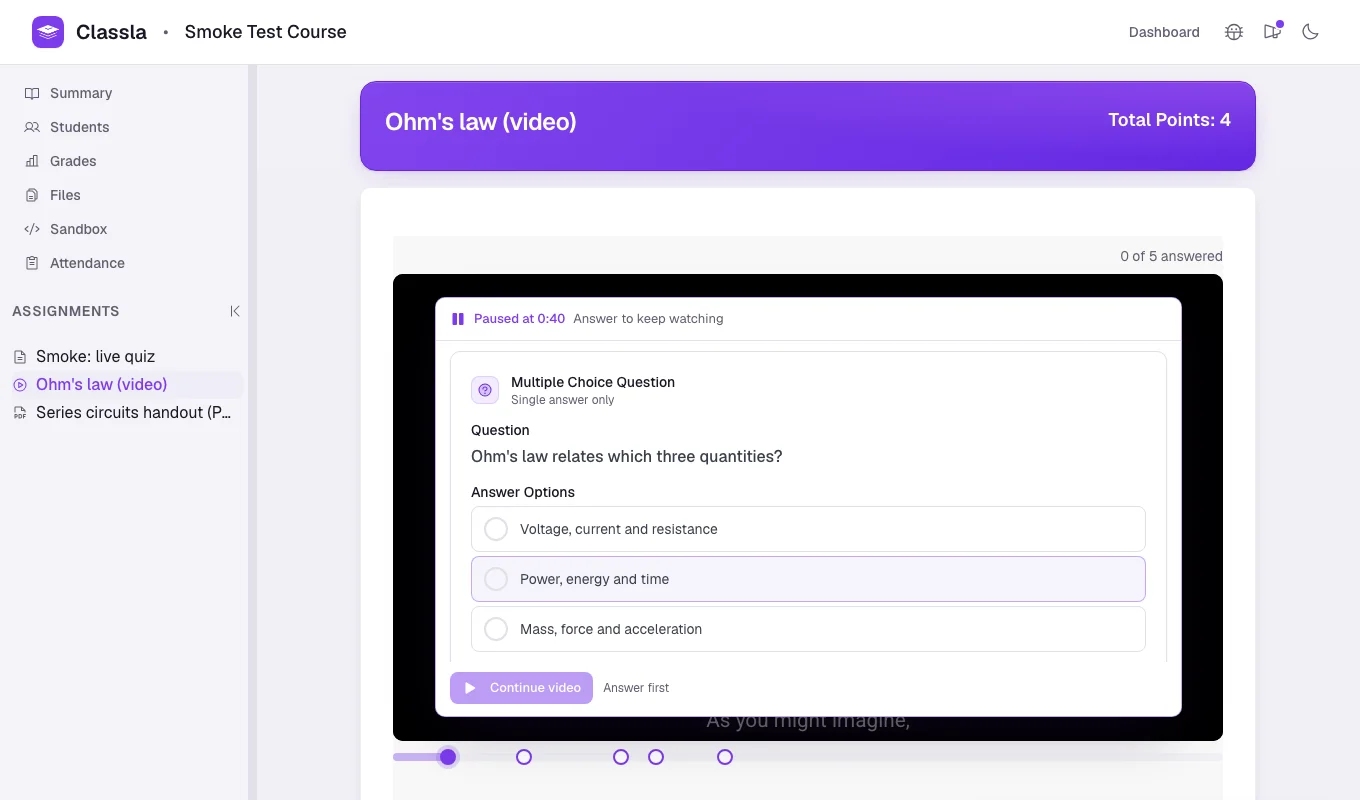
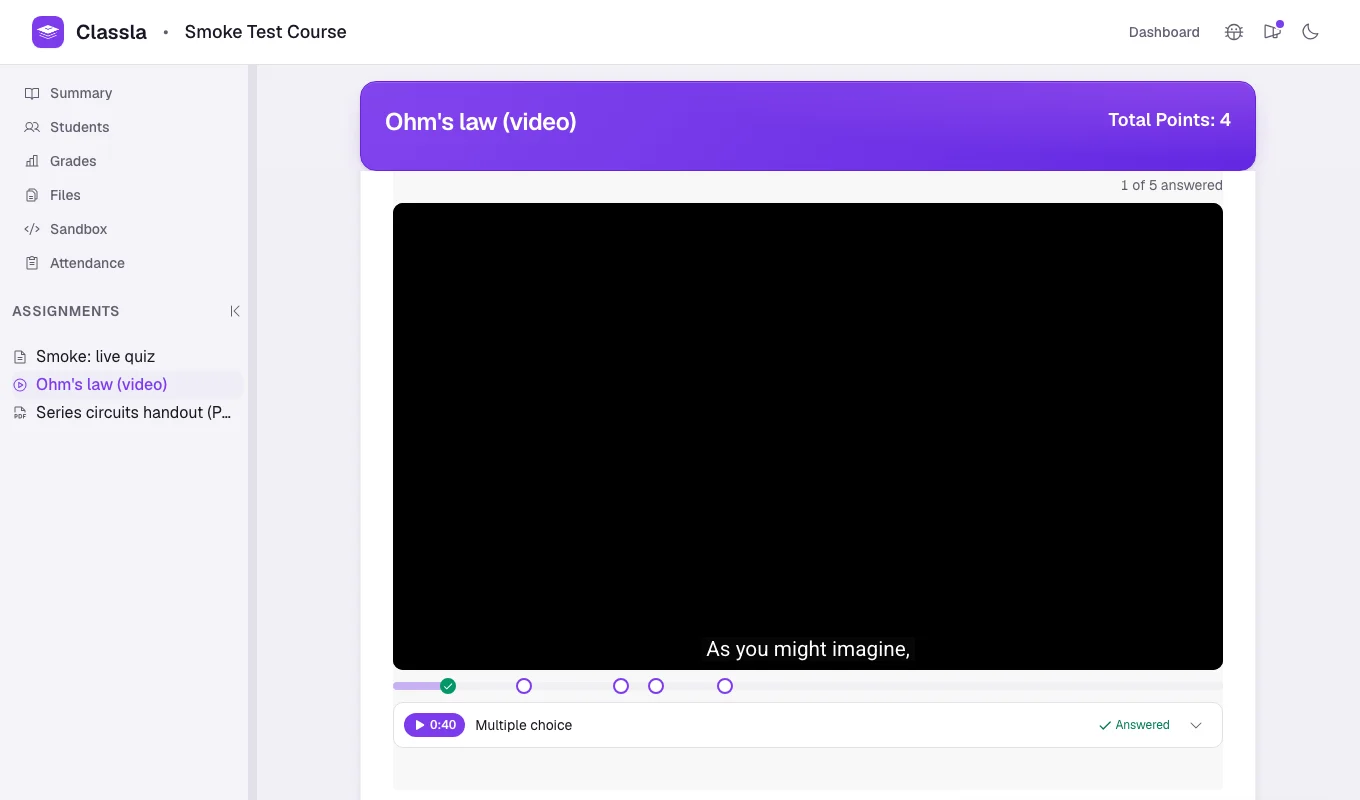
Answered questions are listed under the video, with their time, their type and Answered. Clicking the time replays that moment, starting a few seconds before it, and the row opens to show the answer. Students can change an answer there any time before they submit.
A note stops the video too. It shows A note from your teacher, and Continue video is already on because a note needs no answer. Afterward it is listed as Read.
When the video ends and every question is answered, the student sees "Video finished. Every question is answered." They still press Submit like any other assignment.
If a student closes the page and comes back in the same browser, the video reopens at the furthest point they watched, never past a question they have not answered. On another device it starts at the beginning. Their answers are kept, but with Prevent skipping on they have to watch forward again to reach later questions.
You, your TAs and anyone grading always see every question, and so does a student looking back at a submitted attempt.
Testing It Yourself
Student Preview applies the stops, but lets you skip ahead so you can test a question late in a long video without watching it all. It still stops at every question you have not answered.
Everything Else Works the Same
A video assignment is an assignment. Due dates and the schedule, attempts, score release, showing correct answers, Check Answer, lockdown, the timer, practice after grading, grading, the gradebook and analytics all work exactly as they do for any other assignment. Points come only from the questions. Watching the video earns nothing, and a note is worth nothing. See Assignment settings.
One setting is different. In place of Sequential, the settings panel says: "Students answer the questions in this video in order. Each one reveals the next part."
Students can play an uploaded video for as long as they can open the assignment. You do not need to share it in the Files tab.
With the Assistant or Your Own Claude
The assistant and your own Claude can make a video assignment from a YouTube link or a video in your library, put questions at the times you give them, and move a question to another time. What they make arrives unpublished, like everything else they write.
What It Does Not Do
- An assignment cannot change kind. To turn a video assignment into an ordinary one, make a new assignment.
- The assistant and your own Claude cannot hear the video or read its captions, so they place questions at the times you tell them.
- Captions are YouTube's. An uploaded video has no captions.
- A YouTube video plays in YouTube's own player, in its privacy-enhanced mode. YouTube decides whether a video shows ads, so some YouTube videos may. An uploaded video plays in Classla's player and never shows ads.
- A video assignment has no Shuffle question order and cannot be played with Go live: the questions follow the video.
- Classla does not report how much of a video each student watched. You see their answers, as for any assignment.
- The whole video plays. There is no start or end setting, so trim a clip before uploading it.
- A YouTube video has to play for your students. Public and unlisted videos work. A private video, or one whose owner turned off embedding, shows a YouTube error in the player.
- An uploaded video must be MP4 or WebM. A .mov file (what an iPhone or QuickTime records) is refused, because most browsers cannot play it. Save or export it as MP4, then upload that.
- An uploaded video counts toward the course's Files library: up to 100 MB a file. For a long video, a YouTube link is the better home.