Attendance
Attendance is a tab in the same course as the lessons and the gradebook. You start a session, a six-letter code goes on the projector, students type it from the course page, and the ledger fills itself in. Two windows decide who is present and who is tardy, and you can mark any student by hand.
Starting a Session
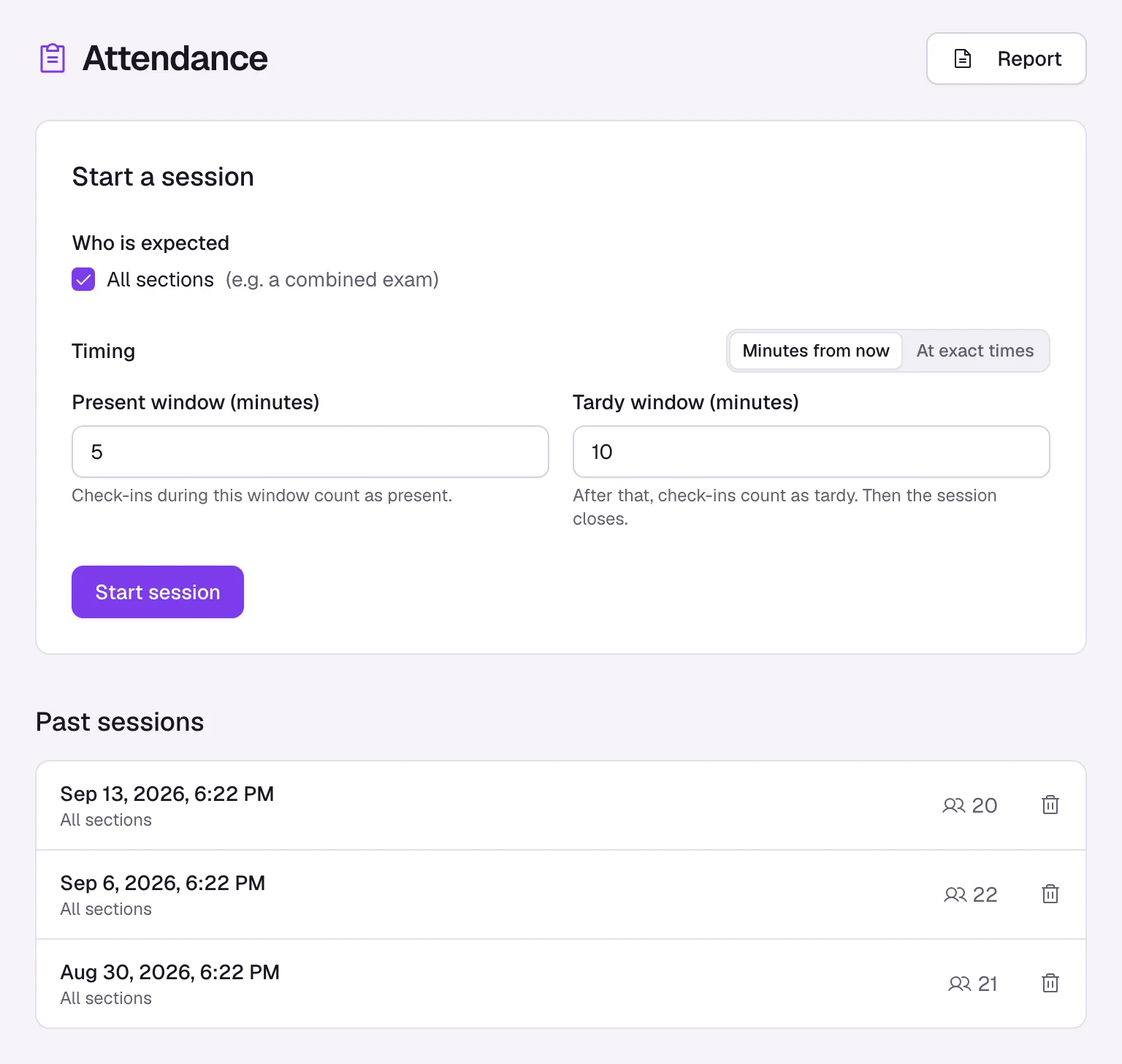
On the Attendance tab, set two things on the Start a session card and press Start session:
- Who is expected: All sections, or tick the ones in the room. No section adds the students who are not in any section.
- Timing: either Minutes from now, with a Present window (minutes) and a Tardy window (minutes), or At exact times, with Present until and Tardy until.
The form remembers the last session in this course, so from the second day it is one button. A TA can run sessions only with the View Grades permission; without View Students as well, they see every student as "Anonymous".
The Code, and the Sentence
The session shows a six-letter code in large type, with a countdown that reads "Accepting present check-ins for 4:12" and then switches to tardy. Beside it is a sentence whose word initials spell the code: HETSWD comes out as "Happy elephants toss shiny waffles daily", with each initial picked out in colour. It is there because a code read aloud across a noisy room is misheard and a sentence is not. New sentence rerolls the sentence. The code stays the same, and students only ever type the code.
Present mode clears the screen down to the code and the sentence at projector size, with no student names on it.
What the Student Does
They open the course, see "Type the code your teacher is showing", type six letters and press Check in. If the present window has passed, the page says so before they type. They get "You're marked present" or "You're marked tardy", and their own Your history below it. They never see the class list or anyone else's status.
While the session is live you see two cards, Not here and Here, filling up in real time. End session closes it early; otherwise it closes by itself when the tardy window ends.
Pick a student spins a wheel of the students who checked in and lands on one. With No repeats, a picked student leaves the wheel until you press Reset. For a day after you take attendance, the Schedule dialog offers Only who checked in for each section. It gives the assignment to the students who checked in and leaves out the rest of that section, and Undo puts it back. The Students list on the Play assignment live sheet has the same shortcut, Checked in, so only the students who checked in play.
Marking a Student by Hand
A student who was in the room but did not check in, or one who checked in from the hallway, can be corrected in any session, live or past. Open the session, then the menu at the end of the student's row, and choose Mark present, Mark tardy or Mark absent. The row then reads "Marked by teacher", or "Checked in 9:02, marked by teacher" if they had checked in, so the change is always visible as yours.
A mark is what counts everywhere: the report, the head counts, Pick a student and opening an assignment for who checked in. It also stands if the student checks in later; they are told "Your teacher already took your attendance". To take a mark back, the same menu has Undo, keep their check-in, or Undo, not checked in for a student who never checked in. The student sees "Your teacher marked you present" (or tardy, or absent), and "Marked by teacher" in their history.
The Ledger and the Export
- Report
- Opens the ledger: students down the side, one column per closed session across the top, and totals for present, tardy, absent and a percentage. Pills at the top filter it to one section (or No section), and the Report for select switches between Whole class and a single student's own history.
- Download
- Gives you CSV or Excel. The Excel file is two sheets, the ledger and a session list.
- Lays the ledger out in landscape, splitting long terms across pages and repeating the names on each, with a legend.
In the ledger each cell reads P, T or A, and a dash means that student was not expected at that session (it was for another section). Click a student's name for their own report: a list of every session with the time they checked in, and totals. Download and Print then give you that student's report instead of the class, and the Excel file's two sheets are the report and a summary. Tardy counts as attended in the percentage.
The report lists the course's active students. Auditors and deactivated students are not on it.
Deleting a Session
A session started by mistake, or a test run before class, can be deleted once it is closed. Use the bin beside it under Past sessions, or Delete at the top of the session itself. Delete this session? tells you how many check-ins it holds: "The check-ins are removed from every student's history and from the report. This can't be undone." The bin and Delete are offered only on a closed session, so end a live one first.
What It Does Not Do
- A student who was expected and never checked in counts as absent without a record of their own. Mark absent is for a student who did check in; the others are absent already.
- There is no excused absence and no note. A mark is present, tardy or absent, and nothing records why.
- A TA can mark students only with the View Students permission.
- Reports cover closed sessions only. Nobody is absent from a session that is still accepting check-ins.
- There is no date-range filter. A report is every closed session, optionally narrowed to a section.
- Attendance is not in the gradebook. It carries no points and sends no email, reminder or notification to anyone.
- A student added to the course mid-term shows as absent in the ledger for every earlier session that was for their section, because the report counts all of them. The attendance rule in Analytics skips sessions from before they joined. There is no excuse, so ignore those cells or delete the session.
- A student in a section the session is not for cannot check in. They are told the session is for a different section.
- The tardy window can be 0 minutes, which makes check-ins present or absent only. Past sessions lists the newest 30; the report still covers every closed session.
- A student who moves section changes which past sessions counted as theirs, because expectation is read from their section now.
- There is no QR code, no location check and no per-student code. Everyone types the same code from the screen.