Features
What a teacher of any subject gets in Classla, shown on the real screens. Every block and every feature is in every course.
From Quiz to Review Game, in One Class Period
One example of how the pieces fit. You give a quiz. By the time the last student submits, you know what they missed, you have a review built on it, and the class is playing it on the projector. The class works on the mistake the same day it showed up, not after the unit test.
Give the Quiz
Multiple choice, fill-in-the-blank, matching, math answers and code all grade themselves. Turn on Check Answer for practice, or leave it off for a test. Add a timer, one question at a time, or lockdown when it matters.
An equivalent answer in the wrong form is caught, with the reason, before it counts. Watch It Come In
The grading list fills in as each student submits, with a score bar per question. Within a minute, analytics show the question the class missed and the wrong answer most of them chose.
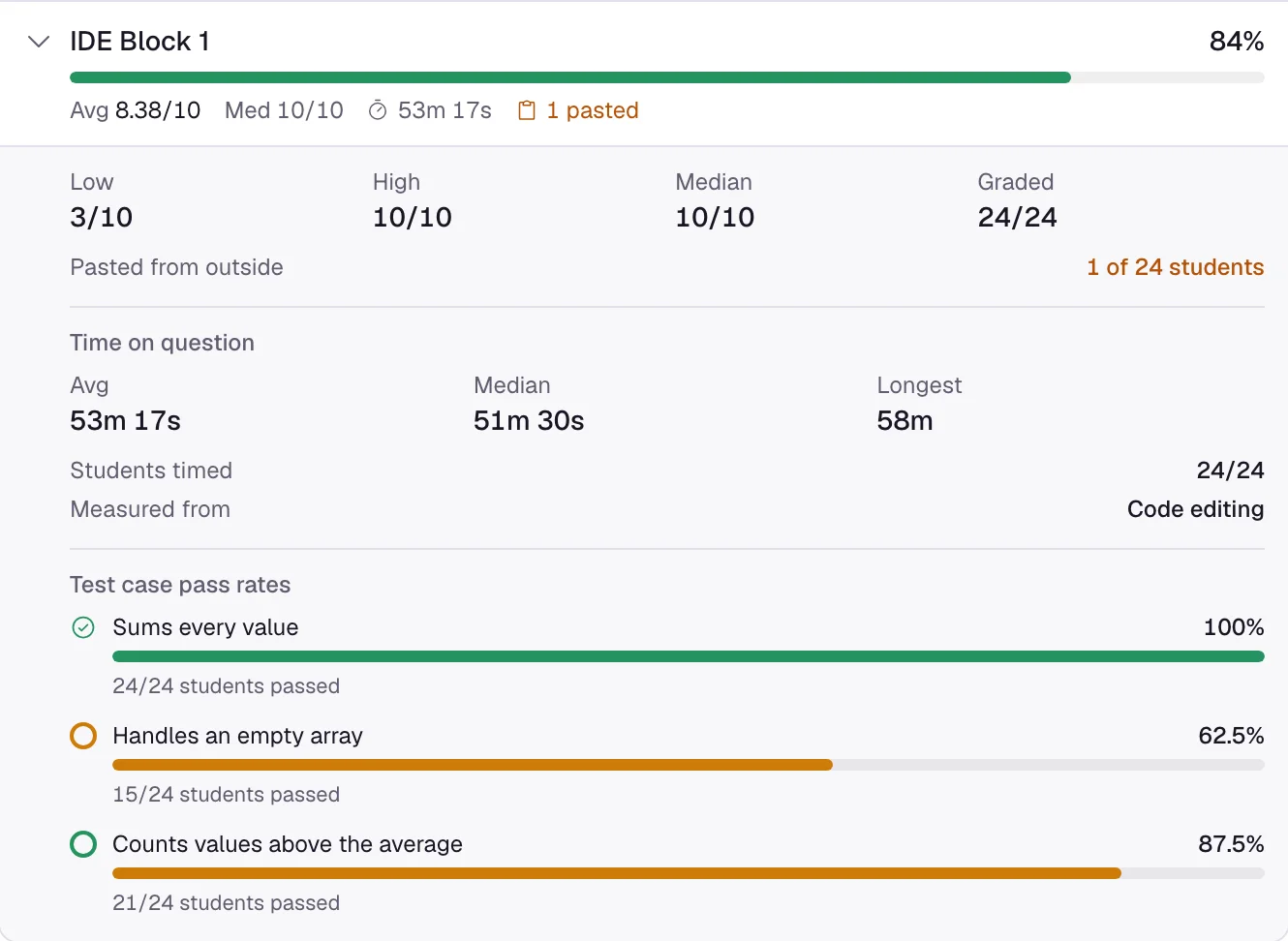
Nine students failed the same test. That is the thing to reteach. Ask for the Review
Make a new assignment and ask Classla AI what the class missed most. It reads the results, names the ideas behind the mistakes, and writes fresh questions on them into your editor.
Nothing reaches students until you publish, and you can edit every question first. The assistant is for teachers only, and it does not grade.
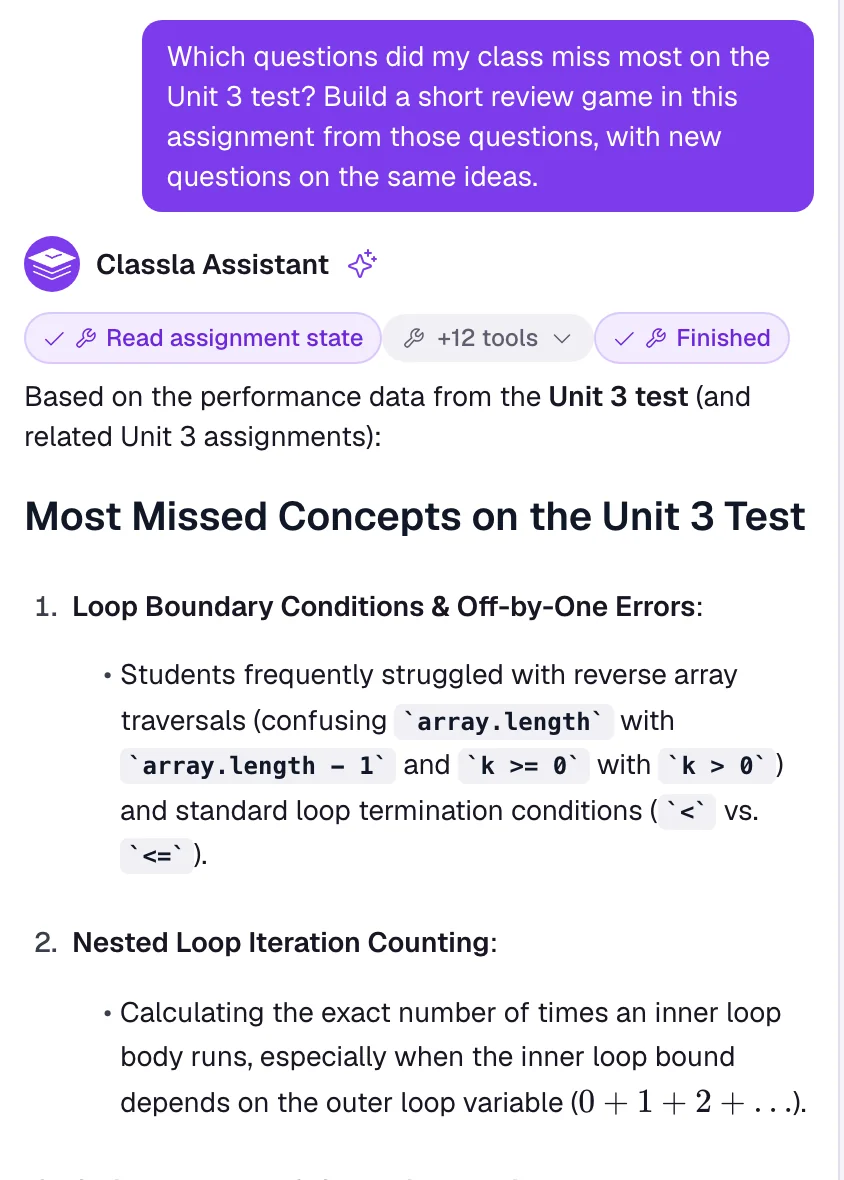
A real answer from the assistant on the demo class. The questions it wrote are in the editor beside it, unpublished. Play It Live
Press Play assignment live. The questions become a game on the projector with teams, music, speed and streak bonuses, and a leaderboard. Students answer on their own devices.
Count it as a grade and the answers are scored by the same graders and land in the gradebook. Count it as practice and nothing is recorded.
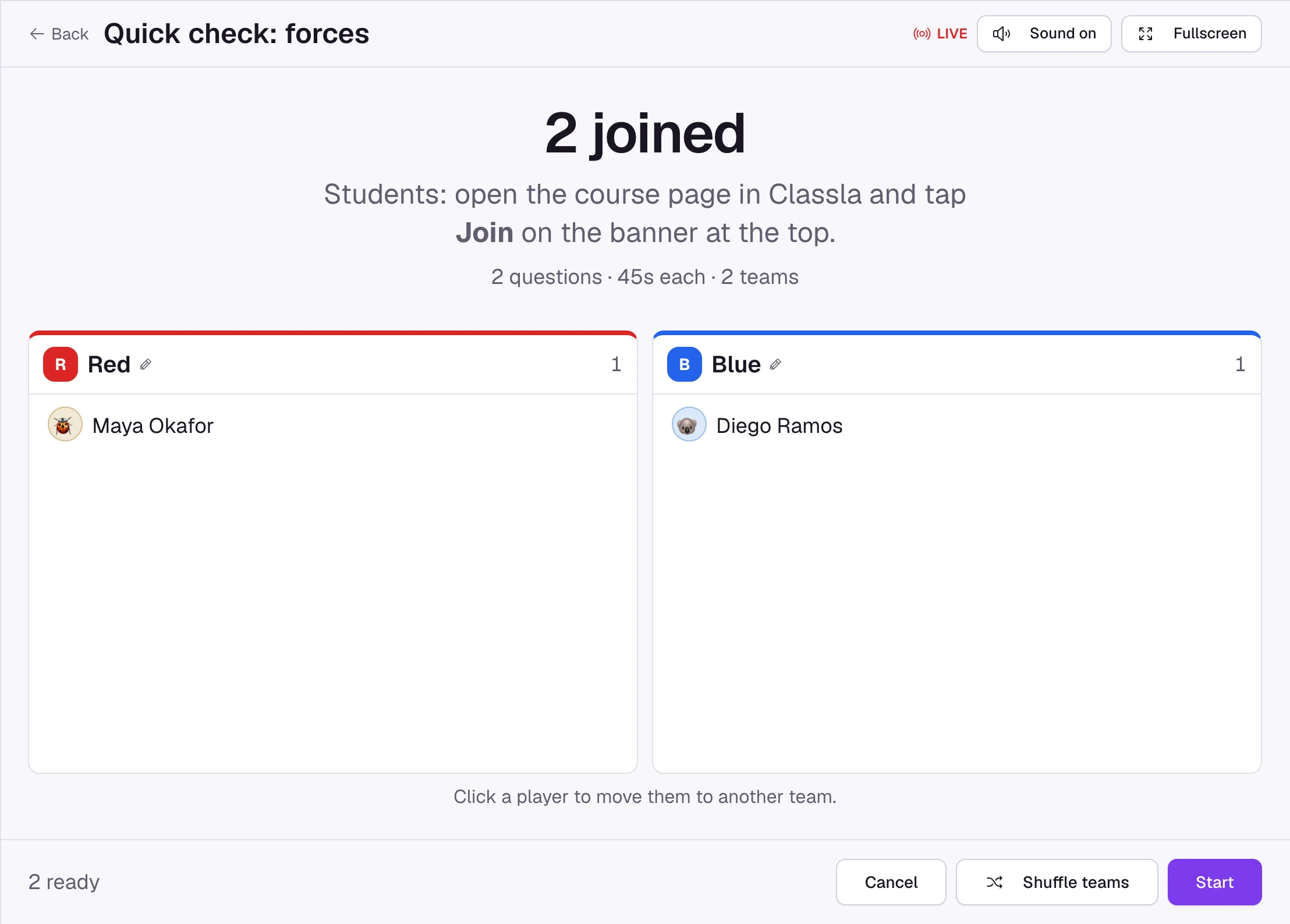
The lobby on the projector, in teams. Shuffle them, or move a player by hand.
Make Any Kind of Assignment
A lesson, a worksheet you already have, a video, a vocabulary deck or a test. Each one is built in the same editor and graded into the same gradebook.
Lessons and Quizzes from Blocks
Mix reading, images and questions in any order, with points, rubrics and hints on each. Start from a blank page or from a prebuilt curriculum you can rewrite.
- Rich text
- Images and video
- Multiple choice
- Fill-in-the-blank
- Short answer
- Drag-and-drop matching
- Clickable areas
- Ordering (Parsons)
- Polls
- Math answers
- Graphs students draw
- Show your work
- Coding questions
- Reveal-on-click hints
- Tabs
Flashcard Sets
Paste in a list or type the cards, with math, images and audio on either side. Students study with Flip, Multiple choice, True or false, Match and Write, and star the cards they keep missing.
You see which cards the class finds hardest. Play the set as a live game, or turn it into a graded quiz with Make a quiz.
PDF Assignments
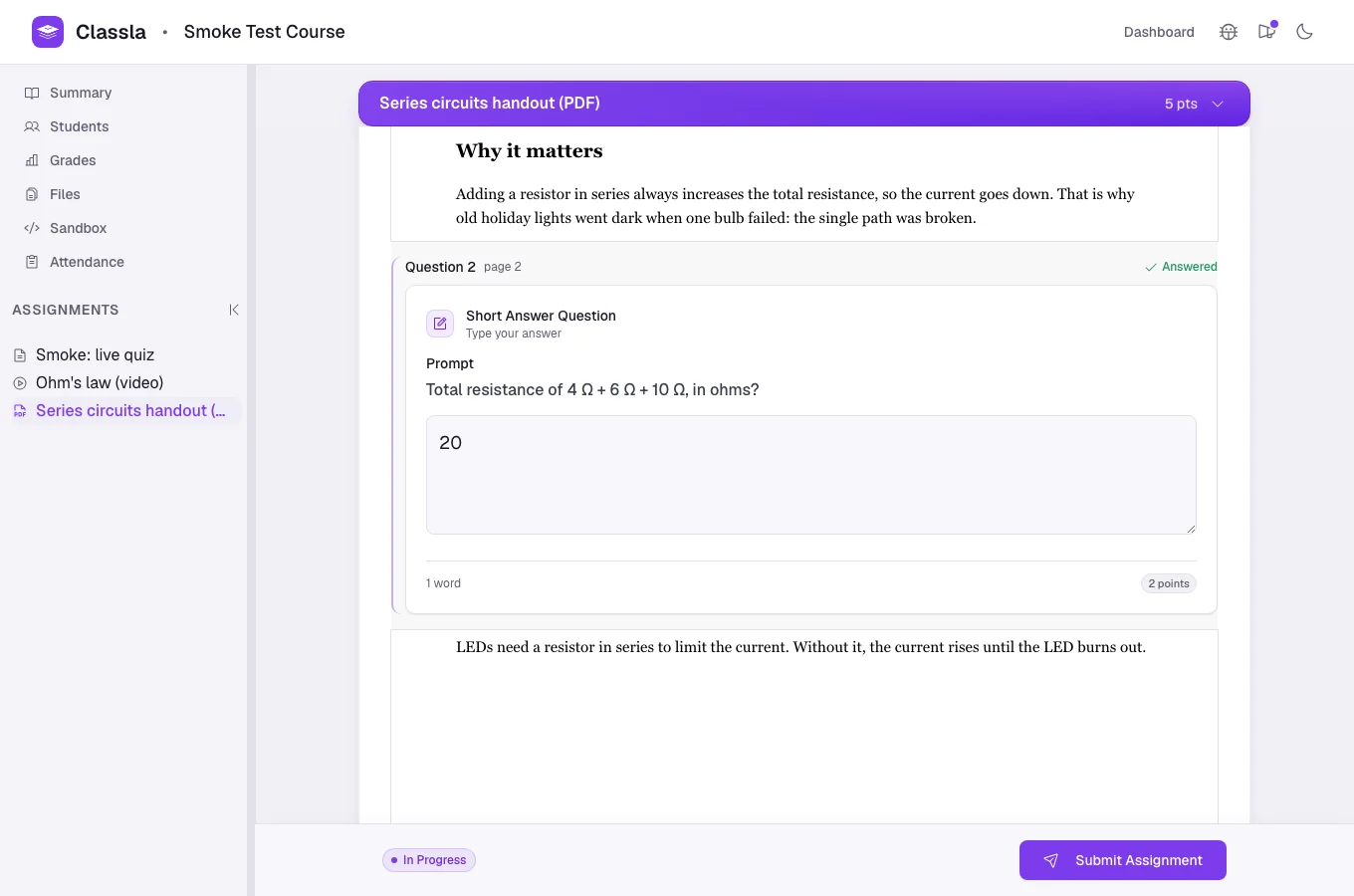
Upload the handout or slide deck you already use, as a PDF, Word or PowerPoint file, and place graded questions right on its pages. Each answer opens the next part.
Video Assignments
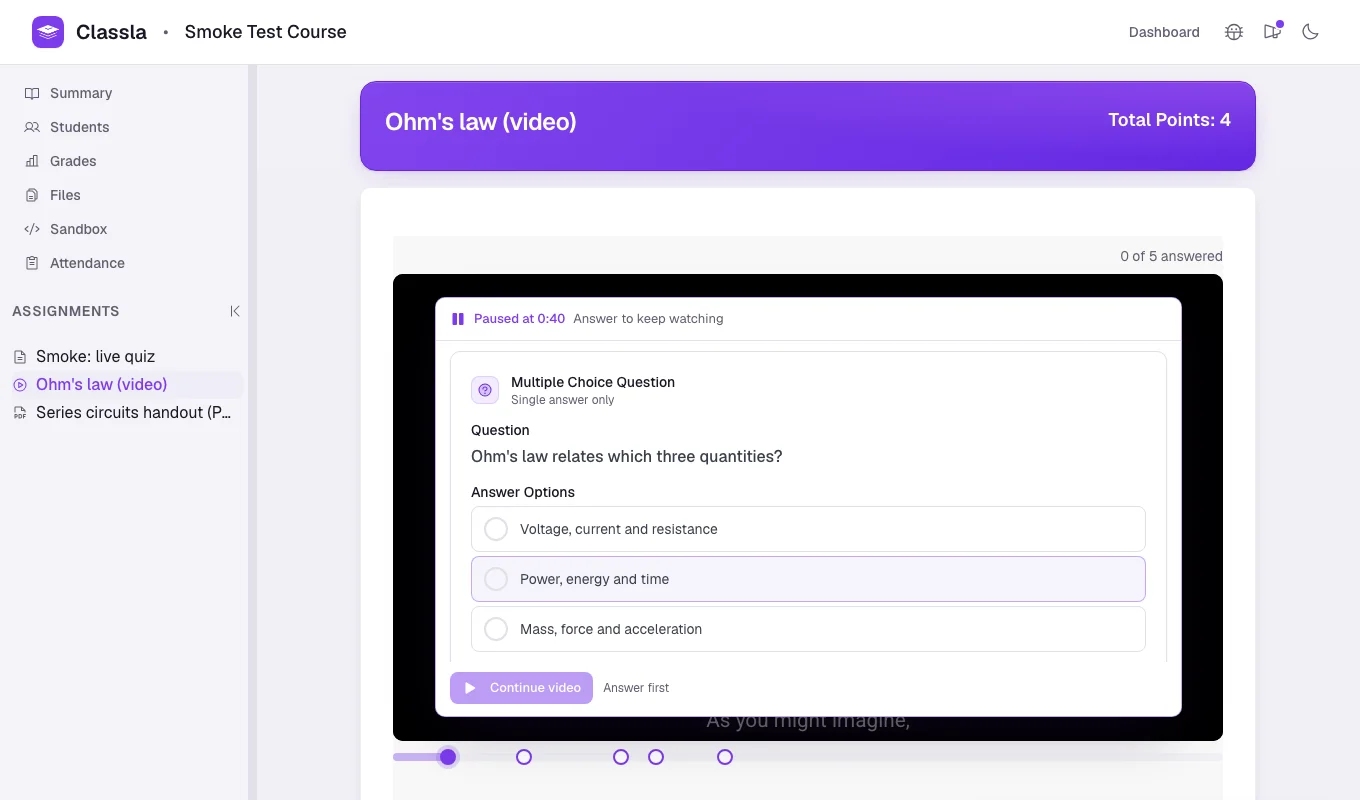
Paste a YouTube link or upload a video and put a question at any moment. The video stops until it is answered. Prevent skipping ahead, show captions and set a top speed.
A Graphing Calculator, When You Want One
Give an assignment a graphing or a scientific calculator, or none for the no-calculator section. It finds zeros, intercepts and intersections as students type.
Students can keep one in their Workspace too, outside any assignment.
Run the Class, Not the Software
The same assignment runs as homework, a paced lesson, a test or a game. In a game every student answers, in a group they talk it through, and you can hold the answer until they have. Sections, partners and attendance live in the same course.
Partner Work, on One Shared Answer
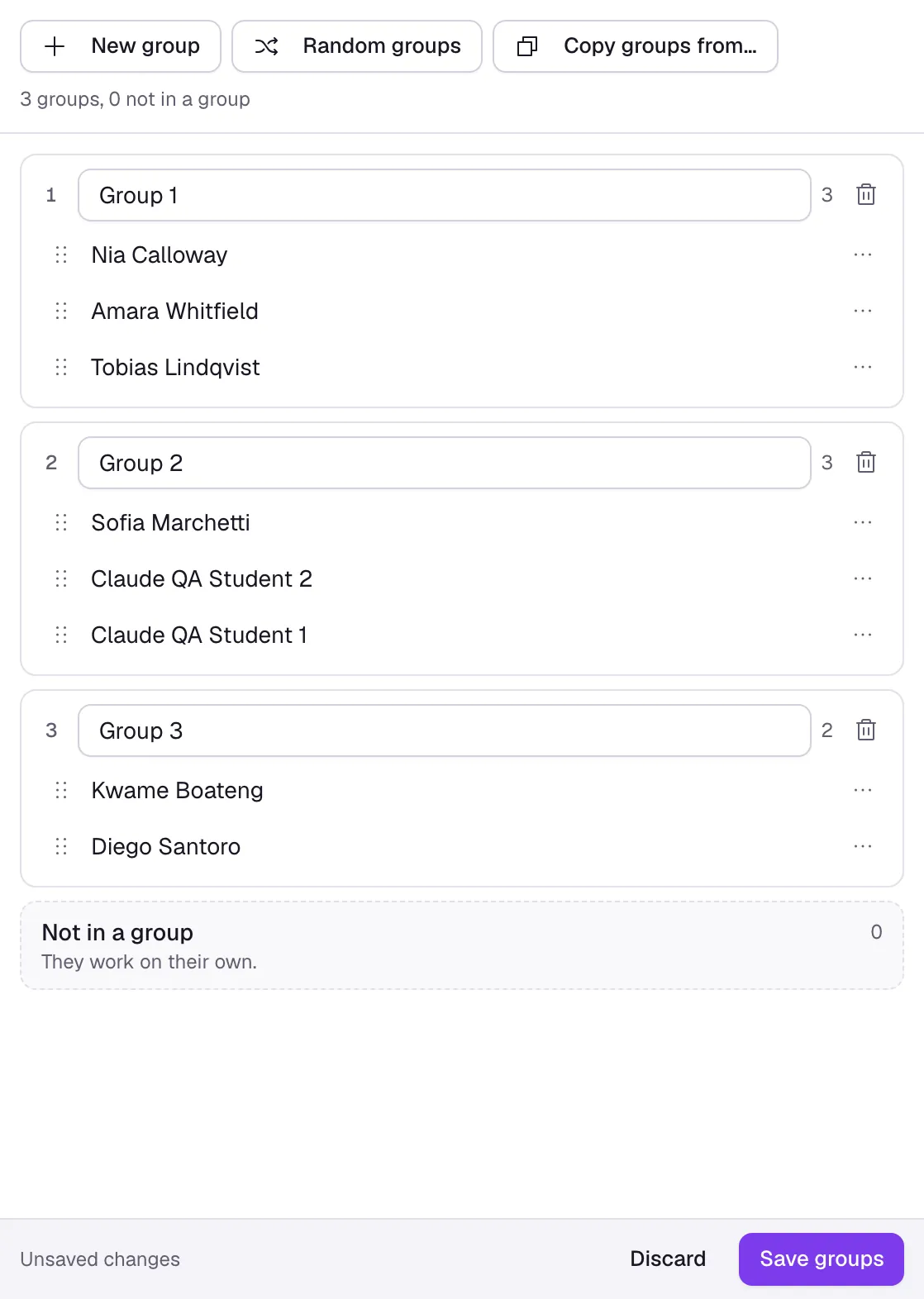
Put students in groups and they edit the same answers together, live, code included. Grade the group once, then adjust one student's score with a private note.
Attendance from the Projector
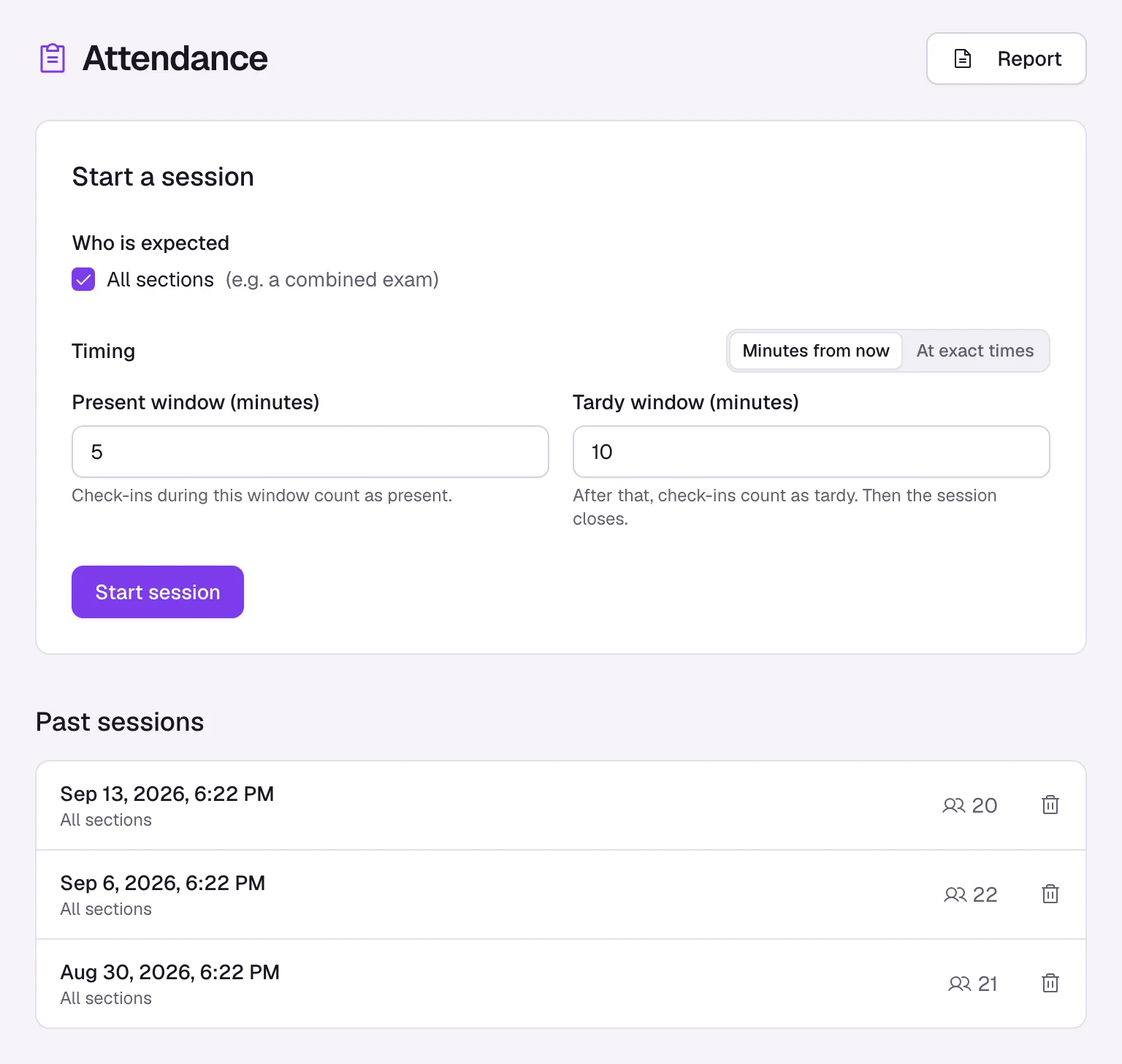
Put a code on the board and students check in from the course page, on time or tardy by the windows you set. Mark anyone by hand, pick a student at random, and export the record to a spreadsheet.
Live Games
A quiz or a flashcard set becomes a class game with teams, music and a leaderboard.
One Question at a Time
Sequential mode paces a lesson, and can lock each answer once it is given.
Lockdown for Tests
The test stays full screen, the rest of the course can hide, and you see who left and for how long. A deterrent, in Chrome.
Dates per Section or Student
Different due dates for each period, extra time for one student, set in one Schedule dialog.
Sections and Rosters
Join codes and links, or accounts you make for students who have no email.
Practice After Grading
Once grades are back, you can let students try a graded assignment again without touching the grade.
Know What Happened
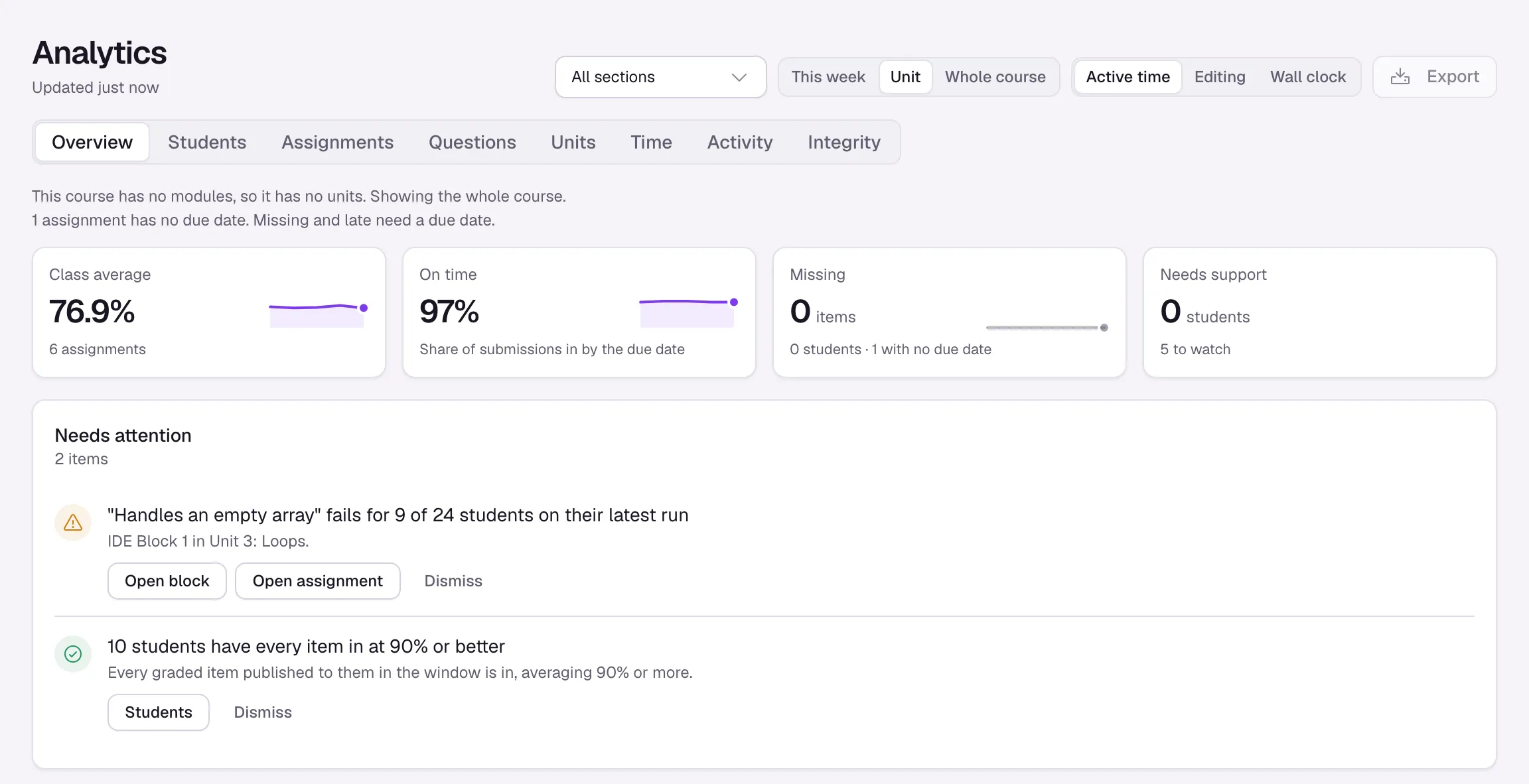
Grades, the questions that tripped the class up, who is falling behind, and the evidence behind any result, early enough to change how the unit ends. Students never see the analytics.
Grading in One Place
Auto-graded points and your own judgment add up to one score. Rubrics, overrides that survive a regrade, weighted categories and a gradebook with the course total. Handwritten work shows under each question with a rubric you check off.
Analytics for the Whole Course
Who needs attention this week, which question the class is stuck on, how long the work takes, and who has gone quiet. Export to CSV or Excel.
Integrity Evidence, Not Verdicts
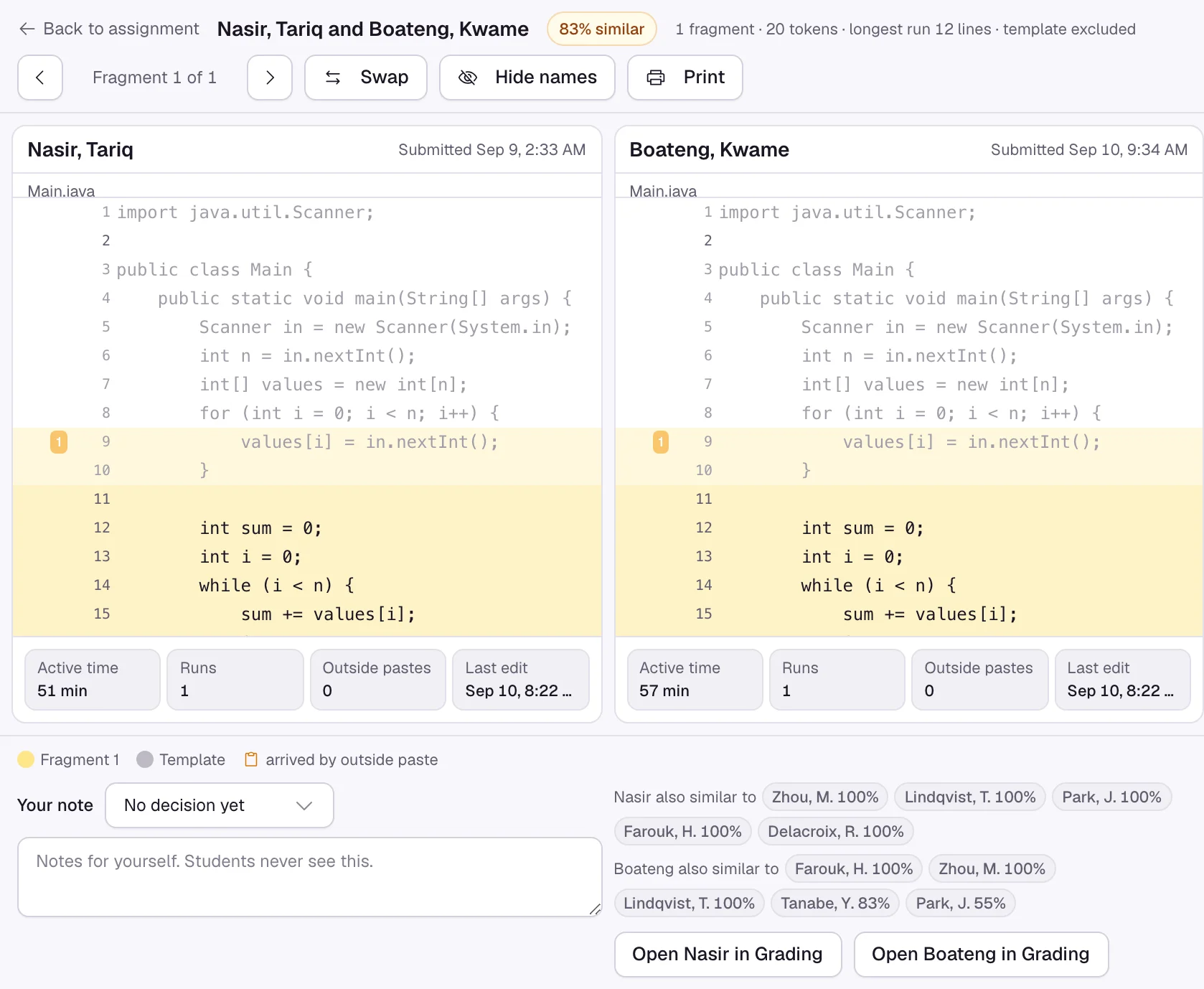
Lockdown activity on any test, and on coding work the paste trail, the file history and similarity between students. Facts to start a conversation, never an accusation.
AI That Works for the Teacher
It drafts. You decide. The time it saves goes back into the lesson, and the help students get still comes from you. Students cannot use the assistant, and no student account is created with it enabled.
An Assistant That Knows Your Class
It reads your course and your class's results, then writes questions, lessons, rubrics and follow-ups into your editor, unpublished. Paste in a worksheet and it builds the blocks.
It asks before changing anything students have started, and it never grades, publishes or changes who is enrolled.
Bring the AI You Already Use
Your Worked Solution From a Photo
Photograph your own worked solution to a Show Your Work question, and the AI writes it out as math for the answer key. Check every line before you save.
Students' handwritten work is graded by you, against your rubric. No AI grades it.
From a Deck to a Quiz
Make a quiz turns a flashcard set into a graded quiz of multiple choice, fill-in-the-blank or matching questions. Pick how many cards and which side to ask with, then edit it like any other assignment.
Works with What Your School Already Uses
Google Classroom
Published assignments appear in Classroom as links back to Classla. No student data goes to Google.
Canvas and Moodle
Add Classla once with LTI 1.3, put assignments in your modules, and send released grades to the LMS gradebook.
Student Accounts Without Email
A student account needs a username and a password. Nothing else.
How Computer Science and Math Teachers Use It
Every block is in every course, whatever you teach. These pages show how two kinds of class put them together.
Every feature has a page in the docs, with what it does and what it does not do.
Start with Your Next Assignment
You can explore all of Classla. To run a real class, use the AI assistant, or start from the official curriculum, email camden@classla.org and we will get you set up.
If you need a price for a department or a school, ask and you will get a written quote.
Free to explore. Classes open once we verify you teach, usually the same day.
Or email Camden directly at camden@classla.org.