Connect Your Own Claude
Classla publishes a connector, so the Claude you already use can read and write your classes directly. You connect it once from your account settings, tick which of three permissions it gets, and then ask Claude about your course the way you would ask it about anything else. Classla runs no model for this and stores no key: your own Claude account does the thinking, which is why the connector is available to any verified teacher whether or not the built-in assistant is switched on.
Connecting
Open Settings in the top bar, choose Connected apps, and open Claude. Three ways in, all to the same connector:
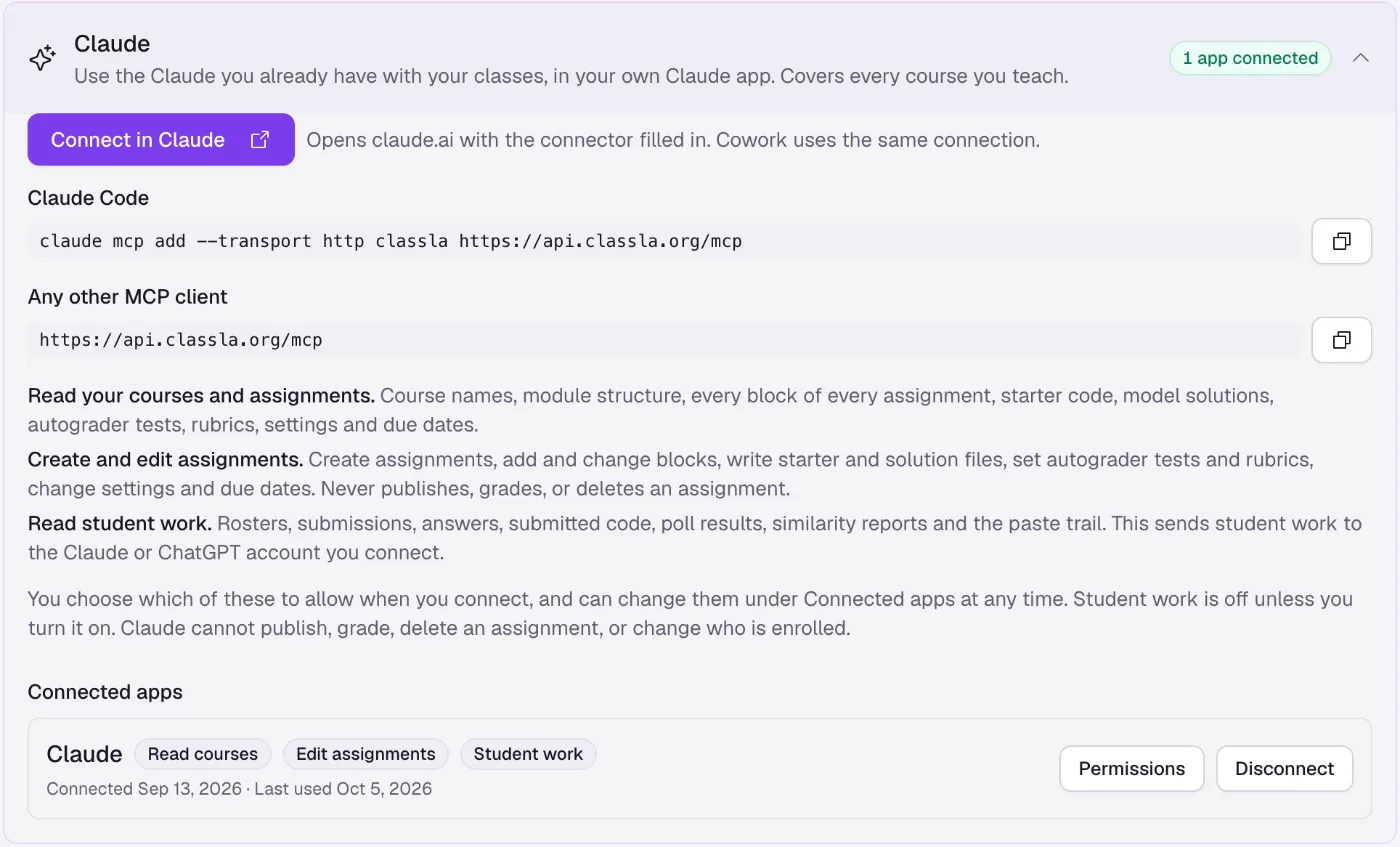
- Connect in Claude
- Opens claude.ai with the connector prefilled.
- Claude Code
- The command is
claude mcp add --transport http classla https://api.classla.org/mcp. - Other apps
- Apps that can add a connector by its web address take the same address.
It works from claude.ai, Cowork, Claude Code and Claude for Teachers. You sign in to Classla as yourself when Claude asks. Classla charges nothing for the connection; any cost of your Claude plan is between you and Anthropic. ChatGPT and Gemini connect the same way, each on its own page: ChatGPT and Gemini.
The Three Permissions
The consent screen asks for three things, in its own words:
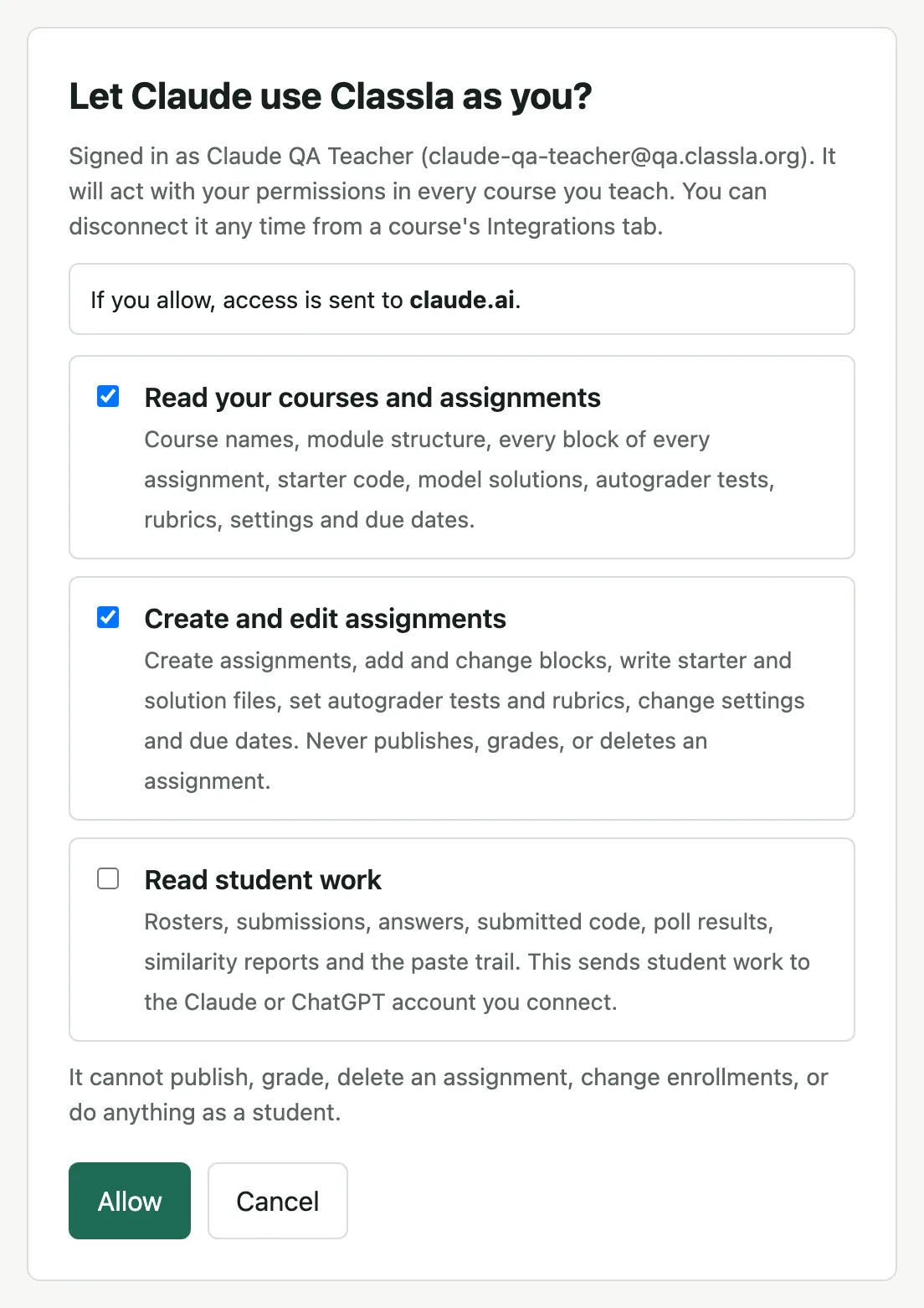
- Read your courses and assignments (Starts ticked)
- "Course names, module structure, every block of every assignment, starter code, model solutions, autograder tests, rubrics, settings and due dates."
- Create and edit assignments (Starts ticked)
- "Create assignments, add and change blocks, write starter and solution files, set autograder tests and rubrics, change settings, due dates and Closes dates. Never publishes or sets an Opens date, grades, or deletes an assignment."
- Read student work (Starts unticked)
- "Rosters, submissions, answers, submitted code, poll results, similarity reports and the paste trail. This sends student work to the Claude, ChatGPT or Gemini account you connect."
Even with the third box unticked, the first permission lets Claude read your questions, answer keys, model solutions and autograder tests, and those go to Anthropic. Everything Claude reads is handled under your own Claude account and Anthropic's own terms. The connection covers every course you teach.
The third is the only one that is never pre-ticked, because student work is the one thing that leaves Classla for a third party's account. It also covers live game results and the course Analytics overview, which name students. You can change your mind later from Connected apps, then Permissions, without reconnecting. The change applies on Claude's next request, though you may need a new chat before Claude lists the new tools.
To end the connection, press Disconnect beside the app under Connected apps and confirm. Claude loses access to all of your courses right away. Nothing it already created is removed, and you can connect again any time. Each teacher and each teaching assistant connects their own Claude; yours is not shared.
What Claude Can Do
Claude reaches your classes through the same tools the built-in assistant uses, plus a few for finding a course and an assignment from outside Classla. Which ones it gets depends on the permissions you ticked.
With Read Your Courses and Assignments
- List your courses, their sections and their assignments, and find an assignment by title across every course you teach.
- Read any assignment: every block, its settings, its rubric, its starter and solution files and its autograder tests.
- Read the course setup: tags, the Course Files library, the defaults for new blocks and assignments, the grading scheme and its category weights, and the Google Classroom posting rules.
- Read the course memories the built-in assistant has saved, so Claude follows the same standards.
- Run an IDE block's autograder tests against its model solution or its starter code, to check the tests it wrote, or against a wrong answer it writes (one that uses a banned method, say), to check the tests catch it. Nothing is recorded or graded and no file changes. One run at a time; a run can take a minute or two, and the reply then says to ask again for the results.
- Search these docs for how something in Classla works.
- Pass a problem or a feature request on to the Classla team when you ask it to (at most 20 a day).
With Create and Edit Assignments
- Create a new assignment, unpublished, in the folder you name. The course defaults for new assignments apply.
- Make a flashcard set from a topic or a list, and add, edit, remove or reorder its cards. It cannot record audio.
- Make a graded quiz from a flashcard set: multiple choice, fill in the blank or matching, created unpublished next to the set.
- Add any kind of block, including math answers, graph questions and show your work questions; change any existing block, including a quote, a checklist and the code and language of a code block, each of which keeps its place; move a block or delete one block.
- Copy blocks from another assignment, write starter and solution files, set autograder tests, and update the rubric.
- Change an assignment's title, settings, due dates and Closes dates (for everyone, a section or one student) and tags, and create a tag.
- Change the course defaults, the grading scheme and the Google Classroom posting rules, and make one assignment post now or never.
With Read Student Work
- List and search students, read a submission and its earlier attempts, and read a student's code.
- Search across the class's code, pull the similarity report, compare two students, and summarise the paste trail.
- Read poll results, the results of a finished live game, and the course Analytics overview, with each student's standing.
- Read the Time and Activity views per student (time on each clock, the Long and low reading, last active, actions per day), or one student in depth: which assignments they are missing, each assignment's score and time, and when they were last active.
- Read how the class did on every question of one assignment (share fully correct, average, most chosen wrong answer) and its autograder tests. Any of these can be narrowed to one section by name, or leave named students out of the numbers.
Each call also needs the permission the same change needs in Classla. A teaching assistant's Claude can do only what that TA can do by hand: Edit Assignments to change an assignment, Create Assignments for a new one, Manage Publishing and Due Dates for due dates and Google Classroom, and View Grades for the rubric. Changing the course defaults or the grading scheme needs an instructor of the course.
A new assignment always arrives unpublished. If Claude tries to change the content of an assignment students have already started (its blocks, starter files, autograder tests or rubric), the call stops and asks Claude to describe the change to you in plain language and get your yes before it goes through. The gate fails closed. Claude also cannot quietly change the answer key of a question students have already answered.
Running It on a Schedule
You can schedule a task in Claude that reads the week's submissions and drafts Monday's warm-up. Claude writes the assignment into Classla, unpublished, and you press publish. The schedule lives in Claude, on your side, not in Classla. Two practical limits for an unattended run: there is no tool that returns a whole week of submissions at once, so a class sweep is one call per student per assignment, and a run that tries to edit an assignment students have started will stall waiting for a confirmation nobody is there to give. Drafting a new assignment is unaffected.
What It Does Not Do
- The connector cannot publish, grade, delete an assignment, change enrollments or student accounts, or do anything as a student. The consent screen says so, and a test in the build stops any new assistant tool from reaching the connector until someone has decided whether it belongs there. It can list a course's recycle bin (assignments deleted in the last 30 days); only you can restore one, in Classla.
- Claude can set when an assignment is due and when it closes, but never when it opens. Setting the Opens date would publish the assignment, so content you have not reviewed could reach students. Open it yourself under Schedule once you have looked it over. A Closes date must be in the future, and Claude keeps a Closes date that has already passed, because moving it would reopen the assignment.
- It cannot write feedback for a student. Drafting feedback belongs to the built-in assistant, because its approval card exists only inside Classla.
- It cannot save or change course memories, and it does not use Classla's web search: your Claude keeps its own memory and has its own search.
- Ticking Read student work is not enough on its own. You also need View Grades on that course, and a TA also needs View Students, because these answers show names.
- Connecting is for verified teachers. A managed student account can never get a token.
- Content changes to a live assignment are held for your confirmation. Settings and due-date changes are not, and one confirmation covers any content edit to that assignment for the next ten minutes.
- Classla has no scheduler, no cron and no webhook. It cannot start a Claude run, and it cannot notify Claude that anything happened. Every recurring run is scheduled on Claude's side.
- The connector writes to assignments in courses, never to templates, and never to an archived course.
- Writes are capped at sixty a minute per connection, and a single result is truncated past 100,000 characters.
What Is Recorded
Every call is logged with the tool name, the connection, who it was for, whether it succeeded and how long it took. No email address is ever written to a log. The Connected apps list shows when each connection was last used, and an edit made through the connector takes a version-history snapshot first, so there is a restore point.