Assignment Settings
Every assignment has a settings panel, opened from the rail beside it. The settings decide when it is due, whether it is timed, how many attempts a student gets, what they see after they submit, and when their score appears. Each one saves the moment you change it. If you set something the same way every time, make it a default for new assignments in Course Settings.
Dates and Attempts
- Allow Late Submissions (Off by default)
- "Students can submit their work after the due date has passed." Late work is flagged Late in the grading view, never penalized on its own. With it off, an attempt still open when the student's due date passes is submitted for them within about a minute, with whatever they had saved.
- Allow Resubmissions (Off by default)
- "Students can submit multiple times. Each submission creates a new entry." Earlier attempts stay readable in full, so you can compare what changed. With it off, you can still hand one student's work back (or everyone's) with Reopen in the grading view. Reopen leaves out a student the assignment has closed for, and one who is past due with late work off, and tells you who.
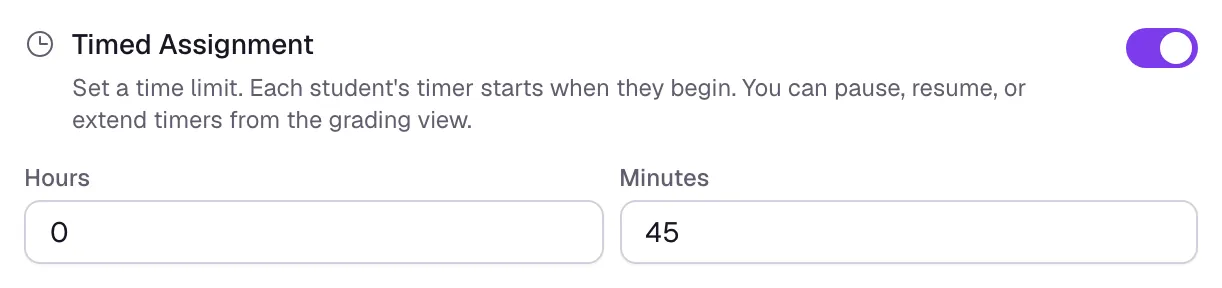
- Timed Assignment
"Set a time limit. Each student's timer starts when they begin. You can pause, resume, or extend timers from the grading view." Set it in hours and minutes. The timer is for the whole assignment, not each question.
With Allow Late Submissions off, the timer never runs past the student's due date: with a 60 minute limit and 20 minutes left until the due date, the student gets 20. With it on, the due date never shortens the timer: every student gets the full time limit, whenever they start, ending no later than their Closes date. A paused timer stops counting down. When a student's time runs out, their attempt is submitted for them within about a minute, even if a required question is still blank.
Due dates themselves are not in this panel. They live behind Schedule in the assignment header, with the dates it opens and closes, because they can differ for a section or one student. The assistant and the Claude connector can set due dates and Closes dates for you, but never the Opens date: opening an assignment publishes it, and that stays with you so nothing reaches students before you have reviewed it.
After Submission
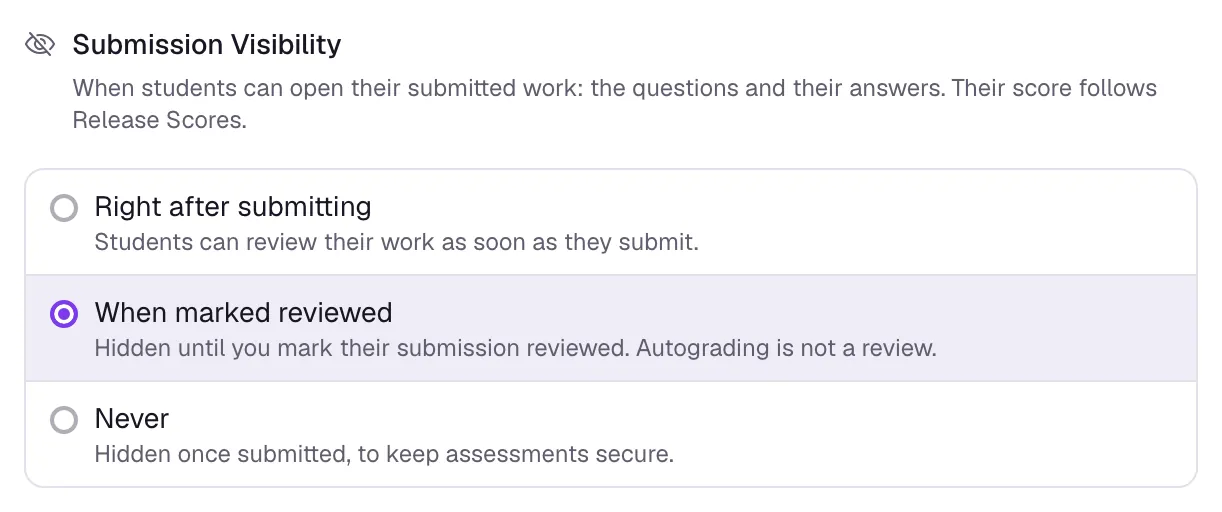
- Submission Visibility (Right after submitting by default)
Three choices for when students can open their submitted work, meaning the questions and their own answers:
- Right after submitting
- When marked reviewed: "Hidden until you mark their submission reviewed. Autograding is not a review."
- Never: keeps it hidden once they submit.
While it is hidden, the student sees a short note and their score, when Release Scores allows it. A new attempt after Unsubmit always shows the questions again.
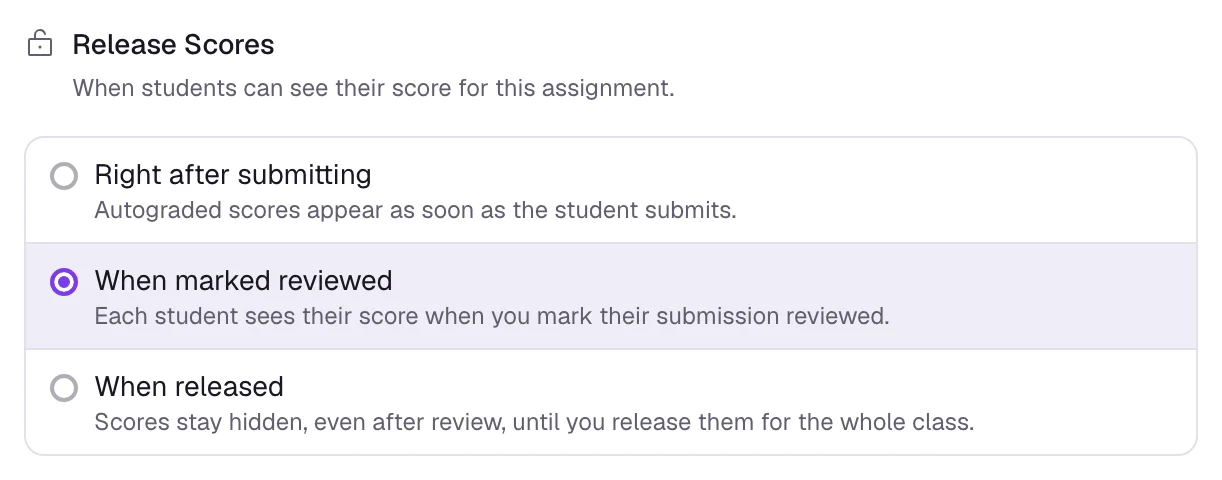
- Release Scores (When marked reviewed by default)
Three choices rather than a switch:
- Right after submitting
- When marked reviewed: each student sees their score when you mark their submission reviewed.
- When released: "Scores stay hidden, even after review, until you release them, to the whole class or one section at a time." The panel then shows Release scores now, Unrelease, and a date field with Schedule.
The grading view has the same Release scores and Unrelease buttons.
To release one section at a time, choose the section in the grading view's section menu: the button becomes Release to section, and only that section's students see their scores. Back on All Sections the line reads Released to 1 of 3 sections and the button Release to everyone. Release scores now and Unrelease in the settings panel always act on everyone. A student in no section sees their score when everyone is released. A student who changes section follows their new section.
- Show Correct Answers (Off by default)
Students see the key for each auto-graded question once their attempt is final, which means resubmissions are off, or their due date passed with late work off, or you marked it reviewed. They also need to be allowed to open their work, so with Submission Visibility on Never, or on When marked reviewed before you review, no key shows.
It is independent of when scores are released, and model solutions for coding blocks stay hidden either way. With resubmissions on, reviewing an attempt that shows correct answers or opens practice also ends resubmission for that attempt, so the key cannot be used to fix it.
How It Runs
Sequential with its Lock answers sub-switch, and Lockdown with Hide the rest of the course and When a student leaves the tab, are in this panel too. Both have limits you should read before planning an exam around them, so they are covered on the modes page, not here.
- Shuffle question order (Off by default)
"Each student gets the questions in their own order, the same every time they open it. A question keeps the text and code above it." Everything above a question, back to the previous question, moves with it, and anything after the last question stays at the end. A question inside tabs or a reveal moves with the whole block. With Sequential on, each step moves as a whole, so students step through their own order.
Only the order on the student's screen changes: answers and scores do not depend on it, and the grading view, analytics, the printable worksheet and a live game keep the order you wrote. A student's practice runs use the same order as their real attempt. Student Preview shows you one shuffled order, your own.
- Calculator
- None, Scientific or Graphing: "Students open it from the assignment while they work." It is mostly for math, and its page says what each one is.
- Practice after grading (Off by default)
- "Students can redo this assignment for review once their grade is final. Practice never changes a grade or a submission." An optional Allow practice after date keeps it closed until then, for example until another section has taken the same quiz.
- Partner work (Off by default)
- "Students work in groups and share one set of answers. You make the groups." Set up groups opens the group board. While Lockdown is on the switch is greyed out ("Partner work can't be used with lockdown. Turn off lockdown first."), and once a group has started work it can't be turned off. With it on, If students already started chooses which work a group keeps when its members started on their own: the newest, the most or least answered, or none (start fresh). Setting up the groups, group due dates, grading a group and the Contributions table are on the partner work page.
- Student messaging (Off by default)
- Under Messages. Students can message you about this assignment from a Message your teacher button, and you can message them from its Messages tab. Turning it off keeps earlier messages readable. On by default for new assignments when the course's Student messaging setting is on. See student messaging.
The Rest of the Panel
- Grading Rubric
- Builds the rubric you will tick while grading.
- Clone to Another Course (Instructors only)
- Copies the assignment into another of your courses, picked under Target Course. The copy brings the content, the rubric, its tags, and its own copy of every coding workspace and image; student work, grades, publishing and due dates stay behind, so it arrives unpublished. Only instructors see it, and an archived course cannot receive a copy.
- Delete Assignment
- Removes it and its grades from the course. You can restore it from the recycle bin, next to Create, for 30 days (see the recycle bin).
How Settings Work Together
Most settings can be combined freely. These are the pairs teachers ask about, and what a student sees in each.
Sequential and a Live Game
They work together with nothing for you to do. A live game already goes through the questions in order, one round at a time, so turning Sequential on or off changes nothing during the game. Lock answers does nothing in a game either.
Practice After Grading and a Live Game
They work together. Practice only opens once a student has submitted and their grade is final and released, so it has nothing to do with the game. If the game counted as Graded, the student's attempt is still in progress after it, so practice stays closed until they turn it in. A game set to Practice writes nothing.
Timed Assignment and Allow Late Submissions
With late work off, the timer is cut off at the student's due date: a student who starts with 20 minutes left and a 60 minute limit gets 20 minutes, and their work is handed in then. With late work allowed, the due date never shortens the timer. Every student gets the full time limit whenever they start, before or after the due date, and the timer ends no later than their Closes date. Work handed in after the due date is flagged Late.
Timed Assignment and Sequential
There is one clock for the whole assignment, started when the student first begins. Sequential only controls which question is on screen, and does not give each question its own time.
Lockdown, a Time Limit and a Due Date
The attempt ends when the time limit runs out, or at the due date if that comes first and late work is off, and is handed in within about a minute.
Lockdown and a Live Game
Lockdown does nothing during the game. If a student later opens an attempt the game left in progress, lockdown starts at that point, as it would for any other assignment.
A Live Game and the Time Limit
The game uses its own seconds per question, not the assignment's time limit.
A Live Game That Counts as Their Submission
The answers sit in an attempt that is still in progress. The student has to open the assignment and submit it. If you chose Open it after the game, it opens for the players. With late work off, an attempt still open at the due date is handed in for them within about a minute, with what the game saved.
Sections with Different Dates and a Live Game
The game ignores Opens and Closes dates and plays whoever you picked. Students you left out keep their Schedule. See the modes page for what Open it does to players who could not see it.
Show Correct Answers and Submission Visibility
The key is shown with the student's work, so it never appears over work they cannot open. With Never, they see a note and their score, and no key. With When marked reviewed, the key appears when you review, and with resubmissions on, reviewing also closes resubmission for that student.
Lock Answers and Check Answer
Once a student moves past a question under Sequential with Lock answers, they can no longer change it or check it again. Staff and practice runs are exempt.
Required and a Timer or Due Date
Required only stops a student pressing Submit with a blank question. When a timer runs out or a due date passes, the work is handed in anyway.
Closes Date and Reopen
Reopen skips students the assignment has closed for and tells you who. Move their Closes date in Schedule first, then reopen. A student who is past due with late work off is skipped too. The grading page covers the button itself.
Closes Date and Practice
Practice ignores the due date but not the Closes date. Once an assignment has closed for a student, they cannot practice it either.
Course Defaults
Course Settings has three sections under Defaults, New assignments, Live games and New blocks. Each shows how many settings you changed, or Classla defaults, next to its title. New assignments: "Settings every new assignment in this course starts with. Each assignment can change them. Existing assignments are not affected." Late submissions, resubmissions, submission visibility, release scores, show correct answers, shuffle question order, sequential, lock answers, practice and partner work all have a default there.
The New blocks section does the same per block type: "Settings every new block in this course starts with, by block type. Each block can change them. Existing blocks are not affected." Each type opens to its own list, and a type you have changed shows how many settings are customized. What each type can default:
Every question type can default Points, Allow student to check answer and Required, except where noted below.
- Multiple choice
- Also Shuffle options and Partial credit.
- Fill in the blank
- Also Points per blank. Check Answer starts on for this type unless you change it.
- Short answer
- Also Grading (Manual, Keyword or Regex), Case sensitive, Minimum words and Maximum words.
- Drag and drop matching
- Also Partial credit, Matching (One item per zone or Many items per zone) and Randomize items.
- Poll
- Selection, Show results to students, Allow changing answer and Required. A poll has no points.
The coding-class blocks (Coding, Parsons problem, Code selection) and the math blocks (Math answer, Graph, Show your work) are in the same list with their own settings. Coding blocks cannot be required.
What It Does Not Do
- Publishing and due dates are per student, not per course. There is no single course-wide published flag, which is what makes a one-student exception possible in the first place.
- A default is applied when something is created. Changing a course default never reaches an assignment or a block that already exists.
- Six settings cannot be defaulted, because they are per-assessment decisions: the time limit, the calculator, the two lockdown settings (Hide the rest of the course and When a student leaves the tab), the scheduled score-release date and the practice-open date.
- Check Answer is unlimited and uncapped. It is there for practice, not as an assessment control.
- Shuffle question order moves whole questions, not parts of one, and every student gets the same questions. There are no question pools. A student's order is fixed by who they are, so it changes only if you add, remove or move a question.
- There are no notifications of any kind. Classla does not email or message a student about a due date, a published assignment or a released score.