Connect Your Own ChatGPT
The ChatGPT you already use can read and edit your Classla assignments, as you. You add Classla to ChatGPT once, choose which of three permissions it gets, and then ask ChatGPT about your courses the way you would ask it anything else. Classla runs no model for this: your own ChatGPT account does the thinking, and Classla charges nothing for the connection.
What It Is
It is the same connection that Claude and Gemini use, with the same three permissions and the same limits. ChatGPT works inside your account and with your permissions, in every course you teach. If a teaching assistant connects their own ChatGPT, it can do only what that assistant could do by hand, and your connection is not shared with them.
Only verified teachers can connect it. A student account cannot, and a connected ChatGPT can never act as a student.
Connecting
Start in Classla. Open Settings in the top bar, choose Connected apps, and open ChatGPT. The card shows the web address you will need, with a copy button. Then, as of October 2026:

- In ChatGPT on the web, open Settings, then Security and login, and turn on Developer mode.
- Press Open ChatGPT Plugins on the Classla card (or go to
chatgpt.com/plugins), choose +, name it Classla, and paste the address from the card. Leave authentication on OAuth. - Sign in to Classla when ChatGPT asks. If you are not signed in already, Classla asks first and then brings you back. If you sign in with Google and land on your dashboard instead, start the connection again from ChatGPT.
- Choose what to allow on the screen that appears, then press Allow.
- In a chat, open Developer mode in the message box and choose Classla.
Classla is not in ChatGPT's own app directory yet, which is why you add it by hand. Developer mode is a ChatGPT setting, not a Classla one. If you do not see it, your ChatGPT plan, or the ChatGPT workspace your school manages, may not allow it, and your school's ChatGPT administrator is the person to ask. ChatGPT's menus change from time to time, so the names above may have moved.
The Three Permissions
The screen asks for three things, in its own words:
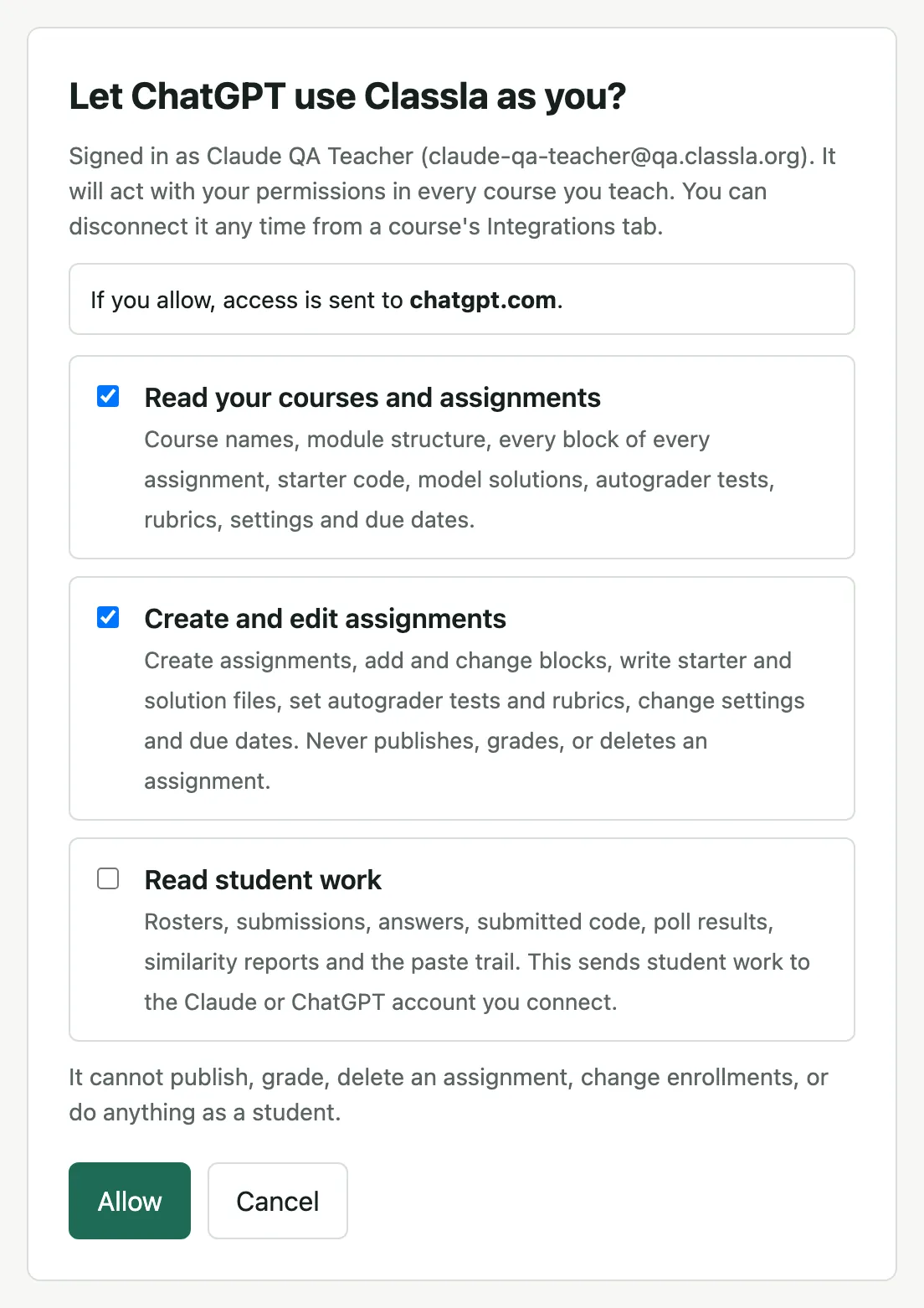
- Read your courses and assignments (Starts ticked)
- "Course names, module structure, every block of every assignment, starter code, model solutions, autograder tests, rubrics, settings and due dates."
- Create and edit assignments (Starts ticked)
- "Create assignments, add and change blocks, write starter and solution files, set autograder tests and rubrics, change settings and due dates. Never publishes, grades, or deletes an assignment."
- Read student work (Starts unticked)
- "Rosters, submissions, answers, submitted code, poll results, similarity reports and the paste trail. This sends student work to the Claude, ChatGPT or Gemini account you connect."
The first two start ticked. Read student work never does, and you also need View Grades on that course for it to work.
Even without the third, the first permission lets ChatGPT read your questions, answer keys, model solutions and autograder tests, and those go to OpenAI. Everything ChatGPT reads is handled under your own ChatGPT account and OpenAI's own terms. The connection covers every course you teach, so if any of that should stay out of ChatGPT, leave it disconnected.
You can change the permissions later without reconnecting: Settings in the top bar, Connected apps, ChatGPT, then Permissions beside the app under Connected apps. A permission you remove stops working on ChatGPT's next request. If a tool you added does not appear, refresh the Classla app in ChatGPT's settings.
What ChatGPT Can Do
Which of these it gets depends on the permissions you ticked.
With Read Your Courses and Assignments
- List your courses and assignments, and find an assignment by title across every course you teach.
- Read any assignment: every block, its settings, rubric, starter and solution files and autograder tests.
- Read the course setup: tags, the Course Files library, the defaults for new blocks and assignments, the grading scheme and the Google Classroom posting rules.
- Read the course memories the built-in assistant has saved.
- Run an IDE block's autograder tests against its model solution or its starter code, to check the tests it wrote, or against a wrong answer it writes (one that uses a banned method, say), to check the tests catch it. Nothing is recorded or graded and no file changes. One run at a time; a run can take a minute or two, and the reply then says to ask again for the results.
- Search these docs for how something in Classla works.
- Pass a problem or a feature request on to the Classla team when you ask it to (at most two a day).
With Create and Edit Assignments
- Create a new assignment. It always arrives unpublished.
- Make a flashcard set from a topic or a list, and add, edit, remove or reorder its cards. It cannot record audio.
- Make a graded quiz from a flashcard set: multiple choice, fill in the blank or matching, created unpublished next to the set.
- Add, change, move or delete a block, copy blocks from another assignment, write starter and solution files, set autograder tests and update the rubric.
- Change an assignment's title, settings, due dates and tags, and the course defaults, grading scheme and Google Classroom posting rules.
With Read Student Work
- Read a roster, a student's submission and earlier attempts, and their code.
- Compare students, read the similarity report and the paste trail.
- Read poll results, finished live game results and the course Analytics overview, Time and Activity views, one student in depth (missing work, time, last active), and every question's class results on one assignment, narrowed to one section by name or with named students left out.
Deep Research and Finding Old Assignments
ChatGPT's research and search features can look through your assignments too. They search assignment titles across the courses you teach and read one assignment in full. They never look inside student work, and they need only the first permission. For a very long assignment, ChatGPT may be told the text was cut short and then read single blocks instead.
ChatGPT Asks Before It Changes Things
By default, ChatGPT asks you before it does anything that changes your classes, and it does not ask before it only reads. Classla adds its own check on top. If a change would touch the content of an assignment students have already started (blocks, starter files, autograder tests or the rubric), Classla stops it until ChatGPT has described the change in plain words and you have said yes. One yes covers that assignment for ten minutes. Settings and due dates are not held. Before any edit, Classla saves a restore point, so open Version History if you want something back.
Disconnecting
Open Settings in the top bar, then Connected apps, ChatGPT. Under Connected apps, press Disconnect beside the app and confirm. It loses access to all of your courses right away. Nothing it already created is removed, and you can connect again whenever you like. If you only want it to do less, use Permissions instead.
What It Does Not Do
- ChatGPT cannot publish, grade, delete an assignment, change enrollments or student accounts, or do anything as a student. The permission screen says so. It can list a course's recycle bin (assignments deleted in the last 30 days); only you can restore one, in Classla.
- It cannot write feedback for a student, move students between partner groups, or save course memories. It has its own web search, and does not use Classla's.
- Read student work is not enough on its own. You also need View Grades on that course, and a teaching assistant also needs View Students.
- Classla has no scheduler. It cannot start a ChatGPT run or tell ChatGPT that something happened.
- It writes to assignments in courses, never to templates, and never to an archived course.
- Writes are capped at sixty a minute per connection, and a single result is cut off past 100,000 characters.
- Classla does not control what OpenAI does with your chats. OpenAI's own terms apply.