Canvas and Moodle
Classla works inside Canvas and Moodle. Students open Classla from your LMS course and are signed in, you add Classla assignments to your LMS modules, and released Classla grades go to the LMS gradebook.
Adding Classla to Your LMS
Your LMS administrator adds Classla once for the school. Most LMSs only need Classla's registration URL: in the course's Settings, open Integrations, expand Canvas and Moodle and copy the Registration URL (LTI 1.3). The URL shows only while the course has no LMS link yet. Once the course is linked, the card no longer shows it, so copy it from a course that is not linked, or ask us.
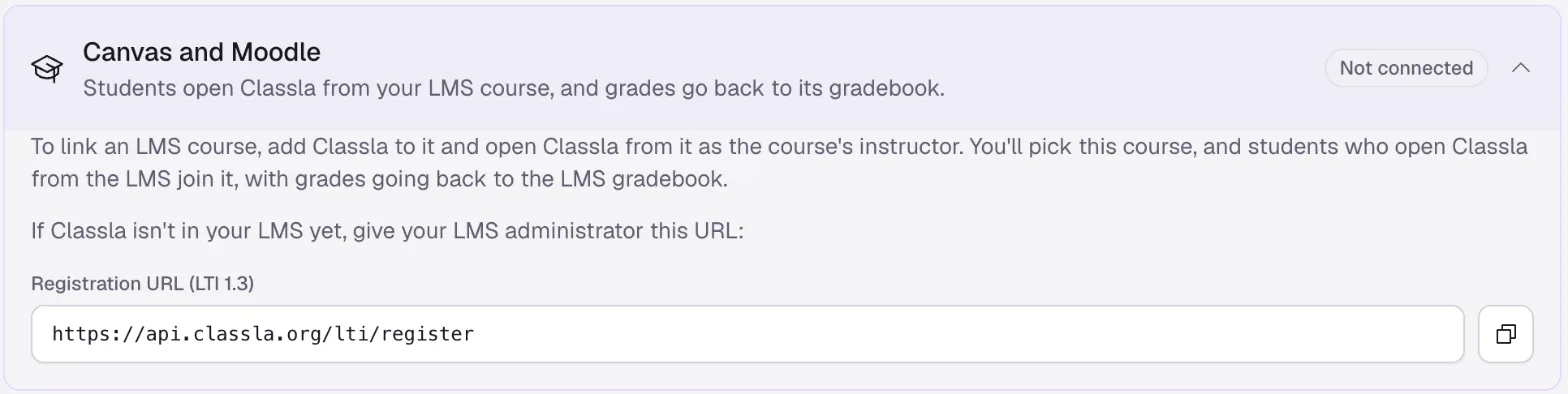
Only adding Classla needs your IT team. After that, you link your own course yourself.
- Canvas
- Admin, Developer Keys, + Developer Key, LTI Registration. Paste the URL, then turn the new key on and add the app to your account.
- Moodle (4.1 or later)
- Site administration, Plugins, Activity modules, External tool, Manage tools. Paste the URL into Tool URL and press Add LTI Advantage. The tool starts as Pending: press Activate, then edit it to show in the activity chooser and open in a new window.
- Another LMS
- Using another LMS? Write to camden@classla.org.
Linking Your LMS Course
Add Classla to your LMS course (in Canvas it appears in the course navigation) and open it as the course's teacher. The first time, Classla asks which Classla account to use and then which of your Classla courses this LMS course goes with: pick one and press Link course. From then on everyone who opens Classla from that LMS course lands in the Classla course you picked.
Only an instructor of the Classla course can link it, and the course must not be archived. A TA is not offered the link page, even with every permission. If a student or TA opens Classla from the LMS course before its teacher has linked it, they see "Your teacher hasn't set this up yet" and can come back once you have. Assignments you add to the LMS before you publish them in Classla still get their gradebook column, but students can't open them until you publish them in Classla.
Your Account
If you're already signed in to Classla in that browser, press Continue as your name, and your LMS signs you in to that account from then on. Otherwise sign in first with I have a Classla account. Classla never picks an account from the email address your LMS sends. The page names your LMS and its web address next to Continue as: check it is your school's before you press it.
After your IT team adds Classla, we check the new connection before anyone can connect an existing Classla account through it. Until then the page offers only a new account. Write to camden@classla.org if you are waiting.
What Students See
A student opens Classla from the LMS course and is signed in and enrolled in the linked course. The first time, Classla asks "Have you used Classla before?" A student who picks I'm new to Classla gets an account with their name from the LMS. That account only works from the LMS: the student has no password and can't sign in at app.classla.org on their own. After the first time, the LMS signs the student straight in, with no question. If your LMS shows Classla inside the page, students press Open Classla and it opens in its own tab.
Students Who Already Have a Classla Account
Classla never matches an LMS student to an account by email address. Instead, the first time a student opens Classla from the LMS, they press I have a Classla account, sign in, and come back to the same page, then press Continue as their name. A student already signed in to Classla in that browser sees Continue as right away. From then on the LMS signs them in to that account.
Every student gets this question the first time, even when your LMS shares its roster: Classla never makes an account for a student before they open Classla from the LMS themselves, so nobody ends up with a second one. There is no way yet to merge two accounts.
Students You Created Usernames For
Managed students already have a Classla account, and nothing in the LMS points to it. There are two ways to connect them:
- A student opening Classla from the LMS is asked for their Classla username first (I have a Classla username or account). Signing in with it connects their account.
- Or you match them: press Match students, pick the managed student each LMS student is (Classla suggests one with the same name), then Save matches. You can only pick managed students you created. Leave anyone else on Joins on first visit.
Adding Classla Assignments to Your LMS
Where your LMS lets you add external content (in Canvas: a new assignment's External Tool submission type, or a module's External Tool item), choose Classla. Pick the assignments and press Add to your LMS. Each one becomes a link that opens that assignment, with a gradebook column worth its points. An assignment with no points gets no column.
Grades
Classla sends a student's score to the LMS gradebook once the student can see it in Classla, which follows each assignment's release setting: right after submitting, when you mark it reviewed, or at the release time you set. It checks every 15 minutes and sends only what changed; Send grades now sends at once, and Classla also sends shortly after you open it from the LMS.
- Scores not yet released are not sent. A score still waiting for you to grade part of it is not sent either, and practice attempts never are.
- A late score is sent like any other. Classla does not tell the LMS it was late.
- A missing assignment or an excused one sends nothing, so the LMS shows a blank, not a zero.
- If you change a score in Classla after it was sent, the new score is sent at the next check.
- If you unrelease a score, the number already in the LMS stays there until a new released score replaces it.
- If you edit a grade in the LMS gradebook, Classla does not see it and does not copy it back. Classla only remembers the last score it sent, so your edit stays until that score changes in Classla, and then Classla replaces it.
- The LMS gets each assignment's score in that assignment's column, never the course total. Your LMS works out its own total with its own weighting, not your Classla categories.
To give every assignment a gradebook column, press Add all assignments to the gradebook. If you delete a column in the LMS, Classla stops sending to it; adding the assignment again or pressing the button makes a new one. Assignments you haven't published still get a column.
Roster
When your LMS shares its roster, Classla reads it when you link the course, every 6 hours, and when you press Sync roster. Students appear on the Classla roster once they open Classla from the LMS the first time. Until then the course's LMS card counts them as Not joined yet, and Match students lists them. Teachers and TAs also join when they open Classla from the LMS. A student dropped in the LMS stays in Classla until you remove them. A student already in the course, including one you deactivated, is left as they are.
LMS Roles
Classla gives each person the role their LMS gives them in that course. Everyone is added when they open Classla from the LMS.
- Instructor or Administrator
- Becomes a full Instructor in the Classla course, with the same powers as you, including unlinking and deleting the course.
- Teaching Assistant
- Becomes a TA with the course's default TA permissions.
- Anyone else
- Becomes a student. A Moodle non-editing teacher is one example.
LMS sections do not become Classla sections. Every student lands in the course with no section, and you set up Classla sections yourself. Only instructors can use Sync roster, Add all assignments to the gradebook, Match students and Unlink; Send grades now also works for a TA who can grade.
The Student Limit
Until a person at Classla has verified the teacher who made the course, it holds five students. The first five students to open Classla from the LMS join, and the next one sees "This course is full". The message teachers see reads: "Courses are limited to 5 students until your account is verified. Email camden@classla.org and we will get you set up for a full class."
When Something Goes Wrong
Classla doesn't email anyone about a failed sync. The course's LMS card lists recent activity, and pressing a button shows the result on screen. A course can be linked to both an LMS and Google Classroom. The two don't know about each other.
What It Does Not Do
- Grades go one way, from Classla to the LMS. A score changed in the LMS gradebook is not copied back.
- Your LMS administrator has to add Classla before teachers can use it.
- One LMS course links to one Classla course. Several LMS sections can link to the same Classla course.
- Classla needs its own tab: inside an LMS frame it asks students to open it in a new tab.
- Unlink stops grades going to the LMS. Students stay in the course.