Blocks: What an Assignment Is Made Of
An assignment in Classla is a document you write, not a form you fill in. Type text the way you would anywhere else, and press the slash key to drop in a block: a question, a piece of content, a layout. Questions carry points, and most grade themselves; content blocks carry the lesson around them. A lesson from a prebuilt curriculum is made of the same blocks, so you can rewrite any of it mid-unit. This page lists every block and every setting on it.
Adding and Arranging Blocks
Press / on an empty line to open the insert menu, and keep typing to filter it. Hovering a block gives you Add block below, Drag to move and Hide from students.
- Hide from students
- A hidden block is removed on the server, so it never reaches a student's browser; use it for notes to yourself or a co-teacher. Hiding a question does not take its points out: a hidden graded question still counts toward the assignment's total, so every student scores zero on it. To pull a question out of the grade, delete it or set its points to 0.
- Recent
- The last three blocks you inserted on this browser appear first in the insert menu, under Recent. To turn that off, open User Settings and switch off Show recently used blocks first in the Slash menu card.
- Copy block
- On each block's toolbar. In another assignment, choose Paste Block from the insert menu to drop the copy in with all its settings. A pasted coding block gets its own copy of its files rather than sharing them with the original.
- Student Preview
- In the editor header. Shows the page as your class will see it, with hidden blocks left out. Its banner has a Before submit / After submit switch, so you can check what a student sees once they have handed it in, and Exit Preview takes you back to editing.
- New blocks
- A section of Course Settings with defaults for most question settings, one panel per block type, so you set "check answer on, two points, required" once for the year instead of on every block. A default applies when a block is created.
Question Blocks
Most question blocks have these three settings.
- Points
- Every graded block has it.
- Check Answer
Every auto-graded block has a switch that gives the student a Check Answer button before they submit: multiple choice, fill in the blank, fill-in tables, short answer with keyword or regex grading, drag and drop, math answers, graphs, data plots, chemistry questions, Parsons problems and code selection. A manually graded short answer, a poll and a Show Your Work block have none, and a coding block has its own autograder switch.
Check Answer and the real grade use the same grader, so they cannot disagree. A student can press it as many times as they like, and it never shows the answer key, only whether they are right, their points and any feedback you wrote. Because it is unlimited, a multiple choice question can be guessed through, so turn it off on a test (see assignment settings).
- Required
- On every question block except coding blocks, polls included. Students cannot submit until they answer it, though a time limit or a due date still submits on its own. A coding block cannot be required, because its work lives in the workspace.
Multiple Choice Question
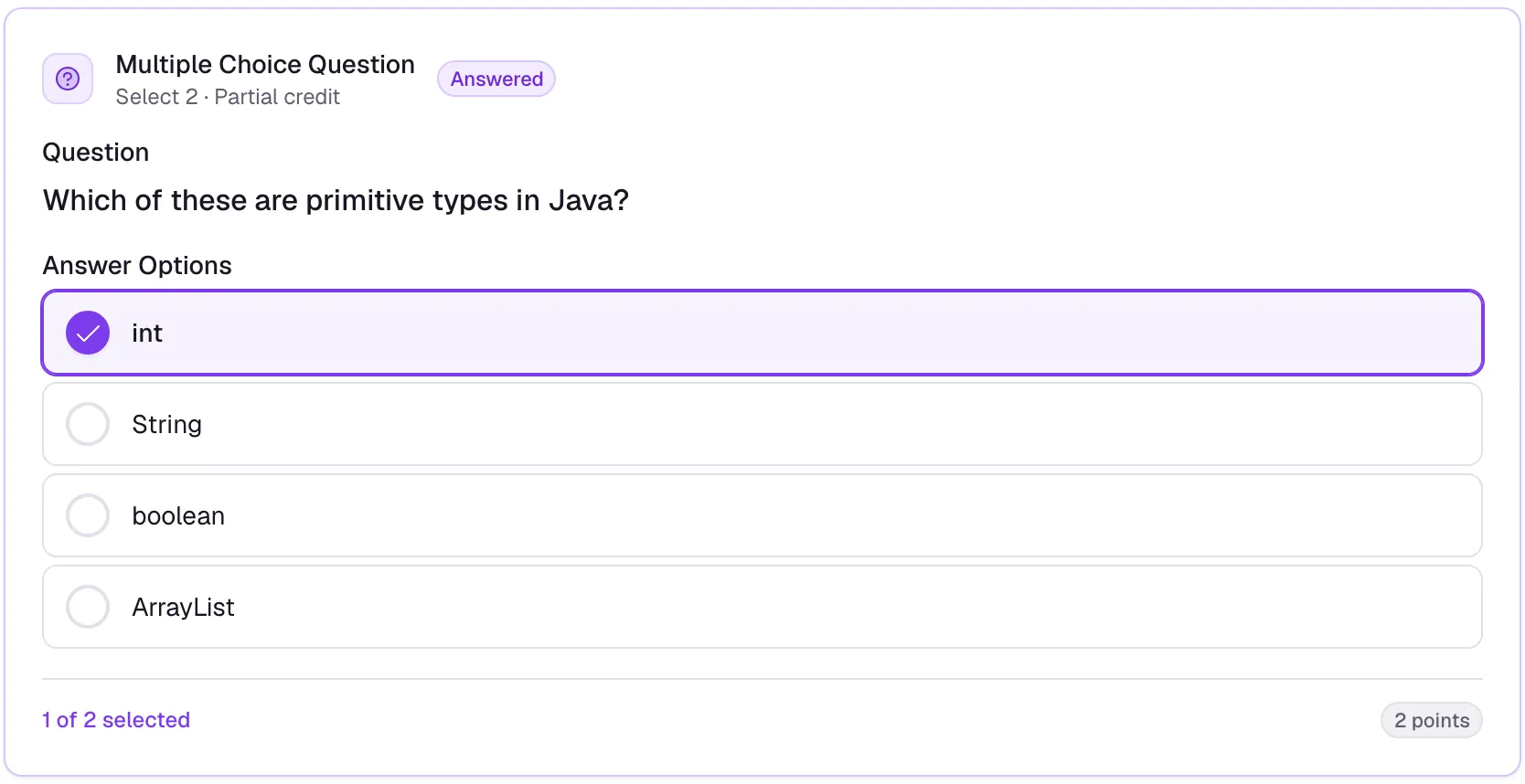
Write the question and the options, then tick the right one.
- Allow multiple correct answers (Off by default)
- Lets the student pick more than one; without it they pick one. With it on, the student sees Select 2 (the number of correct options) and can pick only that many. To change a pick at the limit, they untick one first.
- Award partial credit (With multiple answers)
- Each correct option the student picks earns its share of the points. Wrong picks are not taken off, but each one uses up a pick. Without it, the student needs exactly the right set.
- Shuffle answer order
- "Each student sees the options in a randomized order. Grading is unaffected."
- Explanation (optional)
- A sentence about the right answer. The student sees it only after a correct Check Answer, or on the question once answers are shown to them after submitting. A wrong check says Not quite. Try again. and never shows it.
- Allow student to check answer (Off by default)
- Off until you turn it on.
Fill-in-the-Blank
Write the question text and press Insert Blank where a blank goes. Each blank has its own settings.
- Accepted answers (Per blank)
- A list of answers that count, and the blank's own feedback for a wrong answer. Spaces at the start or end of the answer are ignored. Spaces inside the answer still matter in Exact text.
- Case sensitive (Off by default)
- With it off, "Paris" and "paris" both match.
- Match (Per blank)
How an answer is compared:
- Exact text: the answer must be one of the accepted answers.
- Regex: a pattern, so
int x=5;andint x = 5 ;both pass without listing both. The whole answer has to fit the pattern, not just part of it. It needs a Sample answer: "One real answer the pattern accepts. Students see this, not the pattern, when answers are revealed." - Number: takes a Tolerance and accepts 0.5, 1/2 and .5 alike.
- Math: accepts any equivalent expression; the math page covers it.
- Award points per blank (Off by default)
- Without it the block is all or nothing: every blank must be right. With it, each correct blank earns its share.
- Allow Check Answer (On by default)
- The only block where it starts on.
Fill-in Table
A table where some cells are given and some are for students to fill in: a table of values, a unit conversion, a vocabulary or data table. Use Add row, Add column and the × buttons to shape it, and Header row to show the first row as column headings. Type a given cell's text, with $x^2$ for math and backticks for code; a given cell can run over several lines, so a short program fits in one cell. Click Student cell to turn a cell into an answer box and Given to turn it back.
- Answer (Per student cell)
- What counts as right. Leave it empty and the cell is yours to grade: the attempt waits for your score, like a manually graded short answer.
- Compare as (Per student cell)
- Text: the spaces at either end do not matter, and neither does case unless you turn Ignore case off. Separate answers that all count with
|, as inParis | paris, France. - Number: takes a tolerance and accepts 0.5, 1/2 and .5 alike. Students type into a plain box.
- Math: any equivalent expression, the same as a math blank. Students get the math keyboard.
- Text: the spaces at either end do not matter, and neither does case unless you turn Ignore case off. Separate answers that all count with
- Partial credit (On by default)
- The points are split evenly over the cells with an answer. Off, every one of them must be right.
- Ignore case (On by default)
- Text cells accept any capitalization. Off, case counts, so a key of
Ttrejectstt. - Allow student to check answer (On by default)
- Show students which cells are wrong (Off by default)
- Appears when students can check their answers. Off, a check only says how many cells are right, such as
3 of 5 cells correct. On, the wrong cells are outlined in red until the student changes them. It never shows the answers.
After the answers are released, each student cell shows green or red with its answer below.
Punnett Square
Type a cross and the square and its key are built for you, with parent 1 along the top and parent 2 down the left. Type Tt x Tt for one gene, AaBb x AaBb for two (a 16-cell square), or X^A X^a x X^A Y for an X-linked gene. The cross sets the size of the square: rows and columns cannot be added by hand. If a cross cannot be read, the editor says why and keeps the last good square. Three or more genes, and superscripts on genes that are not X-linked such as blood types, are not supported; use a Fill-in Table for those. Use Try an answer to see how an answer grades.
Case always counts, so a key of Tt rejects tt. The order of the alleles does not: Tt and tT are the same answer. With two genes, the order of the genes and a space between them do not count either. X-linked answers can be typed as plain text, so XAXa counts for X^A X^a.
- Students fill in the gametes too (Off by default)
- Students also fill in the gametes along the top and left. Each cell is graded on its own, so the gametes must go in a set order: capital allele first, Y last, and
AB, Ab, aB, abwith two genes. Students see this order on the block. Leave this off if you would rather not grade the order. - Partial credit (On by default)
- The points are split evenly over the cells. Off, every cell must be right.
- Allow student to check answer (On by default)
- Show students which cells are wrong (Off by default)
- Appears when students can check their answers. Off, a check only says how many cells are right, such as
3 of 5 cells correct. On, the wrong cells are outlined in red until the student changes them. It never shows the answers.
Short Answer
- Grading Method (Manual by default)
Manual grading, Keyword matching or Regex pattern. Manual is the default, so a short answer waits for you unless you pick one of the other two.
- Keyword matching: list the Required Keywords/Phrases. The answer is correct only if every keyword appears somewhere in it, and a keyword counts when it appears inside a longer word. It is all or nothing: two of three keywords scores zero. A very short keyword matches almost any answer, so use whole words or phrases.
- Regex pattern: "Use a valid JavaScript regex pattern. The answer will match if it satisfies this pattern." A pattern is a short code for the shape of an answer. Here the answer is correct if the pattern is found anywhere in it, so
cataccepts "concatenate". To require the whole answer to fit, start the pattern with^and end it with$. Fill-in-the-blank is different: its Regex match always needs the whole answer to fit.
- Case sensitive (Off by default)
- Applies to both keyword and regex grading. With it off, "Loop" and "loop" match.
- Minimum Words (optional) and Maximum Words (optional)
- The student sees a word count and cannot submit outside the limits. An empty answer is not held back by a minimum; it just scores zero.
- Sample Answer (hidden from students)
- A model answer for you and your graders.
- Allow student to check answer (Keyword or regex only)
- Appears only with keyword or regex grading.
- Rubric (None by default)
Add rubric grades the question by criteria, each with its points, such as "States the conclusion in context, 2". You check them off at this question when you grade, and the score updates as you check. The question is worth the criteria's total, it is graded by you (no keyword or regex grading, no Check Answer), and you can still type a score instead. A criterion with no description counts for nothing, and the editor lists it as a problem. No AI grades the answers.
Show the rubric while students work is off by default, so students do not see the criteria while they answer. Once their score is released and they can no longer resubmit, they see the criteria with which ones they earned. Turned on, they also see the criteria, each with its points (1 pt), under the question before they answer. This rubric belongs to the one question; the assignment's Grading Rubric (see Rubrics) scores the whole assignment and stays where it is.
Drag-and-Drop Matching
Write an Instruction, add Source Items (Draggable) and Target Zones (Drop Areas), and under each zone tick the items that belong there. Students drag each item onto a zone; an item let go anywhere inside a zone lands in that zone. Items and zone labels can hold math: write it between dollar signs, like $\frac{1}{2}x$.
- Add image
- An item can be text, a picture, or both. Takes PNG, JPEG, GIF or WebP up to 10 MB, and an image needs alt text ("Alt text, required") so a student using a screen reader can still answer.
- Match Type (One-to-one by default)
- One-to-one: "Each item matches one zone"
- Many-to-one: "Multiple items can match the same zone"
- Randomize source items order
- Shuffles the items for the student.
- Allow partial credit (On by default)
- Each correctly placed item earns its share. Off, every item must be right.
Poll/Survey
A question with no right answer, so it has no points and never counts toward a grade.
- Selection Type
- Single choice or Multiple choice.
- Show results to students (After they vote by default)
- Never, After they vote (the default), After the poll closes or Immediately. Students see the count for each option, never who voted for what.
- Allow changing answer (Off by default)
- With it off, a student's first vote is final, so nobody changes their vote after seeing the results. The poll tells students this before they vote.
- Close date
- Stops voting at a time you pick.
You always see the results, whatever the setting. Open the assignment's grading view and the poll shows the tally, a section filter, each student's vote, and how many have not yet answered, updating as votes come in.
Science graph
Students build a bar or line graph from a table of lab results, with two or more series, error bars and axis labels. Type "graph", "bar graph", "line graph" or "error bars" in the slash menu. Paste the results under Results table, from a spreadsheet or typed: the first row names each series, the first column each category, and a value reads 8.2 ± 0.6 (or the ± has its own column). Students see this table above the graph. The key comes from it and is stated in words below the table.
- Correct graph type
- Bar graph or Line graph. With Students choose the graph type on, choosing is graded as its own part. Off, every student plots this type.
- Students write the axis labels
- On, the labels are graded as their own part. List the words each label needs: a comma means all of these, a | means any of these, so "chlorophyll, mg/g" needs both. Off, students see the labels you write.
- Error bars
- On, students also drag an error bar for each value, graded with the data.
- Students set the y scale
- Students start from a plain 0 to 10 axis and set its top and its ticks. The scale is not graded.
- A value or error bar counts within ±
- How far off counts as right. Blank is 2% of the y axis.
Students drag a circle to set each value and a square to set each error bar, then focus one and use the arrow keys for the exact number, which steps by your table's precision (Shift moves further). Switching between bar and line keeps their numbers. The grade has one equal share per part: graph type, labels, then data with error bars, which is right when every value and error bar is within the tolerance. With Partial credit off, all parts must be right. After Check Answer students see what each part earned. A label that misses your words loses that part, and students are told you read such labels: override the score on the block in the grader when the wording is right.
Choose A figure under What students do to draw the table as clustered bars or lines in a lesson, with no question and no points. Line graphs over numbers (0, 2, 24 hours) space the points truly. A Science graph is not played in Live mode: a live game skips it. Try it in the editor under Try an answer as a student would.
Energy bar chart
Students draw energy bars on a grid, one chart per position or moment, side by side, the way AP Physics asks for energy bar charts. Type "energy" or "bar chart" in the slash menu. Under Bars and charts, type one row per bar (K, Ug, Us, Eint, W, or any name) and one column per chart, with the right height of each bar in whole grid units. A negative number is below the zero line. Students do not see these heights until you release the answer.
- Which bars are nonzero
- Graded when every bar is above, below or on the zero line where it should be. The height is not checked.
- Every bar's height
- Graded when every bar is at your height.
- Each chart's total energy
- Graded when each chart's bars add up to your total for that chart. A W bar counts in its chart, so the work goes in the chart where it is done (initial plus work equals final).
- Grid from, to
- The grid in grid units, 0 to 10 when blank. Go below 0 when an energy can be negative. Students see the same grid.
Each option you grade is an equal share of the points. Students drag each bar or use the arrow keys, one grid unit a step. A bar left at 0 is drawn as a line on the zero line, which is how a zero energy is shown. All the charts of a question are one block, up to six. Choose A figure to show finished charts in a lesson. An energy bar chart is not played in Live mode.
Sketch graph
Students draw a curve on your axes with a mouse or a finger, and it is graded on its shape, not exact values: rising or falling, concave up or down, where it starts, what it levels off at. Type "sketch" or "draw curve" in the slash menu. Set the axes and their labels, then write what students see and the key, one line each.
- On the graph
curve: Cart Anames a curve students draw; add one line per curve when they draw several, and each is labeled on the graph.given: y = 2\sin(x) "Spring"draws a curve students see (addfrom 0 to 5to draw only part of it).line: x = 4 "t1"draws a dashed line.- Key
- One line per interval, such as
0 to 4: increasing, concave down, or one x, such asat 0: value 0. Features: value, jump, positive, negative, zero, increasing, decreasing, constant, linear, concave up, concave down, continuous, approaches a value, period, above, below, steeper than, same slope as (another curve, its label in quotes), left to right and right to left (the direction of a path). With several curves, start the line with the curve's label. - A height counts within ±
- How far off a height may be. Blank is 5% of the y axis. An x may be off by 3% of the x axis.
Students draw over a part to change it, and Clear starts a curve again. With the keyboard, they focus the graph, move with the arrow keys and press Enter to place points that are joined. Each feature is an equal share of the points; with Partial credit off, all must be right. After Check Answer students see how many features are right on each interval, never which ones. Override the score on the block in the grader when a sketch earns more than the features say. A curve is read from left to right, so a vertical stroke is a jump, and a closed loop cannot be drawn. A Sketch graph is not played in Live mode. Draw your own sketch under Try an answer: draw a sketch as a student would to check the key.
Vector diagram
Students draw labeled arrows on a grid: a free-body diagram on a dot, a block or a block on an incline, momentum vectors before and after a collision, or transitions between energy levels. They can also pick the direction of a field in each region: out of the page, into the page, or no field. Type "vector", "force" or "free-body" in the slash menu. You draw the expected arrows on the same grid, or add each one by its start, direction and length.
- Figure
- Dots on a grid, A block, A block on an incline (with its angle) or Energy levels. Add dots for each object, and a picture from Files under the grid when you need one.
- Labels
- The labels each expected arrow accepts, such as F_g or mg. The word bank holds them all; add wrong labels too. Leave an arrow's labels empty when its label is not graded.
- Where it acts
- Grades where the arrow starts, within half a grid unit: gravity from the center, the normal force from the contact surface.
- Field regions
- A place on the grid and its field: out of the page, into the page or no field.
- Direction tolerance
- How many degrees off a direction counts as right. 15 unless you change it, for the block or one arrow.
- Lengths
- Not graded, each length within half a unit, or relative lengths (one more share: longer, shorter and equal must match yours).
- Grade the vectors' sum
- One more share for the arrows adding up to your total, as in a momentum question.
- Extra arrows cost nothing
- Off, any arrow your key does not need costs one share, as on the AP exam.
Students drag from where a force acts to draw its arrow, pick its label, and drag an end to move it. Without a mouse they add an arrow by its start, direction in degrees and length, and label or delete it in the list under the grid. The grade has one equal share for each expected arrow (label, direction and, when you ask, where it starts and its length) and each region. After Check Answer students see how many parts are right and which of their arrows is off and how (points the wrong way, starts in the wrong place), never the answer. Override the score on the block in the grader as for any question. A vector diagram is not played in Live mode.
Lab graph
The graph of a physics lab, as the AP Physics exam asks for it: students choose quantities to graph so the data make a straight line, label the axes, plot the points, draw a best-fit line and find its slope. Add a Data plot, choose Scatterplot, then Lab graph under Students. Paste the Data table: a first row naming each quantity with its unit, like Length (m), then one row per trial. List the Words each axis label needs for every column (its name or symbol and its unit), and under Axes that give a straight line write each pair you accept, one per line, like y = Period^2, x = Length. Each pair counts either way round.
Students pick each axis from the table's columns, as the value, its square, square root, reciprocal, reciprocal square or natural log, and the table shows the computed column. The graph's axes fit the chosen quantities. They place a point for each trial, switch to Draw best-fit line to drag a line by two handles, and type the slope of their line. The grade has five equal shares: axes that give a straight line, labels with each quantity and its unit, the points of their own axes (one miss is allowed from five trials up), a line that follows their points, and the slope of their own line within 10%. A graph that is not straight loses only the first share. To have students find a quantity from the slope, such as g, add a Math answer after it keyed to the accepted range with a tolerance. A lab graph is not played in Live mode.
Coding, Math and Chemistry Blocks
IDE Block, Parsons Problem and Code Selection are coding blocks, documented in the computer science tab: Coding blocks. Math answer is on the math answers page, and Graph, Data plot, Show Your Work and two-column proofs are on Graphs, proofs and handwork. The five chemistry questions, Chemical equation, Lewis structure, Particle diagram, Factor-label and Orbital diagram, are on Chemistry.
Students can upload files only in a Show Your Work block, or on a Math answer with Students upload their work on: JPEG or PNG photos (iPhone photos are converted), a PDF, or in a Show Your Work block a drawing made on screen, up to 15 MB each. A Word file or a GIF is refused. There is no question type for attaching any file.
Content Blocks
Text, Heading 1 to Heading 3, Bullet List, Numbered List, To-do List, Quote, Code (a code block with syntax highlighting) and Divider are what they say.
- Table
- Right-click inside a table for Add row above, Add row below, Add column before, Add column after, Merge cells, Split cell, Delete row, Delete column and Delete table.
- Image
Drop a file on it or click to browse: PNG, JPEG, GIF or WebP up to 10 MB.
- Width: resize it by dragging either edge or typing a width in pixels.
- Align: left, center or right.
- Alt text (accessibility) and Caption (optional); the caption can hold links and math.
- Replace image swaps the picture and keeps the rest.
- Info, Alert and Warning
- One callout block with three preset styles, an optional title, and rich text inside. You can switch the style afterwards.
- File
- Files from the course's Files tab, as download cards or an inline preview. It follows the course file rules, explained on Course files.
Layout Blocks
These hold rich text (paragraphs, lists, code, links, math and inline images) in a different shape. They do not hold question blocks.
- Tabbed Content
- Add Tab, name each tab, and write its content. The Tab Position is Top (horizontal) or Left (vertical). Students open on the first tab.
- Reveal/Collapsible Content
A hint or an answer behind a button.
- Button Text, Button style and Icon set the button.
- Initially visible (expanded by default): tick it to start it open.
- Show "Hide" button when expanded: tick it to let students close it again.
- Embed
- URL or Embed Code: paste a page's address, or a site's iframe embed code; from embed code Classla keeps only the address. YouTube and Vimeo links are detected; any other http or https address is shown in a frame.
- Start Time (MM:SS, optional): for YouTube and Vimeo links.
- Add a Title (optional).
- Size: Responsive ("Fills the width at 16:9.") or Fixed with a width and height.
- Allow fullscreen starts ticked; untick it to stop students expanding the frame.
Only the address is ever used: nothing from a pasted snippet runs on the page.
Editing After Students Have Started
A student's answer belongs to its question, not to its position on the page. Reordering blocks or rewording a question keeps the answers students already gave. Deleting a block drops its answers from the grade, and the assignment's total points go down with it for any grading from then on.
A score is worked out from the question as it is when the student submits or presses Check Answer. If you change an answer key afterwards, scores already given stay as they were until you press Rerun Autograders in the grading view; see grading. Students who answered under the old key are then graded against the new one, so change a key after students have started only when you mean to. Version History can bring back an earlier version.
Blocks in PDF and Video Assignments
A PDF assignment and a video assignment hold questions at points in the PDF or video. Every graded question block works there: multiple choice, short answer, fill in the blank, fill-in table, math answer, poll, drag and drop, Parsons, code selection, graph, data plot, chemistry, Show Your Work and coding blocks, plus a plain note. Text, headings, images, tabs, reveals, embeds and file blocks are not offered.
Editing Tools
The Text Toolbar
Select text and a toolbar appears above it: Bold (Ctrl+B), Italic (Ctrl+I), Underline (Ctrl+U), Strikethrough, Add Link, Inline Code, Insert math (LaTeX), Text Color & Highlight, Font Size and Font Family. On a Mac, use Cmd for the shortcuts.
Past the preset colors, the + swatch opens a custom color: use the color picker, type a hex code such as #7c3aed or an RGB value such as rgb(124, 58, 237), or set the R, G and B numbers, then Apply. Tag colors and graphing calculator colors take a custom color the same way.
Font Size runs from Tiny to Giant. Font Family has Sans-serif, Serif and Mono, plus Lexend, Atkinson Hyperlegible (both built for easy reading), Comic Neue, Merriweather, Playfair Display and Caveat (handwriting). Those six come with Classla, so students see them on any device, Chromebooks included.
In a heading, the toolbar also has Heading border & background: pick Underline, Side bar, Box or Filled, and a color. Choose Plain to remove it. The Classla AI can style headings the same way.
Fields inside a block (an option, a tab, a callout, a caption) have a smaller editor with its own toolbar: bold, italic, inline code, link, math, a code block, lists, a quote, color and size, and Insert Image.
Math and Images Inside Text
Insert math (LaTeX) asks for LaTeX, such as \sqrt{a^2 + b^2}, and shows it typeset. Select the math and press the button again to change it. For a plain number exponent you do not need it: type ^ and the digits, such as x^4 or x^10, and they turn into a superscript (x⁴, x¹⁰) as you type. Press Backspace right after to keep the ^. Anything more, such as x^{n+1}, goes in Insert math (LaTeX). In a block's field, Insert Image uploads a picture into the text; you can also paste or drop one in, then drag its corner to resize it between 30 and 800 pixels wide. That is how an image goes into an answer option, a blank's question text, a tab or a callout.
Version History
Version History is a panel in the rail beside the assignment editor. Every saved change records a numbered snapshot, marked Manual for yours and AI for the assistant's, and the assistant records one before each turn so there is always a version from just before it started. Snapshots of a coding block keep its files as they were.
Click a snapshot to preview it in the editor. The banner then offers Restore All, which replaces the whole assignment ("A backup of the current state will be saved automatically before restoring."), or Select Blocks, which brings back only the question blocks you tick. Text cannot be restored block by block. The latest 100 snapshots are kept, and the assistant's are the first to go.
Printable PDF
Printable PDF, in the same rail, has the AI turn the assignment into a paper worksheet and an answer key, which you preview as Student View and Answer Key. Type a request underneath to change it. It is an AI feature; see the assistant.
What It Does Not Do
- A poll is never graded. It carries no points and appears in no gradebook, progress bar or analytics.
- A short answer left on Manual grading waits for you, on purpose: the assignment reads Pending grading and stays out of the course grade until you score it or mark it reviewed. While it waits it is not counted as a zero. If you mark the work reviewed without entering a score, the question counts as 0.
- Keyword matching does not understand meaning. It checks that each keyword appears, as text, anywhere in the answer. A wrong answer that uses the right words scores full marks.
- A multiple choice question with multiple answers allowed tells the student how many options are correct. Which ones stays hidden.
- If you change how many options are correct after students answered, an answer with more picks than the new number scores 0 once you press Rerun Autograders.
- Course defaults apply when a block is created. Changing a default never reaches blocks that already exist, and a block copied from a template keeps the settings it came with.
- Deleting a block is immediate and has no confirmation, though Version History will bring it back.
- An embed shows a page in a frame. A site that refuses to be framed shows nothing, and that is the site's choice, not a setting in Classla.