Partner Work
Students work in groups on one assignment. A group shares one set of answers, coding blocks included, and edits it together live. You make the groups, grade each group once, and can still adjust one member's score or leave them a note their partners never see, with a rough guide to who did what beside it. The gradebook stays one row per student.
Turning It On
In the assignment's settings panel, turn on Partner work: "Students work in groups and share one set of answers. You make the groups." Then press Set up groups. Partner work can also be a course default, in Course Settings under New assignments.
Once a group has started work, partner work stays on: turning it off then is refused with "Groups have already started work on this assignment, so partner work can't be turned off."
You can turn partner work on, or make groups, after students have started. Each group then takes one member's work in progress as its answers, and the other members' answers so far are replaced by it. A student who already turned the assignment in keeps that attempt as it is, and the group can start from a copy of its answers.
Choose which work a group keeps under If students already started, below the switch:
- Keep the newest work (the default): the work saved most recently. If nobody in the group has work in progress, the work turned in most recently.
- Keep the most answered: the work with the most questions answered, including work a student already turned in and the answers each student had before an earlier group replaced them. A coding block counts as answered once the student has edited its code.
- Keep the least answered: the work with the fewest questions answered, counting work in progress and work already turned in.
- Start fresh (clear answers): nobody's, the group starts with empty answers and coding blocks start from the starter code.
Classla keeps every student's own answers either way. The choice applies when a group's members had each started on their own. A student moved into a group that already works together always takes the group's work. The group's code comes with the work it keeps.
A student moved out of a group keeps a copy of that group's work, unless you choose Start fresh for them (see below). When you regroup students, Keep the most answered also looks at what each of them had before, so a new group can go back to a student's own answers instead of the copy. Answers taken from a turned-in attempt or from before an earlier group come without their code: the group's coding blocks hold the code of the student whose work in progress the group took.
Group Sets
A group set is a named set of groups you keep for the course, such as classwork groups, game teams or assessment groups. Find them in Course Settings, under Groups: type a name and press New group set, then drag students into groups and press Save. You can also save the groups on an assignment's board with Save as group set, or a live game's teams when the game ends.
Using a set copies its groups. Changing or deleting a set later does not change groups or teams already made from it. Students who have left the course drop out of a set's groups.
Setting Up Groups
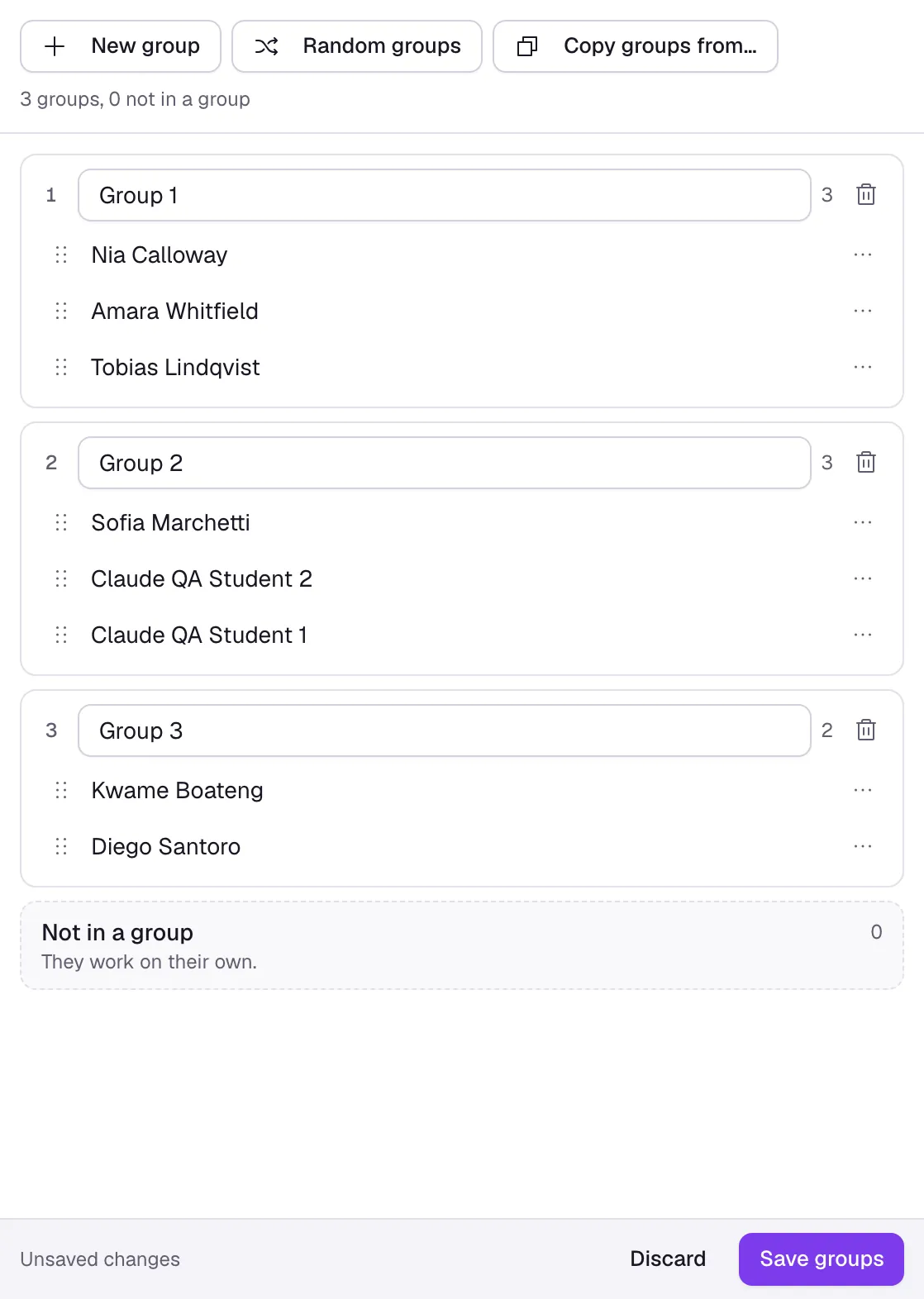
Set up groups opens the group board beside the assignment. Drag students between groups, or from the Not in a group tray. New group adds an empty one. Nothing changes for students until you press Save groups. The board is also the Groups tab on the right edge of every assignment. With partner work off, that tab says so and Open Settings takes you to the switch.
- Random groups makes groups for you, by group size or by number of groups, and can keep sections together.
- In a course with sections, the section menu at the top of the board shows one section at a time: its groups, numbered from 1, and its students who are not in a group. The board opens on the section you picked in grading, and choosing a section here picks it there too. Random groups then groups only that section and leaves the others as they are.
- Copy groups from… reuses a group set or the groups of another assignment. It lists only assignments that have saved groups, with how many, under their folders; click a folder to open or close it. In a long list, only the folder of the assignment you are on starts open. The groups appear on the board and are not saved until you press Save groups. In a course with sections, Copy into starts on the section shown on the board; pick one section and only that section's groups are copied. If a copied group mixes students from that section and another, Classla says so and copies nothing; pick All sections to copy every group.
- Save as group set keeps the groups on the board as a named group set, like "Classwork groups", so you can use them again.
- Classla does not limit how many students go in a group. Live editing together works for up to 64 open pages at once, and groups of two to five are what the feature is built for.
- A student you leave out of every group works on their own and sees "You're working on your own for now."
Moving a Student After Work Has Started
You can move a student at any time. When it affects work in progress, Save groups first asks "Save these groups?" and lists the started students you moved by name, under what happens to their work:
- "Their answers so far will be replaced by their new group's work": students who have already started, moved into a group that has started too.
- "They keep a copy of their old group's work so far": students moved out of a group that has started.
To pull a student out so they can begin again on their own (for example, they were absent), move them to Not in a group and tick Start fresh next to their name before you save. They start with empty answers, and their coding blocks start from the starter code (or from their own code from before they joined the group). The group keeps its work with the students who stay. Start fresh is offered only when someone stays in the group; a student who joins another group always takes that group's work.
A long list (for example, a whole class grouped after everyone started) scrolls, so Cancel and Save groups are always on screen.
Work that has already been submitted is never changed by a move.
What Students See
A student in a group sees who they are with, for example "Working with Sam and Riley". The group shares one set of answers. Everyone in it can type at once and sees the others' typing live, in the questions and in coding blocks: the group has one shared workspace per coding block, so a Run is shared too. The page works the way editing together does everywhere else.
In a coding block, Reset to Template resets the code for the whole group, since the workspace is the group's. The student confirms first: "This resets the code for your whole group."
Any member can submit for the whole group. They confirm first: "Submit for your group? This hands in the work for you, Sam and Riley." Afterwards everyone in the group sees "Your group submitted this assignment." When the results are released, each student sees the group's feedback under Feedback, plus their own private note, if you left one, under Just for you.
A student never sees a partner's grade, adjustment or private note. Math questions with random numbers give the whole group the same numbers; question order and other shuffles stay per student.
Due Dates and Time Limits
A group works to one due date. Once the groups are saved, each group card on the board shows a Group due date: press Set (or Change) to give the whole group its own date, and Clear to remove it. Without one, the card reads Latest member date: the group gets the latest due date among its members, so an extension for one student holds the group open. Instructors can set a group due date; a TA needs Manage Publishing and Due Dates, and without it the board does not show the control. Lateness, the gradebook's missing and late marks, and analytics all use the group's date, so a member never shows as missing while their group can still hand in. A group due date later than a member's Closes date also keeps the assignment open for that member until the group's date. A timed assignment runs one shared timer for the group.
Grading a Group
The grading roster lists each group once. Grade the group's work one time, and write Feedback for the group; every member gets the same score and feedback. Under each member's name there are two more fields:
- Adjustment for Sam: a point adjustment for that one student only.
- Private note to Sam: "Only Sam sees this."
The group's entry opens one member. To open another, press Open beside their name in the member list. Every member shows the group's work, coding blocks included, whoever wrote it, along with that member's own time on each question and paste flags. The gradebook stays one row per student, and each student keeps their own grade record, so adjustments, the course grade and grade categories work as they always do.
Who Did What: Contributions
Below the member fields, the grader shows a Contributions table for the group's attempt, with the line "A rough guide to who did what. Characters typed is not a measure of quality." It has one row per member:
- Time on assignment
- Active time with the assignment open. Reading between questions counts; a tab left idle for more than a minute does not.
- Answers typed
- Characters the member typed into answers, while editing live with the group or working alone, with the characters they deleted shown beside it.
- Code typed
- Characters the member typed in the group's coding blocks.
- Edits
- How many changes they made. Picking a choice, ordering a Parsons problem or drawing on a graph is an edit with no characters.
- Pastes
- Pastes from outside Classla into a coding block. Pastes into answer blocks are not counted.
Each question opens the same numbers question by question. Only teachers and TAs who can grade see Contributions (a TA needs View Grades). Students never see it, not even their own row. Edits a teacher or TA makes are never counted for a student.
The same numbers appear for every group at once in the assignment's Integrity panel (Group contributions, with an Uneven contribution mark when one member did much less of the typing and time), and across the course in Analytics (Group share on Students and a Low share in group work row in the attention list).
Treat it as a starting point for a conversation, not a grade: a student who worked out the solution out loud while a partner typed shows few characters. A reopened attempt starts fresh. If you move the student who started the group's work out of the group, the numbers so far stay with the copy of the work they keep, and the group's table counts from the move.
Live Games, Lockdown and Practice
- A partner-work assignment can't be played as a live game. When you go live, the dialog says so and offers Switch to individual and go live, which turns partner work off and starts the game. Once groups have started work, that switch is refused like any other attempt to turn partner work off.
- Turning partner work on while a live game is open on the assignment is refused: "A live game is running on this assignment. End it before turning on partner work."
- Partner work and Lockdown can't be on together. Turning partner work on with Lockdown already on is refused with "Partner work can't be used with lockdown. Turn off lockdown first." This also applies when Lockdown came from a course default you never touched on this assignment: the switch is greyed out with that note until Lockdown is off.
- Practice after grading is individual: each student practices on their own.
Integrity and AI
The similarity report treats a group's hand-in as one piece of work and does not compare partners with each other. The assistant can read and set up groups for you. Your own Claude, through the connector, can read the groups when you have given it Read student work, but it cannot move students: you do that in Classla.
What It Does Not Do
- Teachers make the groups. Students cannot pick their own partners yet.
- A partner-work assignment can't be played live, and can't be combined with Lockdown.
- Once a group has started work, partner work can't be turned off on that assignment.
- Moving a student who has started into a group that has started replaces their answers with the group's work. The board warns you first.
- Turning partner work on after students have started puts each group on its members' newest work in progress; a partner's own answers so far are replaced by it.
- Practice after grading is individual, never in groups.
- Working together live needs a connection, as everywhere else in Classla.
- Contributions is a rough guide, not a measure of quality and not a grade. It counts active time, characters, edits and pastes into code, nothing else.
- Contributions does not count pastes into answer blocks, only pastes into coding blocks.
- A reopened attempt starts its Contributions fresh. Moving the student who started the group's work out of the group restarts the group's numbers from the move.
- Code typed covers the group's coding blocks across attempts, so a resubmission's numbers include the earlier attempts' code.
- Reset to Template in a group resets the code for every member.
- There is no limit on how many students you can put in a group, but live editing together holds up to 64 open pages at once. Past that, the extra pages cannot edit live.
- If the timer or the due date submits for a group, the last few seconds of typing may not make it. Pressing Submit waits for the latest changes.