The Four Modes
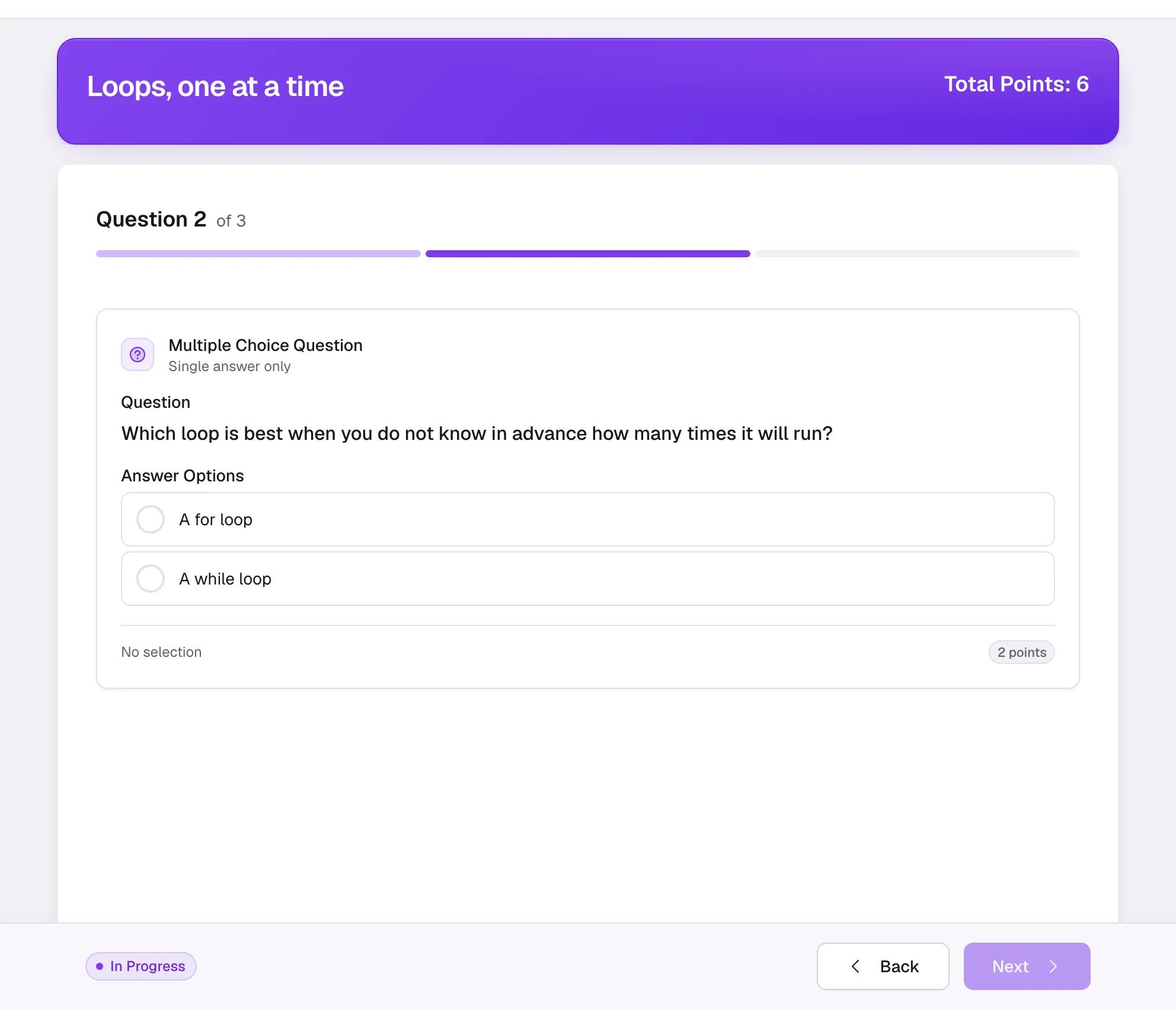
You write an assignment once, in one block editor, and the same document runs four ways: as a normal page, as one question at a time, as a live class game, and as a locked-down test. Sequential and Lockdown are switches on the assignment; live is a session started over it. Nothing is copied or rebuilt. Live answers are graded by the same graders and stored in the same shape as answers typed on the page, so they land in the gradebook without an extra step.
One Question at a Time
In the assignment's settings panel, turn on Sequential: "Students see one question at a time and move through them in order." A sub-switch, Lock answers, adds "Once a student moves to the next question, earlier answers can't be changed."
The panel shows a summary you can expand into the step list, in the form "3 steps, 5 questions, plus content on the Review step", so you see where the assignment splits before students do. Each question closes a step and the instructions above it travel with it.
Next waits for a real answer to the step's question. Staff are exempt from Lock answers, so you can fix an answer while helping.
A Live Class Game
Open any assignment with a graded block or a poll, use the small menu beside the points and choose Play assignment live. Every question the students can see becomes one round, in document order; text, images and other content are not rounds. An assignment has one open game at a time: starting another while one is running takes you to the running one.
A flashcard set plays too: each round is one card as a multiple-choice question, and you choose how many cards to play and which side shows first.
Set Up the Game
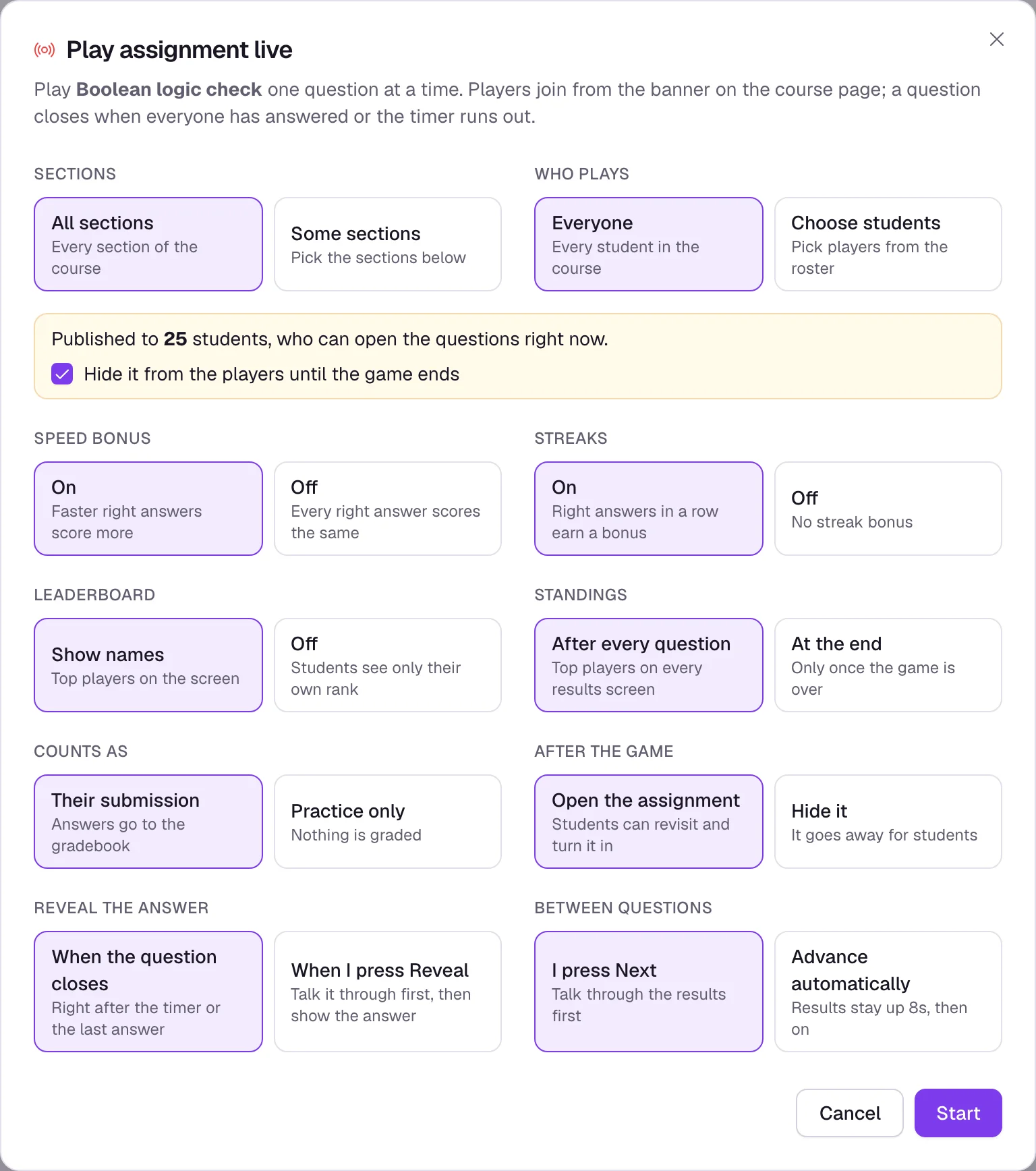
The Play assignment live sheet sets the game, not the assignment:
- Game
- "Classic", everything on this page, or "Race", where everyone goes at their own pace and a wrong answer sends them back to question 1 (see Race below). The sheet shows only the settings that mean something in the game you pick.
- Sections (When the course has sections)
- No section is ticked when the sheet opens: tick the ones playing, or All sections. Start waits until you pick one.
- Students
- Everyone in those sections is ticked. Untick anyone who is not playing, or untick All students and pick a few. If you took attendance in the last day, Checked in picks only the students in those sections who checked in. With no attendance taken it is greyed out. A student who arrives after the game started can be added from Late arrivals (see Students Join below).
- Speed bonus
- "On": faster right answers score more.
- Streaks
- "On": right answers in a row earn a bonus.
- Leaderboard
- "Names", or "Off", where students see only their own rank.
- Show standings
- "Each question", or "At the end".
- Teams
- "Off", or "On". See Teams below, which also covers Split MCQ choices across teammates.
- Counts as
- "Graded", so answers go to the gradebook, or "Practice", where nothing is graded.
- After the game
- "Open it", so students can turn it in, or "Hide it". Opening publishes it right away for every player who could not see it, even a section you had scheduled for later, and lifts the Closes date for a player it had closed for. Choose Hide it, or leave that section out of the game, if you do not want that.
- Reveal the answer
- "Auto", when the question closes, or "When I click", so you can talk it through first.
- Next question
- "When I click", or "Auto", with Show results for (3 to 120 seconds) for how long each results screen stays up.
- Time per question
- 5 to 600 seconds, and, when the assignment has a coding question, a separate Time per coding question.
- Tests during coding rounds
- Only when the assignment has a coding question. Off by default. On, players can press Run Tests during a coding round, on blocks with Allow student to check answer on. The score still comes from the tests that run when the question closes.
If the assignment is already published to some of the players, the sheet says how many can open the questions right now and offers Hide it until the game ends. The sheet opens with the defaults under Live games in Course Settings, and starting a game saves what you chose there. You can still change them for each game. A setting that depends on another, like Show standings on the leaderboard or Players per team on Teams, is greyed out until it applies.
Students Join
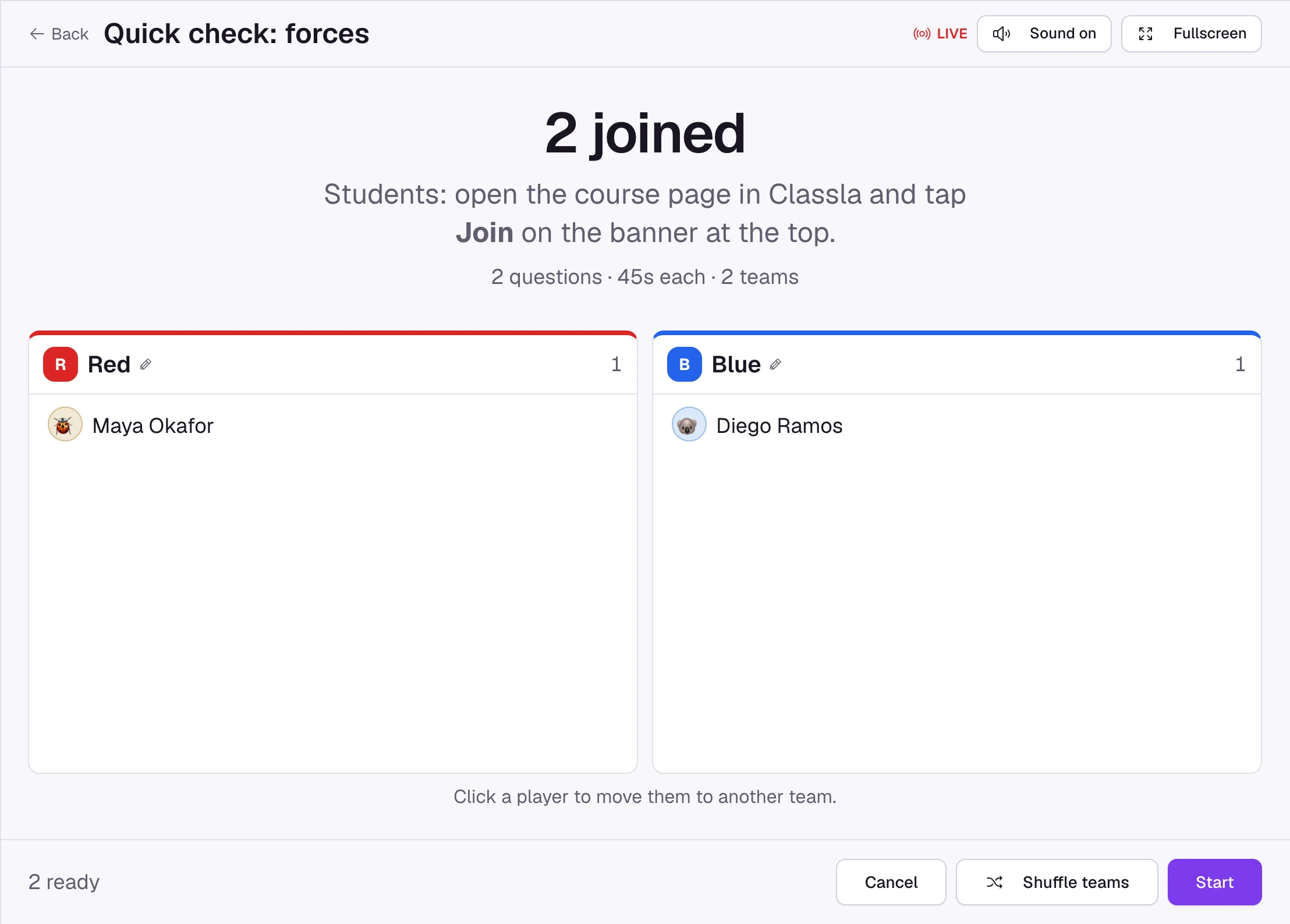
Start on the sheet puts your screen in the lobby. There is no code to read out: students open the course page and press Join on the banner across the top, which reads "… is live" and, once the game is running, which question it is on. A student who drops out sees Rejoin, a student who arrives late can still join, and you see Open to get back to your screen. Each player picks an animal avatar in the lobby; it shows on the projector and stays theirs for the next game. If a player's connection drops, a yellow strip on their screen reads "You're offline" (or "Reconnecting") and tells them they are still in the game; their screen catches up on its own once they are back.
Run the Game
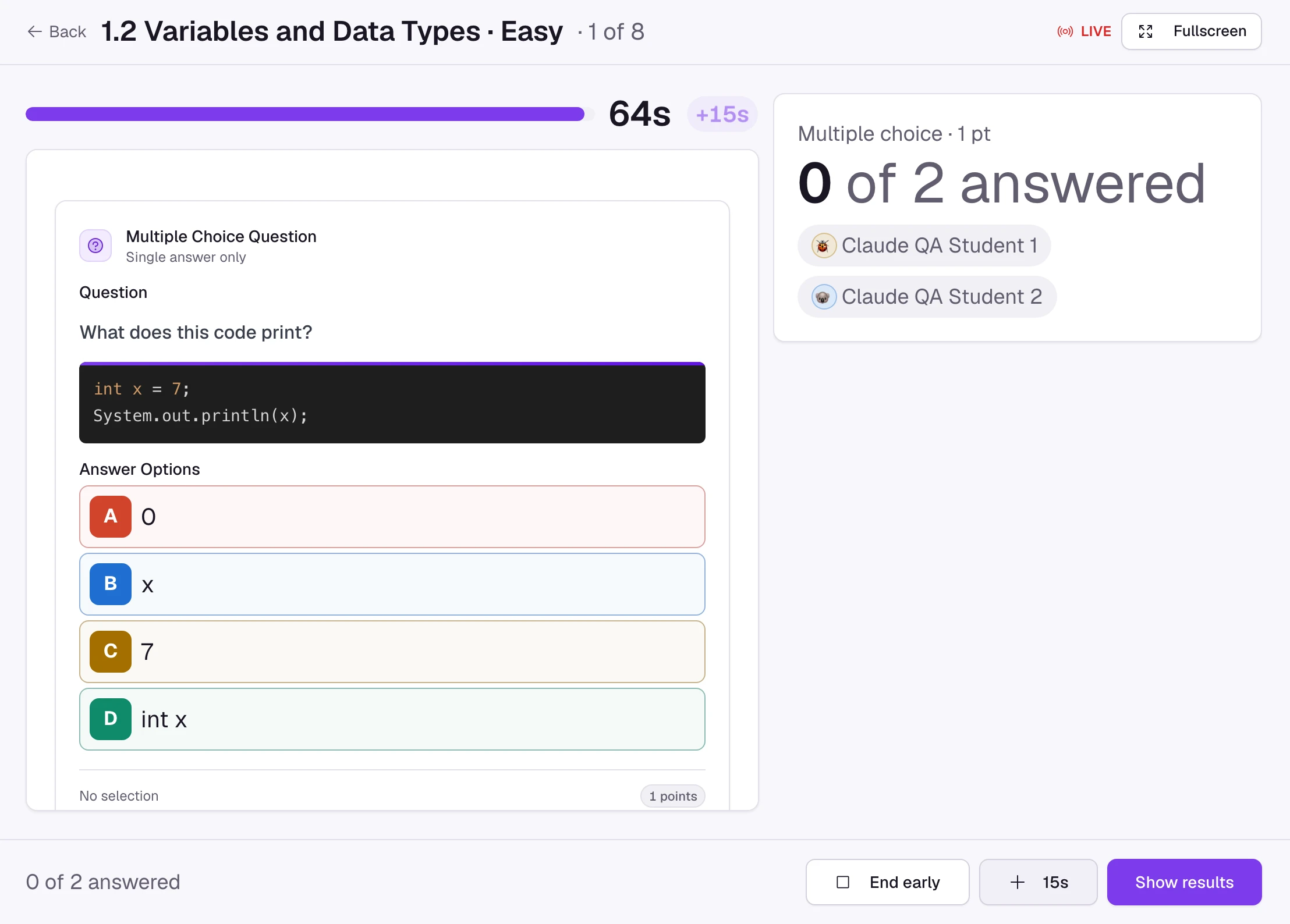
Your screen is the projector. Every control sits in the bar along the bottom, so nothing you need mid-game is below the fold.
- Start
- Opens the first question after a 3-2-1. The clock starts after the countdown, so nobody loses speed points to it. Cancel ends the game from the lobby.
- End question
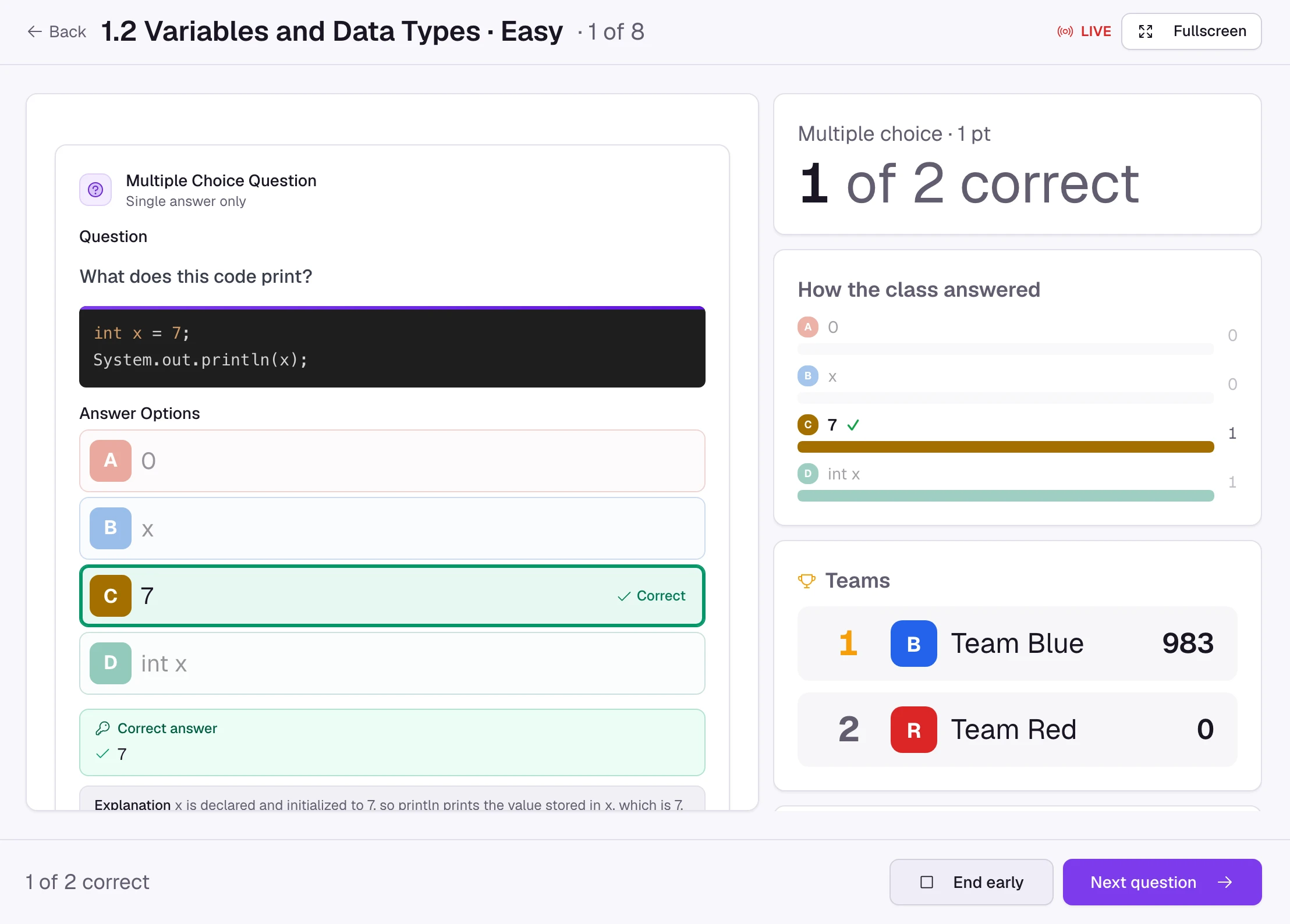
- While a question is open you see how many have answered and who. The question closes when the timer runs out or when the last player answers. End question closes it early for everyone.
- +15s
- Beside End question, adds time for everyone; press it again for more. An answer in the added time scores like an answer at the buzzer, so nobody who already answered loses points.
- Reveal answer (With "Reveal the answer: When I click")
- With "When I click", a closed question shows the vote split with nothing marked and "Answer hidden. Reveal when the class is ready." until you press Reveal answer. Then the right answer lights up, followed by the standings.
- Next question
- Opens the next round; on the last one it reads Finish game. With "Next question: Auto" the bar counts down to the next question, and Hold stops the countdown for that round so you can talk.
- End game
- Stops the game at any point. The answers given so far are kept and the game ends as if it had finished.
A short answer you grade by hand scores no game points. Once it is revealed, the projector lists every response with the student's name under "Responses · graded after the game", so reveal it only if you mean to discuss the answers in front of the class.
What Players See
Each player answers on their own device, one question at a time. A multiple choice question shows its options in four colours, each with its letter A to D, in the same order on every screen. The player presses Lock it in, and the answer leaves the screen so a neighbour cannot read it. One answer per question: a locked-in answer cannot be changed.
When the answer is revealed, each player sees their verdict ("Correct", "Partly right" or "Not quite"), the game points they earned, their streak, and where that left them ("You moved up to 4th", "Still 2nd"). In a team game their team's place comes first. At the end each player sees where they finished, and when the game opens the assignment afterwards, Review your answers takes them to it.
How the Game Score Works
A fully right answer is worth 1,000 game points. With the speed bonus on, that shrinks evenly to 500 at the buzzer; with it off, every right answer scores the same. Partly right answers score their share. With streaks on, the second right answer in a row adds 100, the third 200, and so on up to 500 a question. Polls and questions you grade by hand score no game points and do not break a streak. The game score is for the leaderboard only: the grade comes from the stored answers, graded as usual.
Directions Above a Question
The text, images and alerts you wrote above a question, since the previous question, travel with it into the game: players see them above the question, and so does the projector. Content hidden from students stays hidden. When two questions follow each other with directions above only the first, the directions show with the first.
A game played with only some students (unticked students, or Checked in) is not shown to anyone else. When a student walks in late, press Late arrivals at the top of your screen, tick them and press Add student. Only students in the game's sections who are not in it yet are listed. They then see the banner, press Join and start at the current question; the questions they missed stay unanswered. If you ticked Hide it until the game ends, the assignment is hidden from them too until the game ends.
Teams
With Teams on, Make teams by picks Size, 2 to 10 players a team, where players fill one team before the next opens and a player left alone joins another team when you start; or Count, 2 to 12 teams, where players join the smallest team. When the course has group sets, Group set makes one team for each group in the set you pick (2 to 12 groups), named after the groups. Students join their group's team, and anyone not in the set joins the smallest team. In the lobby you can Shuffle teams, or click a player and pick the team to move them to. A player who joins after the start goes to the smallest team; until they answer a question you can move them in Late arrivals (not while a split multiple choice question is open). A player who has answered keeps their team. Everyone still answers on their own device and is graded on their own answers (a split multiple choice question, below, is the exception). The results rank the teams by the average score of their players, so a smaller team is not behind for it.
Each team gets a colour and is called by it, such as Team Red, until somebody names it. In the lobby a player can press Name your team and type a name of up to 24 characters; the last name typed wins, and the name never says who typed it. You can rename or clear any team's name on the projector while the game is open, and a cleared name goes back to the colour. To keep students from naming teams, set Students name their team to Off in the Teams group: the button is gone from their screens and only you can rename a team. During each question the projector groups the players by team, with how many on each team have answered and "All in" once they all have.
When the assignment has a multiple choice question with one right answer, the Teams group also has Split MCQ choices across teammates. With it on, each teammate's screen shows only some of that question's choices, and a line saying how many the others hold, so the team has to talk to find the answer. The first teammate to lock in answers for the whole team, and the others see who did. Every other question, including a multiple choice question with more than one right answer, plays as usual. A split question scores for every member of the team. With "Counts as: Graded" the team's answer is saved on every member's submission and graded there, so teammates get the same result on that question.
Race
Pick Race at the top of the sheet for a different game. You press Start once, and after the 3-2-1 every player works through the questions at their own pace. A right answer moves their car forward one question. A wrong answer sends it back to question 1, and the questions come again in the same order. The first player to get through every question without a miss wins, and the rest place by their finish time. There are no points: a player who rushes and misses starts over, so it pays to stop and think.
The sheet hides what only means something in a Classic game (the speed bonus, streaks, standings, the timers, revealing and the next question) and shows the race's own rules:
- Question order
- "Shuffle once", where each player (or team) gets its own order, kept on every restart, or "As written".
- After a miss
- "Say it was wrong", so the player works it out on the next run, or "Show the answer", where the question shows with its right answer before they start over.
- Race ends
- "When I end it", or "Time limit", 1 to 60 minutes.
- Computer racer
- "Off", "Easy", "Medium" or "Hard". It adds a car that takes a set time per question, misses now and then and goes back to the start too. The sheet shows its typical finish time, so you can pick the time you want the class to beat. It never takes a student's place on the podium.
Only questions graded the moment they are answered can race: multiple choice, fill in the blank, Parsons, matching, code selection, graph and math questions, and every flashcard. When some are left out, the sheet says how many race and how many coding, poll or written questions are left out. A race is always practice: nothing goes to the gradebook.
After a miss the player waits 3 seconds before their next run, so guessing costs more than reading. With Teams on, each team drives one car: any teammate can answer the team's question, the first lock-in counts, and a miss sends the whole team back. With Split MCQ choices across teammates on, the choices of each multiple choice question are split across the team's phones as in a Classic game.
The projector shows a track with a lane per player or team, how far each car has got and how many times it has restarted, with names or numbered cars as Names on the track says. With a time limit, 2 min adds time and the race ends itself when the clock runs out. End race shows the first three finishers and the questions the class missed most.
In a team race the track shows each team's name, not its players. To see who is on which team, press Teams in the top bar: a panel beside the track lists every team and its players until you press Hide teams. Or click a team's name or car to list just that team. Both show players' names, even with Names on the track off.
In the lobby each player can tap Your ride and pick what they drive: a race car, a pickup, a monster truck, a school bus, a bike, a skateboard, a rocket, a flying saucer, a helicopter, a submarine, a horse, a unicorn, a dragon, a dinosaur, an elephant, a snail and more (30 in all), each with a helmeted racer at the controls. It stays theirs for the next race, like the avatar. A team drives one car, so teams don't pick a ride. With Names on the track off, every car is the plain race car.
Polls in a Live Game
A poll is a round like any other, with no right answer and no game points. When it closes, players see "Polls don't score. Here's what the class thinks." with the vote split, and the final summary counts its votes. With "Counts as: Graded" each vote is saved on the student's submission like a vote cast on the page, so it shows in the poll's results afterwards.
Sound and Full Screen
The projector plays music and sound effects: a lobby track, question music that builds as the timer runs down, cues for the 3-2-1, the last five seconds, the reveal and the podium. Only your screen plays sound; students' devices stay silent. Sound on / Sound off in the top bar mutes it, and your browser remembers the choice. Fullscreen beside it hides the course around the game, and players have the same button.
Coding Questions
Coding questions play too, as timed coding rounds: Computer science covers them.
When the Game Ends
After a game played in teams, Save teams as group set keeps the teams to use again. The final screen shows the winning team when teams are on, the standings (a podium when the leaderboard shows names), and "By question": how much of the class got each one right. With "Graded", the answers are already on each player's submission and in the gradebook; nothing is exported. A player who already handed the assignment in gets a new attempt only if they could start one themselves: not with resubmissions off, after you reviewed their work and released the answers, or once it has closed for them. Their handed-in work stays as it was, and a message after you end the game names them. On a timed assignment, a player's timer starts when they open the attempt the game made, not during the game. After the game is applied at this moment. See submissions opens the grading view for the assignment.
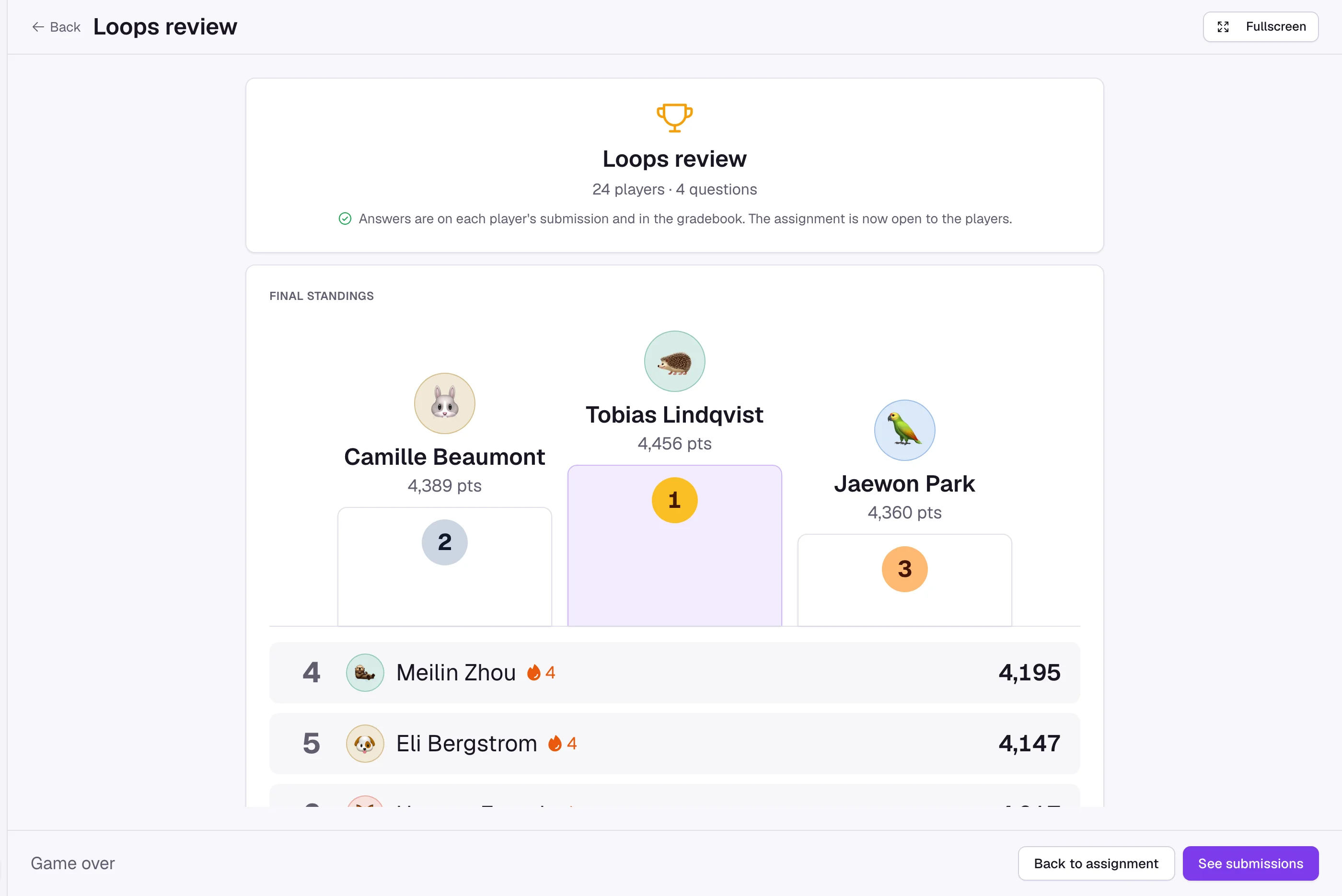
Later, the answers are where any answers are: in the grading view and the gradebook. The game's own results, the standings and how the class did on each question, are not kept on a page, but the assistant and your own Claude can read them, for practice games too. Ask "how did the class do on the review game?".
A Locked-Down Test
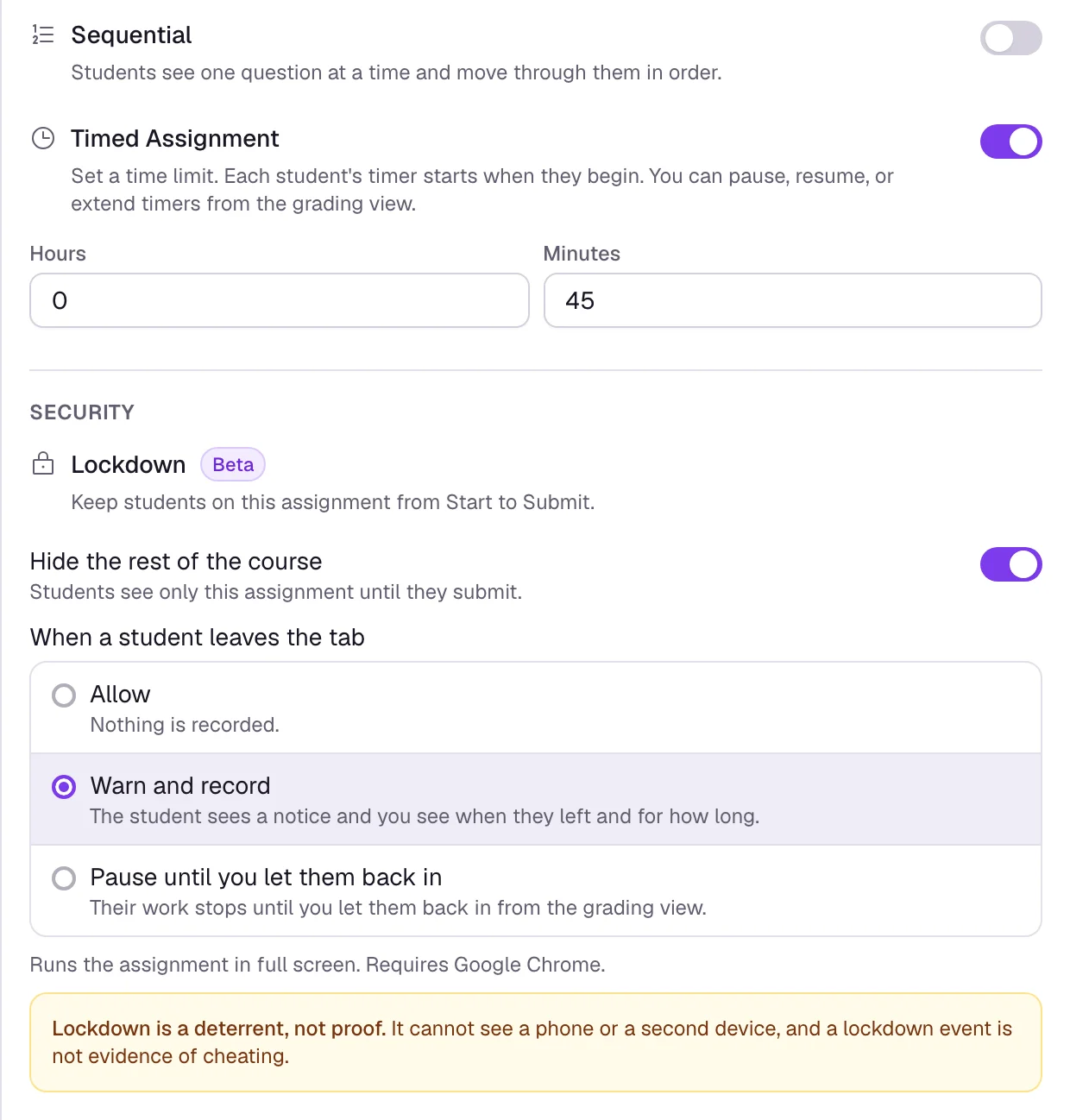
Lockdown is two independent switches under a Beta chip, described as "Keep students on this assignment from Start to Submit."
- Hide the rest of the course: "Students see only this assignment until they submit." The server refuses every other assignment while it is on, so students cannot reach them by another route. It works in any browser.
- When a student leaves the tab: Allow records nothing, Warn and record notices the student and tells you when they left and for how long, and Pause until you let them back in stops their work until you release them.
With Warn and record or Pause on, the assignment runs in full screen and requires Google Chrome on a computer or Chromebook: the student presses Enter full screen and start, and anywhere else they are told "Open this assignment in Google Chrome on a computer or Chromebook. It can't start on an iPad or phone." The grading view gains a Needs release filter, Let back in and Lift lockdown per student, and Let everyone back in for the class; the integrity panel keeps a timeline of every start, leave, return and release. Both switches are recorded at Start, so a setting changed mid-test applies to the next one.
Devices and Browsers
Hide the rest of the course works on every device and browser. The tab watch (Warn and record or Pause until you let them back in) starts only where Classla can hold the student in full screen and notice when they leave:
- Works: Google Chrome on a Windows or Mac computer, and Chromebooks.
- Does not start: iPads and iPhones, in every browser, Chrome included (Request Desktop Site does not change this); Android phones and tablets; Safari, Firefox, Edge, Brave and Opera on a computer.
Where the tab watch cannot run, the student sees the message above instead of a Start button. Classla never starts a watched assignment in a weaker form that looks locked down but is not. A web page cannot keep an iPad or phone in one app or see reliably when the student switches away; on those devices only the school's device management can.
For iPad classrooms: turn on Hide the rest of the course only, and keep students on Classla with your school's device management or classroom monitoring tool (a single-app or tab lock). Students then see only this assignment until they submit.
Practice, After the Grade Is Final
A fifth mode, off until you turn on Practice after grading in the settings panel: "Students can redo this assignment for review once their grade is final. Practice never changes a grade or a submission." The panel says in words when practice opens under your other settings, and Allow practice after can hold it until a date.
Practice opens for a student once they have submitted, their submission is final (they can no longer resubmit: resubmissions are off, you have reviewed it, or it is past due with late work off), their score is released, and Submission Visibility lets them see their work: Never keeps practice closed, and When marked reviewed holds it until you review the submission. Practice closes with the assignment: once the assignment has closed for a student, they can no longer start or continue a practice run.
What the Student Does
- Practice
- Appears beside their submission (Resume practice if they left one unfinished) and opens a blank copy of the assignment in amber, so it is never mistaken for the real attempt. Required questions still have to be answered.
- Finish practice
- Shows each question as "Correct", "Incorrect", a part score such as "2 of 4", or "Not auto-graded".
- Reset
- Clears the run and starts again from blank.
- Practice again
- Starts a new run.
- Exit practice
- Goes back to the real submission.
Their Grades page shows "Practiced N times" beside the assignment.
Practice never touches the real submission, the grade, the gradebook, the paste trail, the history timeline or the integrity panel. In the grading view you see a "Practiced" chip, a Practiced status filter and their runs, read only, and the assignment's analytics show a Practice tile comparing Best practice avg with Their real avg.
What It Does Not Do
- Live plays graded blocks and polls. Text, images, tabs, reveals, alerts and embeds are not questions and do not become rounds, and neither is a Show Your Work block, so an assignment with nothing to play refuses to start.
- Sequential is pacing in the browser, not a security control. The server sends the whole document, so a student working outside the page can read ahead, and only Lock answers is enforced on the server. Pair it with Lockdown if that is the goal.
- Lockdown is a deterrent, not proof. It cannot see a phone, a second device or another monitor, and a lockdown event is not evidence of cheating.
- The tab watch (Warn and record, Pause) needs Google Chrome on a computer or Chromebook; iPads, phones and other browsers cannot start the assignment rather than getting a weaker version. Hide the rest of the course on its own works on any device.
- The speed bonus and streaks are for the leaderboard only. The gradebook number is recomputed from the stored answers, never copied from the game.
- Teams are a game standing, not group work: apart from split multiple choice questions, every student answers alone and gets their own grade. Teams can be changed only before the first question, and players name their team only in the lobby, and only when Students name their team is on. Players never choose their own name: they show as their name in the course, and Leaderboard (Names on the track in a Race) set to Off keeps their names out of the rankings and off the cars.
- Split MCQ choices across teammates splits only multiple choice questions with one right answer. A split question is the team's answer, so with Counts as: Graded it is saved and graded on every member's submission.
- A partner-work assignment can't be played live, and can't be combined with Lockdown. The live dialog offers Switch to individual and go live, which turns partner work off first.
- Added time can only be given while a question is open. A closed question cannot be reopened, and a locked-in answer cannot be changed.
- With "Counts as: Practice", nothing is written to submissions or the gradebook.
- A race is always practice, and plays only questions graded the moment they are answered: coding questions, polls and written answers are left out. A race's track and finish times are not kept after it ends, and the assistant can't read them.
- A timed race ends from the page you are hosting on, like the question timer.
- There is no page listing past games. The answers live on the submissions; the game's standings are read through the assistant or your own Claude.
- During a live game the assignment's own time limit, Sequential, Lock answers and Lockdown settings have no meaning; the game uses its own. Practice likewise ignores Lock answers, the time limit, the due date and lockdown, but not the Closes date: once an assignment has closed for a student, practice is closed too.
- Auto-advance and the timer's close run from the page you are hosting on. Close the laptop and the game stops advancing.
- Sound plays only on the hosting screen, and only in a browser that supports it; when it does not, the Sound button does not appear.
- A live game leaves each student's attempt in progress rather than submitted. "After the game: Open it" is what lets them turn it in.