Grading Code
Open a student in the grading view and each coding block shows their files, their test runs and the score the tests gave. You can run their code, rerun the autograder for the class, scrub back through every version of a file, and see every paste. Similarity across the class sits beside that record. None of it is penalized automatically, and no student sees the paste flags or the similarity.
A Coding Block in the Grader
The roster, scores and feedback work as for any assignment (see Grading). On a coding block, what you open depends on where the student is:
- Work in progress: their actual workspace, with live cursors. You can type a fix beside them while they watch. A student who never opened the block shows "No Student Work".
- Submitted work: a private copy of what they handed in. You can edit, Run and Run Tests to investigate, and the submitted record never changes. The copy is thrown away when you move to the next student.
You always get Run and the Auto Grader tab here, even when the block has Disable running code on or Check Answer off. A run you start shows an Instructor badge in the run list and does not appear in the student's own history.
Expand, beside the history button above the student's editor, opens the editor in a large window over the grading view, with a taller history timeline. Everything carries over, including where you are in the history. Esc or a click outside closes it.
Scores and Test Runs
The block's score is the result of your tests on the student's code when they submitted: the tests run again at submit, and that newest run counts. A block with Manual Grading tests, or with no tests at all, waits for your score and reads Pending grading until you give one or mark the attempt reviewed. How points and tests fit together is on Coding blocks.
If you edit a student's code, that edit is recorded: the history shows a blue marker such as "Instructor edited this file", and the student sees the same marker in their own history.
Rerunning the Autograder
After you fix a test, Rerun Autograders in the grading sidebar runs it again on everyone's submitted code. The dialog: "Runs the selected IDE autograders against each student's submitted code (bounded queue on the server; closing this dialog doesn't stop it), then rescores all blocks. Scores you entered by hand are kept."
- Who: Current student, All students shown (the roster as filtered), or Select students.
- What: under Autograders to run, tick blocks, and on a block with several tests, individual tests. Every other block is rescored automatically.
- Students with no submission yet are skipped, and the dialog names them. Their scores still follow their own Run Tests while they work.
Run Tests starts it on the server. Progress shows per student, and you can close the tab ("Running on the server; you can close this tab."); the sidebar shows "Rerunning autograders…" until it finishes. Cancel Run stops students not yet started. The rerun's own results become the score, and practice attempts are never rerun.
The History Timeline
Every file keeps every version. View History, the round button at the top right of the editor, opens a timeline of the file under the editor. Drag across it, use the mouse wheel or double-click to zoom; Fit to edits and Reset zoom back out. Gaps of three minutes or more are collapsed into a short hatched mark ("12 min idle"), so the shape of the work is easy to read. Long stretches of small edits look different from a file that grew a hundred lines in one second.
Markers sit on the timeline where something happened:
- amber: a paste, such as "outside paste, 3 lines" (in the grading view only)
- blue: a staff edit, such as "Instructor edited this file"
- purple: a restore, "Restored from …"
- grey: "Workspace reset", when the student pressed Reset to Template
Restore this version puts one file back to the version you are looking at, after a second confirmation: "Only this file changes, and the current version stays in history." Students can restore their own work in progress. Submitted work cannot be changed, so in the grading view a restore lands in your private copy. History is kept with no expiry.
The Paste Trail
Every paste into a graded coding block is recorded with where it came from, how many lines it was, which file it landed in and when. The pill on each row is the origin:
- outside
- The text was not copied from anywhere on the page, so Classla does not know where it came from. This is the one that is flagged.
- from editor
- Copied out of a code editor on the same page. Logged, never raised.
- from page
- Copied from the assignment itself, such as the instructions. Logged, never raised.
- unreported
- "A large block of text appeared in one edit with no paste command. Treated as a probable paste." (200 characters, or four or more line breaks, arriving at once with no paste command.)
A paste into the terminal carries a terminal chip. It is flagged when it writes a file or is a block of code rather than a command. A paste by you or a TA carries an Instructor edit or TA edit pill and is never flagged, and staff pastes are left out of everywhere the student's paste behaviour is counted.
Where to Find It
- the paste count in the coding block's header ("3 pastes", "1 flagged")
- an amber row at the top of the student's work in the grader, such as "3 outside pastes, 61 lines, 1 blocked, terminal"
- an amber pill on the roster that reads Pasted with the line count, such as "Pasted 61 lines", and the roster filter Pasted from outside
- the Pastes card in the Integrity panel, opened from the assignment's side rail
Each row expands to the pasted text, with Show in history (jumps the timeline to that moment) and Find in current file.
Blocking Pastes
In Course Settings, under New blocks, then Coding, Block pasting from outside the editor turns it off for every coding block: "Students can still paste text they copied from the editor or the assignment page. Every paste is recorded for graders. Applies to every coding block unless the block changes it." A single block can override it either way with Pasting from outside the editor.
A student who tries sees "Pasting from outside is off", followed by "Your instructor turned off pasting from outside the editor for this coding block. You can still paste text you copied here." The attempt is still recorded, with a blocked chip.
Similarity
Open Integrity from the assignment's rail and choose the Coding block. Classla compares every student's code on that block against every other student's: the submitted version, or the current one for students still working. All six languages are supported.
- Your starter files are removed from the comparison first.
- With five or more students, code that more than half of them share is ignored too, so a common pattern from class does not make everyone look alike.
- A student who wrote too little is listed as "Too short to compare". When the whole class wrote little, or fewer than three students are compared, the panel says "Short assignment. Students wrote about N lines each, so similar answers are expected."
The result is a histogram, "Similarity, nearest match per student", with a draggable line and a footer such as "Typical student: 34%. 3 students above the line. Drag the line to change what counts as high." The line starts at a suggested value, usually in the gap between the students who share work and those who do not (never under the class average, between 30% and 95%; 70% with fewer than five students). Moving the line only changes what is listed. It never reruns anything.
The check runs when you open the panel and the report is out of date. A result less than an hour old for the same code is reused; Check again forces a new one.
Comparing Two Students
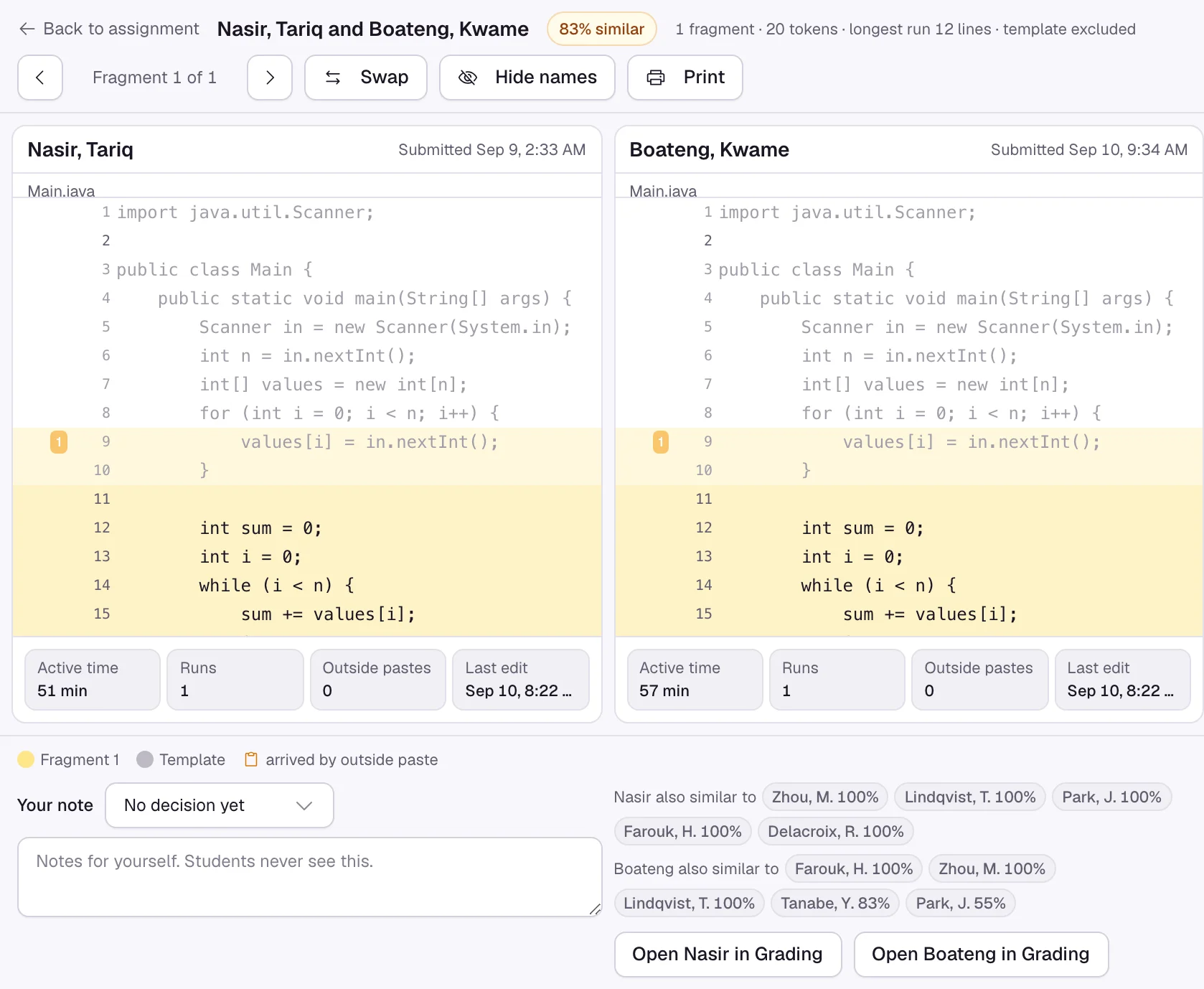
Opening a pair gives you the two files side by side with the matching fragments highlighted, Swap, Hide names and Print, plus tiles for Active time, Runs and Outside pastes so you can see how each one was written, not only how it ended up. Fragments that arrived by an outside paste are marked as such.
At the bottom is Your note ("Notes for yourself. Students never see this.") and a decision: No decision yet, Cleared, Discussed or Referred. The record is there for when you talk with the student, or with a parent weeks later.
A student above the line also gets a row at the top of their work in the grader, such as "Similar to Chen, M. (91%, 48 lines in common).", with Compare. The row goes away once you mark the pair Cleared. There are no rows when the check would not mean much for the class: a short assignment, or one where most of the class looks alike. Then the panel says "Most students look alike here. Similar answers are common on this assignment." The panel decides this when more than half the class is above the line, or when nearly a third of the class has a near-identical match.
What It Does Not Do
- Nothing is scored, penalized or reported automatically. There is no cheating score and no threshold that does anything on its own.
- Similarity compares one coding block inside one assignment. It does not look across assignments, across courses, at last year's classes, or at the internet.
- Blocking a paste is a revert, not a prevention. The text lands and is removed inside the paste's own undo step, so it is a deterrent. Pasting from an editor or from the page still works, and a paste into the terminal is recorded but never blocked.
- The student Workspace and practice attempts are exempt: no paste trail and no similarity.
- Students never see paste flags, the Integrity panel or similarity. They see their own file history, including your edits, and their own test runs.
- Classla records edits, pastes and runs inside coding blocks. It does not record keystrokes elsewhere, other browser tabs, the screen or the camera.
- A TA without the View Students permission sees "Anonymous" in place of names in similarity.
- Paste content and file history are kept, by decision, so you can still read a trail from months ago.